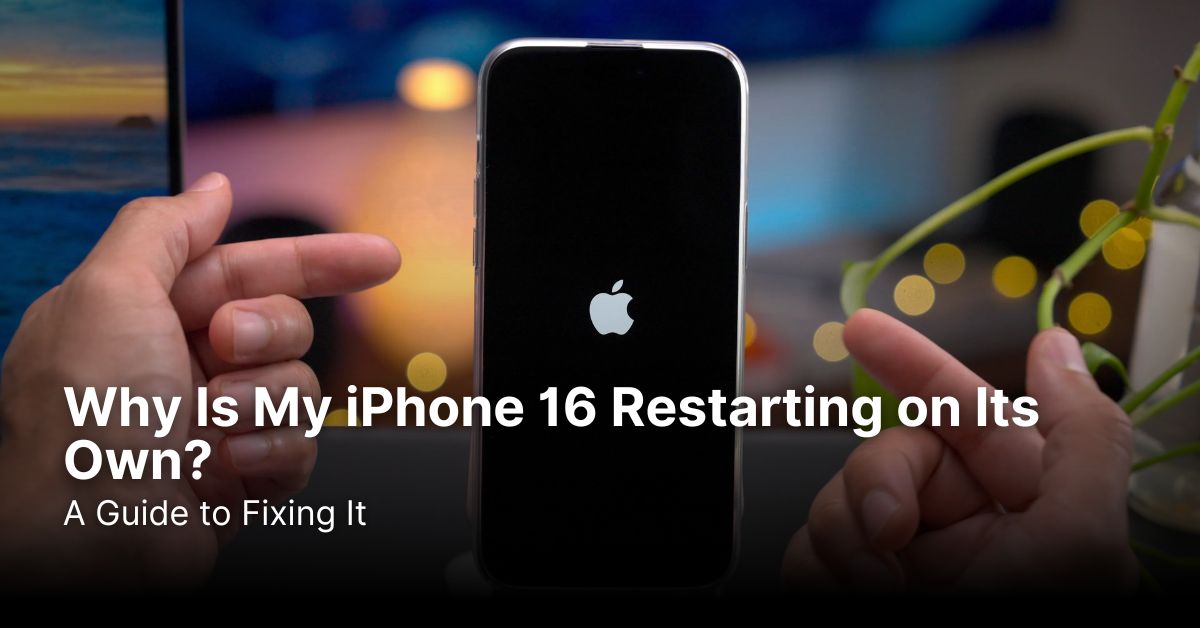
IPHONE • DAILYTECH.ID - It’s incredibly frustrating when your brand-new device doesn’t work as expected. You’re in the middle of a call, typing an important email, or lining up the perfect shot, and suddenly—black screen, Apple logo, and you’re back at the lock screen. If you’re dealing with an iPhone 16 restarting on its own, you’re not alone. This unexpected behavior can disrupt your day and make you worry about your expensive new gadget.
Don’t panic! An iPhone that randomly reboots is a common issue with a wide range of causes, from simple software glitches to more serious hardware problems.1 The good news is that you can solve many of these issues yourself with a bit of systematic troubleshooting. Think of this as a process of elimination, where we’ll start with the easiest fixes first.
This guide will walk you through everything you need to know to diagnose and fix the iPhone 16 restarting problem. We’ll cover simple software tweaks, advanced recovery methods, and how to tell when it’s time to call in the professionals. Let’s get your iPhone back to running smoothly so you can get on with your life.
Software vs. Hardware: Pinpointing the Cause of Restarts
| Feature | Software-Related Issues | Hardware-Related Issues |
| Common Culprits | Buggy iOS update, misbehaving apps, low storage, corrupted system files. | Failing battery, faulty logic board, loose internal connectors, water damage. |
| Telltale Signs | Restarts happen when using a specific app or after a software update. | Restarts occur randomly, often when the phone is physically moved or gets warm. |
| Fix Difficulty | Easy to Moderate (DIY-friendly). | Difficult to Impossible (Requires professional repair). |
| Potential Cost | Free (if you can fix it yourself). | Can be expensive, depending on the component and warranty status. |
Diagnosing the Root Cause: Why Does My iPhone 16 Keep Restarting?
Before you start trying random fixes, let’s take a moment to understand what might be going on behind the scenes. When your iPhone 16 keeps restarting, it’s usually due to one of two culprits: a software conflict or a hardware failure. Software issues are far more common and usually easier to fix. They can stem from a recent iOS update that introduced a bug, an app that isn’t playing nicely with the system, or simply running out of storage space, which prevents the operating system from functioning correctly.
Hardware issues, on the other hand, are physical problems with the components inside your iPhone. This could be a worn-out battery that can no longer provide stable power, a damaged logic board (the phone’s brain), or a loose connector that’s causing an intermittent failure. These are often the cause of an iPhone 16 restarting completely at random, regardless of what you’re doing. A good first step in figuring this out is to look at your iPhone’s own diagnostic logs.
Checking Your iPhone’s Panic Logs
Your iPhone keeps a record of major system failures, and you can access it to find clues. These logs are called “Panic Logs,” and finding one is a strong indicator of a hardware problem. Don’t worry, it’s easier to find than it sounds!
Here’s how you can check:
- Go to Settings > Privacy & Security.
- Scroll down and tap on Analytics & Improvements.
- Tap on Analytics Data.
- Scroll through this long list and look for any files with names that start with “panic-full”.
If you see one or more “panic-full” logs, it strongly suggests a hardware failure is causing your iPhone 16 to restart. The system is “panicking” because a physical component is failing or not communicating correctly. While this isn’t a definitive diagnosis, it’s a huge clue that software fixes might not be enough. If you don’t see any panic logs, that’s great news! It likely means your problem is software-based, and the following steps should help you resolve it.
Simple Software Fixes You Can Try Right Now
Always start with the simplest solutions. These steps are quick, easy, and often resolve the problem without any risk to your personal data. Let’s walk through the most effective first-line fixes for an iPhone 16 that keeps restarting.
Perform a Force Restart
A force restart is more powerful than simply turning your phone off and on again. It’s like a hard reboot for your computer, clearing out temporary memory (RAM) and shutting down all background processes that might be causing a conflict. This single step can often stop an iPhone 16 restarting cycle caused by a minor software glitch.
Here’s how to do it:
- Press and quickly release the Volume Up button.
- Press and quickly release the Volume Down button.
- Press and hold the Side button (the power button) until you see the Apple logo appear. Ignore the “slide to power off” slider and keep holding.
- Once the Apple logo appears, you can release the button.
After your iPhone boots back up, use it normally for a while to see if the random restarts have stopped. This is the first thing you should try, as it’s completely safe and surprisingly effective.
Update Your iOS and Apps
Apple regularly releases iOS updates to patch security holes and fix software bugs—including those that can cause random restarts.2 Running outdated software is one of the most common reasons for an unstable system. Similarly, app developers update their apps to stay compatible with the latest version of iOS.
To check for an iOS update, go to Settings > General > Software Update. If an update is available, your iPhone will prompt you to download and install it. Make sure you’re connected to Wi-Fi and have enough battery life before you begin. To update your apps, open the App Store, tap your profile icon in the top right, and then tap Update All. A stable system relies on all its software components being up-to-date and working together harmoniously.
Free Up Storage Space
An iPhone needs some free space to breathe. The operating system uses storage as “virtual memory” to manage tasks. If your storage is almost full, iOS can’t function properly, leading to slowdowns, crashes, and unexpected restarts. A good rule of thumb is to always keep at least 10% of your total storage free.
You can check your storage by going to Settings > General > iPhone Storage. This screen will show you a breakdown of what’s taking up space and offer recommendations for freeing it up. You can offload unused apps (which keeps their data but removes the app itself), delete old photos and videos, or clear out large message attachments. Managing your storage is crucial for a healthy iPhone and can often solve the dreaded iPhone 16 restarting issue.
Reset All Settings
If the problem persists, the next step is to reset your iPhone’s settings. This won’t delete any of your personal data like apps, photos, or contacts. Instead, it will revert all your system settings—like Wi-Fi passwords, notification preferences, wallpaper, and privacy settings—back to their factory defaults. A corrupted setting file can sometimes be the hidden cause of system instability.
To do this, navigate to Settings > General > Transfer or Reset iPhone > Reset. From the menu that appears, choose Reset All Settings. You’ll need to enter your passcode to confirm. After your iPhone restarts, you’ll have to re-enter your Wi-Fi passwords and reconfigure some of your preferences, but it’s a small price to pay if it solves the rebooting problem.
Advanced Troubleshooting for a Persistent iPhone 16 Reboot Loop
If the simple fixes didn’t work, it’s time to move on to more powerful, but also more drastic, solutions. These methods are highly effective for deep-seated software corruption but require you to back up your data first, as they can involve erasing your device.
The DFU Restore: Your Last Software Resort
A DFU (Device Firmware Update) restore is the most comprehensive software fix you can perform. It goes deeper than a standard factory reset by reloading not just the operating system (iOS) but also the firmware—the low-level code that controls the hardware. This process erases everything on your iPhone and installs a completely fresh copy of the software, eliminating any potential corruption.
Warning: A DFU restore will completely wipe your iPhone. It is absolutely essential that you have a recent backup of your data (via iCloud or a computer) before you proceed.
To perform a DFU restore, you’ll need a Mac or a PC with iTunes. The steps can be tricky, so follow them carefully:
- Connect your iPhone to your computer.
- Open Finder (on a Mac) or iTunes (on a PC).
- Perform the force restart key sequence: Press and release Volume Up, press and release Volume Down, then press and hold the Side button.
- Crucially, as soon as the screen goes black, press and hold the Volume Down button while still holding the Side button.
- After 5 seconds, release the Side button but continue holding the Volume Down button for another 10 seconds.
- If you did it correctly, the iPhone screen will remain black. Your computer should show a message saying it has detected an iPhone in recovery mode. If you see the Apple logo, you held the buttons for too long and need to start over.
- Follow the on-screen prompts on your computer to restore your iPhone.
This is the ultimate fix for any software problem causing your iPhone 16 restarting issue. If this doesn’t solve it, the problem is almost certainly hardware-related.
Identifying and Removing Problematic Apps
While less common, it’s possible a single faulty app is causing your entire system to become unstable. This is more likely if you notice the restarts began after you installed a specific app or if they happen when you’re using it. Unfortunately, iOS doesn’t make it easy to pinpoint which app is the culprit.
Think back to when the problem started. Did you recently install a new game, a social media app, or a utility? Try uninstalling any recently added apps one by one. To uninstall an app, simply press and hold its icon on the home screen, then tap Remove App > Delete App. After removing a suspect app, use your phone for a while to see if the rebooting stops. If it does, you’ve found your troublemaker.
When It’s a Hardware Problem: What to Do Next
If you’ve tried every software fix, including the DFU restore, and your iPhone 16 restarting problem continues, it’s time to face the likelihood of a hardware issue. At this point, there’s very little you can do on your own, and attempting a home repair can void your warranty and cause more damage.
Signs of a Failing Battery
The battery is one of the most common hardware components to fail and can absolutely cause random restarts.3 As a battery ages, its ability to deliver a consistent voltage drops. If the processor suddenly needs a burst of power that the battery can’t provide, the entire system will shut down and restart to protect itself.
You can get a clue about your battery’s condition by going to Settings > Battery > Battery Health & Charging. Look at the “Maximum Capacity” percentage. On a new phone, this should be 100%. If this number has dropped significantly (typically below 80%), the battery is considered degraded and may be the source of your problems. The phone might also display a message here if the battery is unable to deliver peak performance.
Other Potential Hardware Failures
Besides the battery, several other internal components can cause a reboot loop. This could be a fault in the logic board, which is the main circuit board containing the processor and memory. It could also be a result of a loose connector, which might have been jarred loose if you dropped the phone. Water damage is another major culprit, as corrosion can create short circuits on the logic board that lead to unpredictable behavior.
These issues are impossible to diagnose without specialized equipment. If you found “panic-full” logs earlier and software fixes have failed, one of these more serious hardware issues is the likely cause.
Seeking Professional Help from Apple Support
When you’ve exhausted all your DIY options, your best and safest bet is to contact the experts. Schedule an appointment at the Genius Bar in an Apple Store or find an Apple Authorized Service Provider. Their technicians have the diagnostic tools to pinpoint the exact cause of the hardware failure.
Explain the steps you’ve already taken (like the DFU restore and checking for panic logs). This will save them time and show that you’ve done your homework. If your iPhone 16 is still under warranty, the repair will likely be free of charge. Even if it’s not, getting a professional diagnosis is the only way to be sure what’s wrong and get a reliable fix for your iPhone 16 restarting problem.
Read More: iPhone 16 Won’t Turn On? A Step-by-Step Troubleshooting Guide
Frequently Asked Questions (FAQs)
1. Can a bad charging cable cause my iPhone 16 to restart?
Yes, it’s possible. A faulty or non-certified (MFi) charging cable can deliver unstable power, which could potentially cause the device to restart, especially if the battery is also weak. Always try using a different, official Apple cable to rule this out.
2. Will fixing the iPhone 16 restarting issue delete my data?
Simple fixes like a force restart or updating iOS will not delete your data. However, advanced steps like a factory reset or a DFU restore will erase everything on your device. Always back up your data before attempting these advanced solutions.
3. How often should an iPhone restart normally?
An iPhone should almost never restart on its own. The only time you should expect a restart is after you install a software update or manually choose to restart it. Any unsolicited restart is a sign of an underlying issue.
4. What’s the difference between a restart and a reboot loop?
A random restart is when your phone unexpectedly turns off and on again once in a while. A reboot loop is more serious; it’s when the phone continuously restarts, often never getting past the Apple logo, making it completely unusable.
5. Could a virus be making my iPhone restart?
It’s extremely unlikely. Thanks to Apple’s secure “sandboxed” system, viruses in the traditional sense are virtually nonexistent on non-jailbroken iPhones. The cause of your iPhone 16 restarting is almost certainly a software bug or a hardware fault, not malware.
Conclusion
Dealing with an iPhone 16 that keeps rebooting is a major headache, but you have a clear path to fixing it. By following a structured approach, you can efficiently diagnose and often solve the problem yourself.
- Start with Diagnosis: First, check your analytics for “panic-full” logs to see if it’s likely a hardware or software issue.
- Try Simple Software Fixes: Always begin with the easiest, non-destructive steps like a force restart, updating your software, and clearing storage.
- Move to Advanced Solutions: If the problem persists, a DFU restore is your most powerful tool against deep-seated software corruption, but remember to back up your data first.
- Know When to Get Help: If software fixes fail or you suspect a hardware problem (like a failing battery), don’t hesitate to contact Apple Support for a professional repair.
By methodically working through these steps, you can take control of the situation and get your iPhone 16 back to the reliable device it’s meant to be.