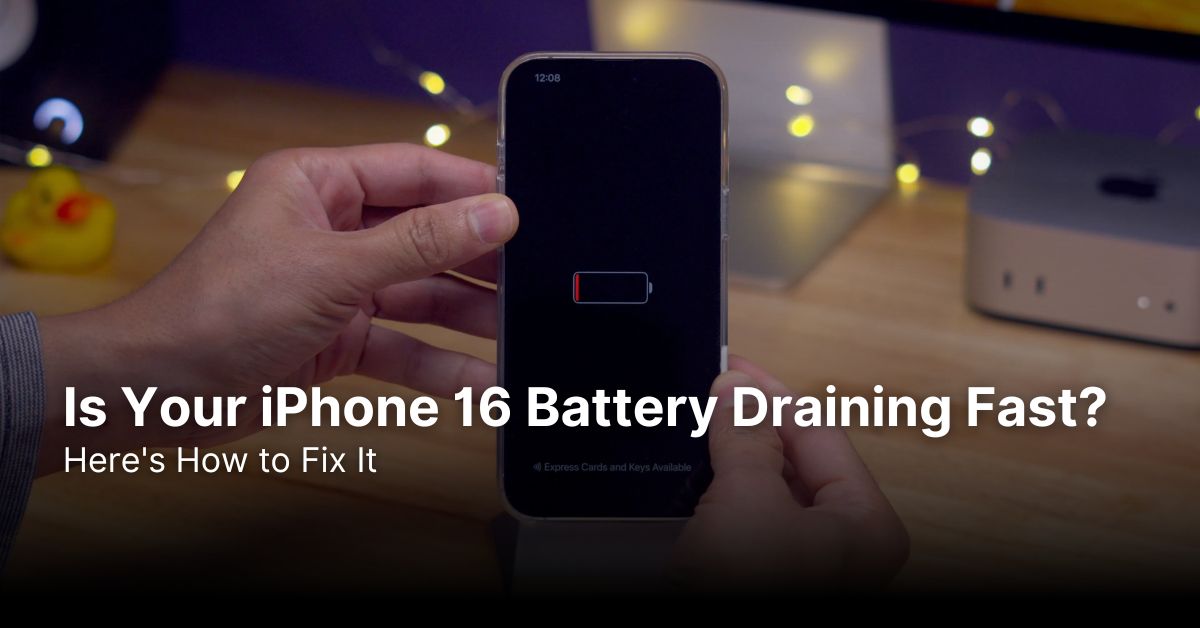
IPHONE • DAILYTECH.ID - So you’ve got the shiny new iPhone 16 in your hands! It’s fast, the camera is incredible, and the display is stunning. But there’s one nagging issue you might be facing: the dreaded fast battery drain. It’s a frustrating problem when your brand-new gadget can’t seem to last the day. If you’re noticing your iPhone 16 battery draining faster than you expected, don’t worry. You’re not alone, and the good news is, there are plenty of solutions.
This isn’t necessarily a sign of a faulty device. Often, a new iPhone’s battery life seems poor for the first couple of days as it indexes files, syncs photos, and learns your usage patterns in the background. However, if the problem persists, it’s likely due to a combination of software settings and power-hungry features. We’re going to walk you through everything, from quick fixes to deep-dive settings adjustments.
Before you book an appointment at the Genius Bar, let’s explore the most common causes and effective fixes for your iPhone 16 battery draining issues. We’ve compiled a comprehensive guide to help you reclaim your battery life and get the most out of your amazing new phone. Let’s get that battery meter back in the green!
Read More: iPhone 16 Overheating? 5 Easy Fixes to Keep It Cool
iPhone 16 Series: A Quick Battery Snapshot
To set expectations, it’s helpful to know what kind of battery life the new lineup is designed for. Here’s a quick comparison of the specifications across the models.
| Feature / Model | iPhone 16 | iPhone 16 Plus | iPhone 16 Pro | iPhone 16 Pro Max |
| Battery Size (mAh) | 3,561 mAh | 4,006 mAh | 3,355 mAh | 4,676 mAh |
| Video Playback | Up to 20 hours | Up to 26 hours | Up to 23 hours | Up to 29 hours |
| Audio Playback | Up to 80 hours | Up to 100 hours | Up to 75 hours | Up to 95 hours |
| Key Feature | Balanced daily use | Longest battery life | ProMotion Display | Ultimate Performance |
Why Is Your iPhone 16 Battery Draining So Quickly?
It’s super exciting to unbox a new iPhone, but that initial excitement can quickly turn to frustration if the battery life doesn’t meet your expectations. Before we jump into the fixes, let’s understand why your iPhone 16 battery might be underperforming. Knowing the root cause makes it much easier to apply the right solution.
First off, give your new phone a little grace. For the first 24 to 48 hours, your iPhone is working overtime in the background. It’s indexing everything for Spotlight search, syncing your photos from iCloud, downloading apps, and calibrating the battery. This is a completely normal process that consumes a significant amount of power. If you’ve only had the phone for a day or two, your battery life will likely improve on its own.
Beyond the initial setup phase, the culprit is often the software. The new iOS 18 is packed with features, but new operating systems can sometimes have bugs that cause unexpected battery drain. Similarly, apps that haven’t been optimized for the latest hardware or software can become major power hogs. Finally, your own usage patterns play a huge role. Features like a super-bright Always-On Display, constant 5G connectivity, and apps that frequently use your location can drain the battery much faster than you think.
Quick Fixes for iPhone 16 Battery Drain
Before you start diving deep into complex settings, let’s try some of the easiest and most effective fixes. These simple steps can often resolve common software glitches that lead to a fast-draining battery.
Restart Your iPhone 16
It’s the oldest trick in the tech support book for a reason: it works! Restarting your iPhone clears out temporary files and closes any rogue apps or processes that might be running in the background and secretly draining your power. It’s like giving your phone a fresh start without losing any data.
To restart your iPhone 16:
- Press and hold the side button and either of the volume buttons until the power-off slider appears.
- Drag the slider to turn your device off.
- Wait about 30 seconds, then press and hold the side button again until you see the Apple logo.
Check for iOS Updates
Apple is usually quick to release software updates that include “bug fixes and performance improvements,” which often translates to fixing battery drain issues. A known bug in the current version of iOS 18 could be the sole reason for your battery woes. Keeping your software up to date is one of the best things you can do for your phone’s health and battery life.
To check for an update, go to Settings > General > Software Update. If an update is available, download and install it right away.
Update Your Apps
Just like the operating system, individual apps can also cause problems. An app with a bug or one that isn’t optimized for iOS 18 can run inefficiently and drain your battery. Developers frequently release updates to fix these kinds of issues and ensure their apps work smoothly with the new hardware.
Head over to the App Store, tap on your profile icon in the top right, and scroll down to see pending updates. You can either update apps individually or simply tap Update All.
Read More: The Big Decision: Upgrading to the iPhone 16 or Sticking with What You Have?
Dive Deeper: Adjusting Settings to Maximize Battery Life
If the quick fixes didn’t solve the problem, it’s time to roll up our sleeves and tweak some settings. Your iPhone 16 is packed with powerful features, but not all of them need to be running 24/7. Optimizing these settings can dramatically improve your battery performance.
Tame Background App Refresh
Background App Refresh allows apps to check for new content and updates even when you’re not actively using them. While convenient for apps like messaging or email, it’s a huge source of battery drain, as dozens of apps could be constantly running in the background. You can take control of this feature.
Go to Settings > General > Background App Refresh. You have three options here. You can turn it off entirely, allow it only on Wi-Fi, or you can leave it on and manually disable it for individual apps that don’t need to be constantly updated (like games, photo editors, or social media apps you don’t need instant notifications from).
Optimize Your Display Settings
The stunning display on your iPhone 16 is one of its most power-hungry components. Fortunately, you have a lot of control over it. First, lower your screen brightness. You can do this from the Control Center or by going to Settings > Display & Brightness. Even better, enable Auto-Brightness, which allows your phone to adjust the brightness automatically based on your surroundings.
Another fantastic battery-saver is Dark Mode. Using a black or dark background means the OLED display on your iPhone 16 doesn’t have to light up those pixels, which saves a surprising amount of energy. You can turn it on in the Display & Brightness settings and even schedule it to activate automatically at sunset.
Manage Location Services
Many apps want to know your location, but very few actually need it all the time. GPS is a notorious battery killer. It’s time to conduct a quick audit of which apps have access to your location data.
Navigate to Settings > Privacy & Security > Location Services. Here, you can review each app’s permissions. For most apps, change the setting from Always to While Using the App. For apps that have no business knowing where you are, select Never. This simple change can make a massive difference in your daily battery life.
Advanced Strategies to Combat iPhone 16 Battery Draining
Have you tried all of the above and your iPhone 16 battery is still draining too fast? Don’t give up just yet. These advanced strategies can help you pinpoint the exact cause and take more decisive action.
Identify Battery-Hogging Apps
Your iPhone tells you exactly which apps are using the most power. This is your most powerful tool for diagnosing a battery drain problem. Go to Settings > Battery. Wait a moment for the stats to load, and you’ll see a list of apps ranked by their battery consumption over the last 24 hours or the last 10 days.
If you see an app at the top of the list that you barely use, you’ve found a culprit. It might be running haywire in the background. Your options are to check for an update for that app, delete and reinstall it, or if it’s not essential, simply delete it for good. Social media apps like Facebook, Instagram, and TikTok are common offenders due to their background activity and constant notifications.
Enable Low Power Mode
Low Power Mode is not just for when you’re down to your last 10%. You can use it proactively to extend your battery life throughout the day. When enabled, it reduces or disables certain features like automatic downloads, some visual effects, 5G (except for video streaming), and background app refresh. Your phone will still be perfectly usable for all the important stuff.
You can turn it on by going to Settings > Battery and toggling on Low Power Mode. You can also add a handy shortcut to it in your Control Center for quick access. It’s a fantastic way to ensure you make it through a long day without reaching for a charger.
Reset All Settings (The Last Resort)
If nothing else works, you can try resetting your settings. This is a step to take before considering a full factory reset. It won’t delete any of your personal data like photos, contacts, or apps. However, it will reset all your system settings to their defaults, including Wi-Fi passwords, notification preferences, display settings, and privacy settings. This can often fix deep-rooted software glitches that cause battery drain.
To do this, go to Settings > General > Transfer or Reset iPhone > Reset > Reset All Settings. You’ll need to enter your passcode to confirm. It’s a bit of a hassle to set everything back up, but it’s often the magic bullet that solves persistent battery issues.
Read More: iPhone 16: How It Stacks Up Against All Previous Models
Frequently Asked Questions (FAQs)
1. Does 5G drain the iPhone 16 battery faster?
Yes, 5G connectivity can use more power than 4G/LTE, especially in areas with a weak 5G signal. You can manage this by going to Settings > Cellular > Cellular Data Options > Voice & Data and choosing 5G Auto, which only uses 5G when it won’t significantly reduce battery life.
2. Is it normal for a new iPhone 16 to have poor battery life at first?
Absolutely. It’s very common for the battery to seem to drain quickly for the first 1-2 days. Your new iPhone is busy indexing files, syncing with iCloud, and learning your usage habits. Give it a couple of days to settle in.
3. Will using Low Power Mode all the time damage my battery?
Not at all. Low Power Mode does not harm your battery’s physical health. It simply limits your phone’s performance and background activities to conserve energy. You can use it as much as you like without worrying about long-term damage.
4. How do I check my iPhone 16’s battery health?
You can check the long-term health of your battery by going to Settings > Battery > Battery Health & Charging. The “Maximum Capacity” percentage shows its capacity relative to when it was new. A capacity below 80% is generally considered degraded.
5. Can a faulty charger cause my iPhone 16 battery to drain fast?
Indirectly, yes. Using a cheap, uncertified, or faulty charger can damage your battery over time, reducing its health and maximum capacity. This leads to it holding less charge and seemingly draining faster. Always use an MFi (Made for iPhone) certified charger and cable.
Conclusion
Dealing with a fast-draining battery on your new iPhone 16 can be a real downer, but as we’ve seen, you have a ton of control. By understanding the causes and systematically applying these fixes, you can significantly improve your device’s stamina and enjoy all its amazing features without constantly worrying about your battery percentage.
- Start Simple: Always begin with the easiest fixes like restarting your phone and updating your iOS and apps, as these often solve the problem.
- Be a Detective: Use the Battery settings screen to identify which apps are the biggest culprits and take action by adjusting their permissions or deleting them.
- Customize Your Settings: Take a few minutes to optimize features like Background App Refresh, Location Services, and Display Brightness for a massive impact on daily battery life.
- Use Your Tools: Don’t be afraid to use Low Power Mode proactively to get through long days. It’s a powerful feature designed to help you.
Go ahead and try these tips. You’ll likely find that your iPhone 16 battery draining issues are a thing of the past, leaving you free to enjoy your new phone to the fullest!