APPS • DAILYTECH.ID - Applying a strikethrough to text in Google Docs is a fundamental formatting feature used to indicate deletion, revision, or outdated information without permanently removing the content. This capability is fully integrated across all device platforms and accessible through simple menu commands or quick keyboard combinations.
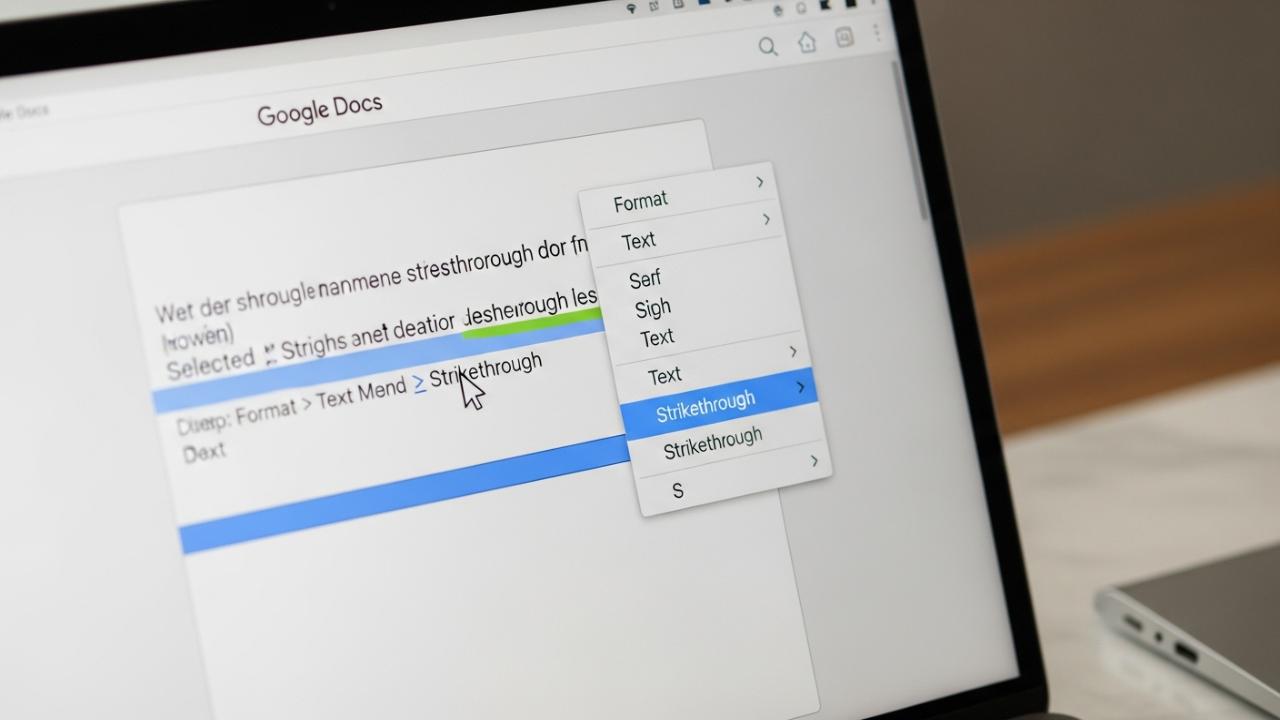
To apply strikethrough in Google Docs, select the desired text, navigate to the ‘Format’ menu, select ‘Text,’ and then click ‘Strikethrough.’ Alternatively, use the convenient keyboard shortcut: Alt + Shift + 5 (Windows/ChromeOS) or ⌘ + Shift + X (Mac). This formatting is essential for revision tracking and noting outdated information within shared documents. Understanding both the manual menu process and the corresponding keyboard shortcut is crucial for efficiency, regardless of your operating system.
The Primary Method: Applying Strikethrough Using the Menu
The most reliable way to insert strikethrough text in Google Docs involves using the Format menu, which works identically across Mac, Windows, and ChromeOS desktop browsers. This robust method ensures consistent accessibility, offering a reliable path even if you forget the specific keyboard commands or are using a device with a non-standard keyboard layout. Learning how to add strikethrough in Google Docs via the menu is the foundation of this formatting task.
Step-by-Step Guide for Desktop Users
This process is straightforward and allows users to effectively put a line through text in Google Docs, indicating content that is marked for removal or modification.
- Text Selection: Open your Google Docs document. Using your cursor, click and drag to precisely select the specific words, phrases, or full paragraphs you wish to format. Ensure the selected area is highlighted to confirm the formatting will apply correctly.
- Accessing the Format Menu: Click the Format tab. This menu is located in the main toolbar, typically positioned between the ‘Insert’ and ‘Tools’ menus at the top of the browser window.
- Navigating to Text Options: In the dropdown menu that appears, hover your mouse cursor over the Text option. This action expands a secondary submenu containing various text styling options, such as Bold, Italic, Underline, and size adjustments.
- Applying Strikethrough: Within the ‘Text’ submenu, click Strikethrough. The feature is often visually represented by the letter ‘S’ with a horizontal line drawn through the center. As soon as you click this option, the selected text will instantly display the strikethrough line, confirming that you have successfully formatted the strikethrough in Google Docs. This process provides a reliable way to format strikethrough in Google Docs without relying on system-specific key combinations.
This manual approach is particularly useful for users learning how to use the strikethrough in Google Docs for the first time or when performing complex, infrequent formatting tasks.
Mastering the Strikethrough Keyboard Shortcuts
For high-volume editors, project managers tracking collaborative changes, or any user who frequently needs to strike through text, mastering the quick keys is significantly faster than navigating the menu bar repeatedly. These shortcuts are the most efficient answer to the core question: what is the strikethrough shortcut Google Docs uses? The specific combination varies slightly depending on your operating system environment. Understanding how to do strikethrough in Google Docs shortcut is essential for maximizing productivity.
Windows and ChromeOS Shortcut (Alt + Shift + 5)
The dedicated keyboard shortcut for users operating on Windows desktop machines or Google’s own ChromeOS (Chromebooks) is highly efficient for instantaneously adding or removing the formatting. If you need to know how to strikethrough in Google Docs Windows or how to strikethrough in Google Docs on Chromebook, this is the command:
| Operating System | Keyboard Shortcut | Function |
|---|---|---|
| Windows | Alt + Shift + 5 | Applies or removes strikethrough formatting. |
| ChromeOS (Chromebook) | Alt + Shift + 5 | Applies or removes strikethrough formatting. |
To execute this command, select the desired text, hold down both the Alt key and the Shift key simultaneously, and then press the 5 key located on the standard number row above the QWERTY keyboard section. This combination acts as a powerful toggle switch, instantly applying the line through text or removing it if the formatting already exists.
macOS Shortcut (Command + Shift + X)
Mac users (often utilizing Safari, Chrome, or Firefox within the Macintosh environment) utilize a slightly different combination that maps directly to the formatting function. Knowing how to use strikethrough in Google Docs Mac efficiently requires memorizing this sequence:
| Operating System | Keyboard Shortcut | Function |
|---|---|---|
| macOS (MacBook, iMac) | ⌘ + Shift + X | Applies or removes strikethrough formatting. |
To apply this, highlight the text you wish to modify, hold down the Command (⌘) key and the Shift key, and then tap the X key. This sequence provides the same quick toggle functionality found on Windows machines, making it the preferred method for applying the strikethrough in Google Docs keyboard shortcut on Apple devices.
Troubleshooting Shortcuts: If your preferred shortcut fails to work, ensure your keyboard input language is correctly set and check if any third-party browser extensions (like accessibility tools or specialized grammar checkers) might be overriding the standard Google Docs keyboard shortcuts. Sometimes, external software can conflict with the intended native functions.
How to Apply Strikethrough on Mobile Devices (iOS and Android)
The usage of Google Docs is increasingly reliant on mobile access. Applying strikethrough while editing documents on a phone or tablet (the process for strikethrough in Google Docs mobile) requires using the specific, touch-optimized controls within the Google Docs application. Whether you are searching for how to strikethrough Google Docs iPhone instructions or Android tablet steps, the procedure is nearly identical within the app interface.
Using the Google Docs App on Phone
This process allows users to easily perform text formatting, addressing the need for how to strikethrough in Google Docs on phone devices.
- Open and Edit: Launch the Google Docs app on your smartphone or tablet (both iOS and Android) and open the document you wish to edit. Tap the Edit icon (usually a pencil) to enter editing mode.
- Highlight Text: Tap and hold the text you want to format. Adjust the blue or green selection handles (depending on your OS) to precisely highlight the target words or phrases.
- Access the Formatting Bar: Look for the A icon (often styled as ‘A’ with horizontal lines, representing the Format icon) located either in the toolbar at the top of the screen or sometimes in a floating menu that appears near the selected text. Tap this icon.
- Navigate to Text Tab: Within the formatting menu that opens, there are typically two main tabs: ‘Text’ and ‘Paragraph.’ Ensure the Text tab is selected.
- Apply Strikethrough: Scroll or look through the available text styles (Bold, Italic, Underline). The strikethrough option will be available, usually displayed as the S with a line through it. Tap this icon to apply the strikethrough formatting to the highlighted text.
This mobile method provides a functional, reliable solution for users who need to perform formatting tasks on the go, answering the specific user intent of how to use strikethrough on Google Docs mobile devices.
Removing or Undoing Strikethrough Text
Knowing how to remove strikethrough in Google Docs is just as crucial as knowing how to apply it. Often, strikethrough is used temporarily during revisions, and it must be removed when finalizing documents or correcting accidental formatting errors. The process for removal mirrors the application process, as the function acts as a toggle. This allows users to quickly undo strikethrough in Google Docs.
Removing Strikethrough via the Format Menu
This method is ideal for users who prefer mouse navigation and need a visual confirmation of the formatting status.
- Highlight the Formatted Text: Select the text that currently has the strikethrough applied and that you wish to clear.
- Re-Navigate the Menu: Follow the standard menu path: Format > Text > Strikethrough.
- Toggle Off: Clicking the Strikethrough option again will act as a toggle switch. If the formatting is active, selecting the option will deactivate it, instantly removing the horizontal line and allowing you to clear strikethrough in Google Docs. The text will revert to its original, unformatted state.
Quick Removal Using the Keyboard Shortcut
The fastest way to remove strikethrough is to leverage the exact same keyboard commands used for application. This technique relies on the shortcut’s dual functionality as a toggle.
- Select: Highlight the block of text that needs the strikethrough removed.
- Execute the Shortcut:
- For Windows/ChromeOS: Press Alt + Shift + 5.
- For macOS: Press ⌘ + Shift + X.
Executing the correct keyboard shortcut while the formatted text is highlighted automatically cancels the strikethrough formatting, effectively allowing you to cancel strikethrough in Google Docs with maximum speed. This is by far the most efficient method for undoing large batches of strikethrough text.
Advanced Strikethrough Usage Scenarios and Limitations
While primarily used for standard content revision, strikethrough formatting has specific applications in collaborative environments and faces certain limitations regarding complex styling.
Strikethrough in Google Docs Comments
In collaborative documents, comments are used to suggest changes, ask questions, or provide feedback without altering the main body of the text. Often, users need to mark a suggested removal within the comment itself. Knowing how to strikethrough in Google Docs comments ensures clear communication.
To implement this:
- Open the Comment Field: Select the relevant section of text and click the Add Comment icon (usually a plus sign within a speech bubble).
- Type and Format: Type the text you wish to include in the comment (e.g., “I suggest we remove [Draft Text]”). Before posting the comment, select the portion of text within the comment box that requires the strikethrough (in this example, “Draft Text”).
- Apply Formatting: Use either the keyboard shortcut (Alt + Shift + 5 or ⌘ + Shift + X) or the menu path (Format > Text > Strikethrough) to apply the formatting before clicking the “Comment” button to finalize your post.
Note that formatting options within the comment box are typically limited, but the strikethrough function is standard and operational, making it invaluable for tracking explicit suggestions for text deletion.
Addressing Double Strikethrough and Other Complex Formatting
Google Docs natively only supports a single line for strikethrough. The built-in format menu (Format > Text > Strikethrough) is hard-coded to produce a single, centered line through the text, adhering to standard typographical norms for indicating content deletion.
If you are attempting to add a double strikethrough in Google Docs, this functionality is not available through the default format menu or the native keyboard shortcuts. Achieving a double strikethrough typically requires one of two workarounds:
- Using Unicode Characters: This involves finding specific Unicode characters that visually resemble double strikethrough text (e.g., certain character generators available online). You would type the desired text, copy the Unicode equivalent, and paste it into the document. This is often cumbersome and may not render correctly across all viewing platforms.
- Leveraging Add-ons: Searching the Google Workspace Marketplace for specialized formatting add-ons might yield a tool capable of applying custom text effects, though this introduces a dependency on third-party software.
For most academic and professional contexts, the standard single strikethrough is sufficient and universally recognized as the marker for deletion or obsolescence.
Strikethrough in Equations
If you are working with mathematical or scientific documents and need to strikethrough text within an equation field (accessed via Insert > Equation), you will find that the standard formatting tools are restricted. The equation editor environment prioritizes mathematical syntax (superscripts, subscripts, Greek letters, etc.) over traditional text formatting like strikethrough, bold, or underline.
To strike through a variable or text within an equation environment, you typically must exit the equation editor. If the strikethrough is absolutely necessary for annotation or clarification within the equation itself, you may need to:
- Type the relevant text outside the equation box, apply the strikethrough formatting, and then manually position it using drawing tools or careful placement, treating the strikethrough text as a separate layer, though this is rarely recommended for formal documents.
- The professional standard is usually to reference the change outside the equation or use comment threads, as how to strikethrough in Google Docs equation fields directly is generally not supported.
Efficiency Tips: Using Format Painter
Once you have applied strikethrough formatting to one section of text, you can quickly copy that formatting to other sections without repeating the menu navigation or keyboard shortcut. This is done using the Format Painter tool, which is a powerful asset for consistency.
- Select Source: Highlight the text that already has the desired strikethrough formatting.
- Activate Painter: Click the Paint Roller icon (Format Painter) located in the main toolbar, usually near the print or zoom controls.
- Apply Destination: The cursor will turn into a paintbrush icon. Click or highlight the target text. The strikethrough format will be immediately applied to the new text.
For applying the format to multiple, non-contiguous sections, double-click the Format Painter icon after selecting the source text. This locks the tool on, allowing you to click multiple times throughout the document until you press the Escape key or click the Format Painter icon again to deactivate it. This technique significantly speeds up the process of consistently applying the line through text in Google Docs across large documents.
FAQs – How to Use Strikethrough in Google Docs
The fastest way to apply or remove strikethrough on Windows or ChromeOS is by using the keyboard shortcut. First, highlight the text, and then press Alt + Shift + 5 simultaneously. This command works as a reliable toggle, instantly changing the text format without requiring mouse navigation.
To quickly remove strikethrough, highlight the text that has the line through it and execute the same shortcut used to apply it. Use Alt + Shift + 5 for Windows/ChromeOS, or ⌘ + Shift + X for Mac. The shortcut functions as a toggle to instantly clear the formatting.
Yes, you can easily apply strikethrough on the Google Docs mobile app, including iPhones. Select the text, tap the A icon (Format icon), navigate to the Text tab, and then tap the strikethrough symbol (S with a line through it). This allows for mobile formatting on the go.
Yes, strikethrough formatting can be inserted directly into Google Docs comments. Before submitting the comment, type the desired text, select the portion you want struck through, and apply the formatting using either the menu path or the standard keyboard shortcut. This clearly marks suggested deletions in feedback.
If the ⌘ + Shift + X shortcut is not working on your Mac, first ensure you have the correct text selected. If the issue persists, check your browser extensions or system-level accessibility settings, as they can sometimes override application-specific keyboard commands. Resetting the browser may also resolve conflicts.