APPS • DAILYTECH.ID - Applying columns in Google Docs transforms the document appearance, allowing users to present text in visually distinct vertical sections similar to magazine or newsletter layouts. This functionality is essential for designing professional documents like brochures or resumes.
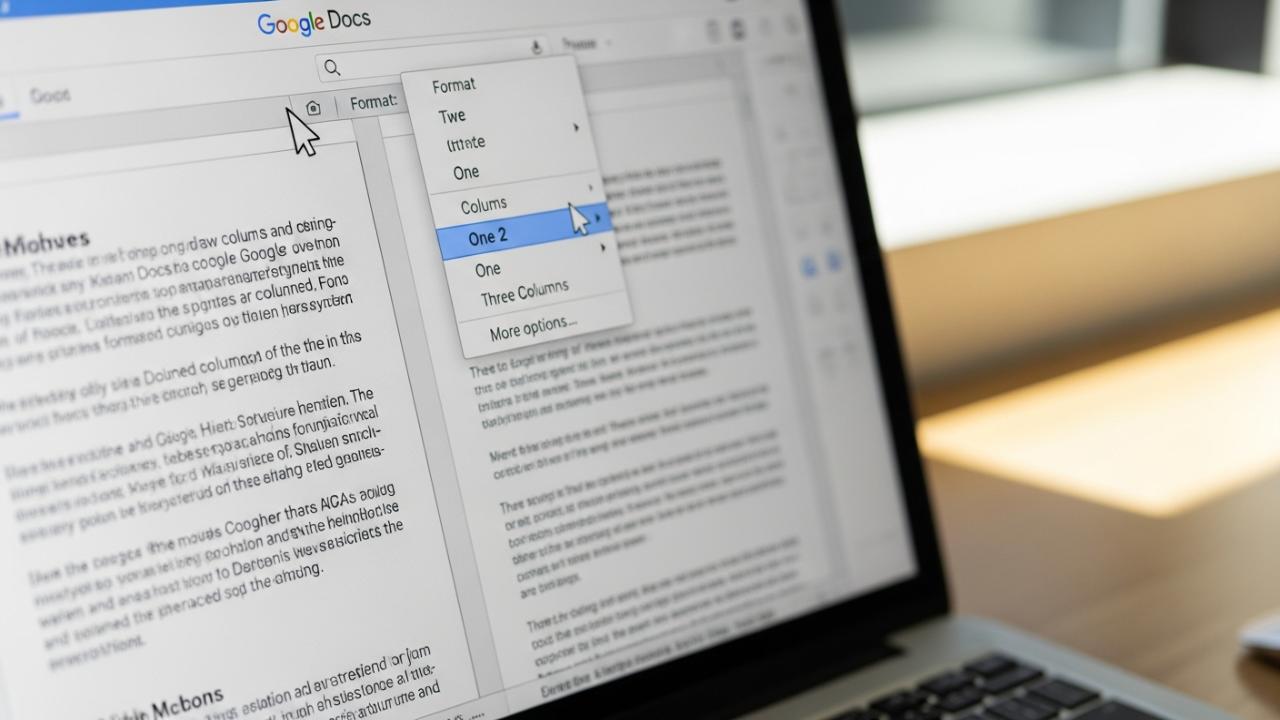
To use columns in Google Docs, select the text you wish to format, navigate to the “Format” menu, choose “Columns,” and then select the desired number of columns (two, three, or more). For advanced customization, use the “More options…” dialog box to adjust column spacing, width, and add vertical dividing lines. Mastering this feature requires understanding both the basic application steps and the advanced formatting options.
Inserting and Setting Up Columns in Google Docs
Applying a multi-column layout is managed entirely through the dedicated Format menu, offering a streamlined process compared to manually structuring the layout using tables. Whether the goal is to use two columns for an academic paper or three columns for a newsletter, the initial steps for insertion and setup remain intuitive.
Applying Two or Three Columns to Your Document
The most common method for how to add columns in Google Docs relies on the pre-set options available directly in the dropdown menu. This is the fastest way to set up standard two- or three-column layouts.
- Select Target Content Scope: Before applying any formatting, highlight the specific text, paragraphs, or headings where you want the column layout to begin and end. If you select no text, the formatting will apply globally to the entire document or starting from your current cursor position onward, potentially causing unintended layout changes later in the file.
- Access the Column Menu: Navigate to the top menu bar, click on
Format, hover over theColumnsoption, which will reveal a set of immediate layout choices. - Choose a Preset: Select either the two-column or three-column graphical option. Google Docs will instantly analyze the selected content and redistribute it across the chosen number of vertical sections.
Mastering the Column Scope: Applying Columns to Specific Sections
A frequent challenge when learning how to use columns in Google Docs is ensuring the layout only affects a specific page or a limited block of text, rather than the whole document. Column formatting is applied at the section level. Therefore, if you wish to apply columns to one page only, you must first define clear boundaries using section breaks.
- Insert the Initial Boundary: Place the cursor immediately before the text where the columns should begin. Navigate to
Insert>Break>Section break (next page). This creates an invisible divider, telling the document that a new formatting zone is starting. - Insert the Closing Boundary: Place the cursor immediately after the text where the columns should end (where you want the layout to revert to a single column). Insert another section break (
Insert>Break>Section break (next page)). - Select and Apply: Highlight only the content located between those two section breaks. Now, proceed with the standard application steps (
Format>Columns>2 columns). Because the scope is limited by the section breaks, the column formatting will be contained precisely to that area.
Setting Custom Column Counts (4, 5, or More)
While the default menu allows users to easily choose two or three columns, often a user needs to put three columns in Google Docs, or even more, such as how to make 4 columns in Google Docs for high-density information or complex resumes. For any count beyond three, you must access the advanced settings panel.
- Open Advanced Settings: Navigate through the menu structure:
Format>Columns>More options.... This opens a detailed dialog box that provides granular control over the layout. - Specify Count: Locate the “Number of columns” field. Here, you can input the exact integer required (e.g., 4, 5, or even 6 columns). While Google Docs does not enforce a strict maximum number of columns, practical readability on standard paper sizes usually limits effective usage to five columns or fewer.
- Verify Scope: Use the “Apply to” dropdown menu located at the bottom of the dialog box. This is crucial for verifying whether the formatting should affect the “Whole document,” the “Selected content,” or a specific “Section” that you have previously defined with section breaks.
- Confirm and Apply: Once the count and scope are correct, click the
Applybutton to implement the custom layout.
Advanced Column Formatting and Layout Control
Mastering the advanced features allows for a highly polished document appearance, addressing needs like visual separation and even content distribution.
Adding Separating Lines and Adjusting Gutter Spacing
Professional layout design frequently requires a visual demarcation between vertical text sections to improve flow and readability. This allows users to learn how to put a line between columns in Google Docs.
- Access Customization Panel: Return to the central control panel:
Format>Columns>More options.... - Insert Dividing Line: In the lower half of the dialog box, check the box labeled “Line between columns.” Once applied, Google Docs automatically draws a thin, gray vertical line down the center of the gutter between each column.
- Define Gutter Spacing: The “Spacing” field dictates the width of the empty space, or “gutter,” between the columns. The default is typically 0.5 inches. To make the columns appear closer together, decrease this value (e.g., 0.25 inches). Conversely, increasing this value (e.g., 1.0 inch) will widen the gutter, effectively decreasing the usable width of each column. Modifying the spacing is a critical step in how to resize columns in Google Docs indirectly.
Ensuring Columns Have Equal Width and Resizing Columns
By default, when you initially apply columns, Google Docs tries to make columns even and equal in width. This ensures proportional layout, distributing the total page width evenly across the defined number of columns, minus the combined gutter space.
- Check Equal Width Default: Within the “More options…” dialog box, ensure the checkbox labeled “Equal column width” remains selected. This guarantees a symmetrical layout, which is suitable for standard reports or newsletters where content density should be consistent.
- Manual Resizing: If you need to make the first column wider than the second (or vice versa), uncheck the “Equal column width” box. Once this box is deselected, you gain manual control over column width.
- Using the Ruler: To manually resize columns, look at the horizontal ruler located above your document. You will see small gray markers (indent and margin markers) specific to each column. Dragging these markers horizontally allows you to manually adjust the column boundaries and therefore control the width of each individual column, offering maximum flexibility for specialized layouts like resume formatting.
Forcing Text Flow with Column Breaks
A critical tool for managing flow in a multi-column layout is the column break. Unlike a standard line break or page break, a column break is used specifically to stop the flow of text in the current column and immediately jump the subsequent text to the start of the next available column. This ensures content distribution is clean and controlled.
- Position Cursor: Place the cursor at the precise point where you want the content break to occur (e.g., directly before a sub-heading that needs to start at the top of a new column).
- Insert Break Command: Navigate to
Insert>Break>Column break. - Result: The text following the cursor will instantly be forced to the top of the next column in sequence. This command is essential when trying to balance uneven text lengths or ensuring specific elements, like image captions or crucial headers, begin a new column rather than midway down the current one.
Managing and Troubleshooting Column Layouts
Effective column usage requires knowing how to troubleshoot common issues, such as text wrapping problems, unintentional layout changes, and distribution imbalance.
Troubleshooting Uneven Text Distribution
Sometimes, despite using column breaks, the text might still appear unbalanced, with one column significantly longer or shorter than the others.
- Review Section Breaks: If the column area is confined by section breaks, ensure there isn’t excess white space (multiple empty lines) at the end of the content within the formatted section. Hidden paragraph markers can sometimes lengthen a column unnecessarily.
- Strategic Column Breaks: To achieve perfect balance in a two-column layout, you may need to estimate the halfway point of the content and manually insert a column break there. Adjust this break slightly up or down until the bottom lines of both columns align closely.
- Adjusting Text Wrapping: If images or complex tables are embedded within the columns, ensure their text wrapping settings are appropriate (e.g., “In line with text” usually works best for maintaining layout consistency within the columns).
How to Remove or Undo Columns in Google Docs
Learning how to undo columns in Google Docs or how to delete columns in google docs is often as important as learning how to create them. If you decide the multi-column format is no longer needed, reverting the formatting is quick and easy.
- Highlight the Columnized Area: Select the entire section of text currently formatted into columns. If you applied section breaks previously, ensure your selection spans from the first word of the columnized content to the last.
- Select Single Column Preset: Navigate back to the main column menu:
Format>Columns. - Choose 1 Column: Click the “1 column” preset option. This command instantly overwrites the existing column formatting, resetting the layout of the selected text back to the standard, single, full-page width format. All text will flow continuously, effectively removing the vertical dividers.
Applying Columns on Mobile Devices (Phone, iPad, Tablet)
While the most detailed customization (like adjusting spacing or adding dividing lines) requires the full desktop interface, Google Docs provides streamlined functionality for how to add columns in google docs using phone or tablet devices through the dedicated mobile app.
Using the Google Docs Mobile App (iOS and Android)
The mobile app streamlines the process, making it possible to use 2 columns in Google Docs mobile without needing complex menus.
- Open Document and Access Tools: Launch the Google Docs app on your device (phone, iPad, or tablet) and open the desired document.
- Select Text: Tap and drag to highlight the specific block of text where you want the column format applied.
- Open Format Menu: Locate and tap the ‘A’ icon (usually depicted with a pencil or edit marker), which represents the formatting tool. This opens a panel of text and paragraph formatting options.
- Find Layout Settings: Within the formatting panel, toggle over to the “Paragraph” or “Layout” section (depending on your operating system version).
- Apply Column Count: You will find simple buttons or options for “1 column,” “2 columns,” and sometimes “3 columns.” Tap the desired count. The app will immediately apply the standard preset to the selected text. Note that customizing parameters like custom widths, custom spacing, or inserting a dividing line is usually restricted to the browser or desktop version.
FAQs – How To Use Columns In Google Docs
Open the document in the Google Docs mobile app, highlight the desired text block, tap the formatting icon (typically an ‘A’ with lines), and select the “2 columns” option found under the layout or paragraph settings. This applies the standard preset.
Yes, you can add a vertical line between columns. Navigate to the main menu, select Format > Columns > More options.... In the resulting dialog box, check the option labeled “Line between columns” before applying the formatting changes to your selected text.
While the software does not enforce a strict technical limit, practical usability suggests that four or five columns are the maximum feasible limit for standard 8.5 x 11-inch pages. Exceeding this makes the text columns too narrow to read comfortably.
To remove column formatting entirely, highlight the text currently formatted into columns, go to Format > Columns, and select the “1 column” preset option. This instantly reverts the section back to a single column layout, effectively undoing the formatting.
To guarantee equal sizing, when using the custom column settings (Format > Columns > More options...), ensure that the box labeled “Equal column width” remains checked. This locks the widths, maintaining symmetrical column size throughout the formatted section of the document.
To create four columns, navigate to the formatting menu by selecting Format > Columns > More options.... In the advanced dialog box that opens, manually input the number 4 into the “Number of columns” field and then click the Apply button to implement the four-column layout.
If column formatting affects the entire document when you only intended it for one section, it means you failed to define boundaries. You must insert Section break (next page) commands before and after the content block, and then ensure you only highlight the text between those breaks before applying the column format.
To force content to skip to the top of the next column, place your cursor at the desired breaking point. Then, navigate to the top menu, select Insert > Break > Column break. This is essential for controlling text distribution and ensuring headers start columns cleanly.