APPLE WATCH • DAILYTECH.ID - The bond between an iPhone and an Apple Watch is designed to be tight. They share data, notifications, and even a heartbeat. But what happens when that bond is broken unexpectedly? Maybe you lost your iPhone, it took a swim and won’t turn on, or you’ve already traded it in and forgot to disconnect your wearable.
Suddenly, you’re staring at your wrist wondering, “How do I separate these two when the ‘brain’ of the operation is gone?”
If you are trying to figure out how to unpair an Apple Watch without a phone, you might be worried about getting stuck with a locked device or losing your data. The good news is that Apple has built-in contingencies for this exact scenario. You don’t need the original iPhone in your hand to sever the connection.
In this guide, we will walk you through every method available to unpair your watch, reset it to factory settings, and ensure Activation Lock is removed—all without needing your old phone.
Quick Answer:
You can unpair an Apple Watch without a phone by erasing it directly from the watch or using iCloud.com. Both methods remove the pairing and Activation Lock so the watch can be set up again or sold, even if the original iPhone is lost or broken.
1. When You Can Unpair Apple Watch Without a Phone
Before we dive into the “how,” it helps to understand the “why.” Unpairing an Apple Watch isn’t just about disconnecting Bluetooth; it’s about security. Specifically, it’s about Activation Lock.
When you pair a watch to an iPhone, it locks to your Apple ID. Unpairing is the cryptographic key that releases it. You typically need to unpair without a phone in these situations:
- Lost or Stolen iPhone: Your phone is gone, but you still have the watch on your wrist. You want to pair it to a replacement phone.
- Broken or Dead iPhone: Your old phone is a brick. It won’t turn on, meaning you can’t access the Watch app to unpair it the “normal” way.
- Sold or Traded-In iPhone: You already mailed your old phone away, and realized too late that your watch is still looking for it.
- Preparing for Sale: You want to sell your Apple Watch, but you don’t have the paired iPhone handy.
In all these cases, the goal is the same: wipe the watch clean and tell Apple’s servers that this device is no longer attached to that specific iPhone.
2. How to Unpair Apple Watch Directly From the Watch
If you still have physical possession of the Apple Watch and it is functional (the screen works), this is the easiest method. You can perform a factory reset directly from the device settings.
This process effectively “unpairs” the watch by erasing it.
Step-by-Step Instructions:
- Wake the Watch: Tap the screen or press the Digital Crown.
- Open Settings: Look for the gear icon in your app grid or list view.
- Navigate to General: Scroll down and tap General.
- Find Reset: Scroll all the way to the bottom of the General menu and tap Reset.
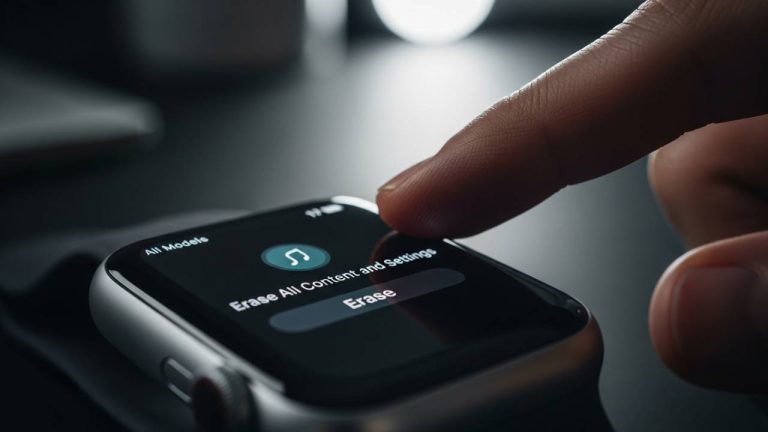
- Erase Content: Tap Erase All Content and Settings.
- Enter Passcode: If you have a passcode set on the watch, you will be asked to enter it now.
- Cellular Plan (Optional): If you have a GPS + Cellular model, you will be asked if you want to Keep or Remove your plan.
- Choose Keep: If you are just pairing to a new phone on the same account.
- Choose Remove: If you are selling the watch or changing carriers.
- Confirm: Tap Erase All.
Important Note on Activation Lock:
In some instances, erasing the watch this way might not fully remove the Activation Lock (the anti-theft feature) if the watch is offline or not connected to Wi-Fi. If you plan to sell the watch, it is highly recommended to double-check using the iCloud method (Section 3) to ensure the device is fully removed from your Apple ID.
3. How to Unpair Apple Watch Using iCloud (Remote Method)
What if you don’t have the watch? Or what if the watch screen is cracked and you can’t touch the buttons? Or perhaps you just want to be 100% sure the Activation Lock is gone?
The iCloud method is the most robust way to learn how to unpair an Apple Watch without a phone. It works from any computer, iPad, or friend’s phone.
Step-by-Step Instructions:
- Go to iCloud: Open a web browser (Safari, Chrome, etc.) and go to iCloud.com.
- Sign In: Log in with the same Apple ID that was used on the paired iPhone and Watch.
- Find Devices: Click on the Find My icon (it looks like a radar/green circle). You may need to enter your password again.
- Select All Devices: At the top of the map, click the dropdown menu labeled All Devices.
- Choose Your Watch: Find your Apple Watch in the list and click on it.
- Erase Apple Watch: A window will pop up with options for that device. Click Erase Apple Watch.
- Note: This will factory reset the watch remotely the next time it connects to the internet.
- The Critical Step – Remove from Account: Once the device is erased (or if it’s offline and can’t be erased yet), you will see an option to Remove from Account (often represented by an “X” next to the device name).
- You MUST click Remove. This is what actually breaks the Activation Lock pairing. Until you do this, the watch is still tied to your Apple ID.
4. How to Unpair Apple Watch If iPhone Is Lost or Broken
The panic of a lost or broken phone is real. Users often ask: “My phone is dead. Does that mean my watch is stuck forever?”
The answer is no. The Apple Watch is an independent computer. While it loves the iPhone, it doesn’t need the iPhone’s permission to be erased.
The Difference Between Erasing and Unpairing:
- Standard Unpairing (with phone): Creates a backup of the watch, removes Activation Lock, and erases the watch.
- Unpairing Without Phone: You are technically just erasing the watch. Because the phone is broken/lost, the watch cannot send a final backup to it.
What to do:
- Use the Direct Method (Section 2) if you have the watch and it has battery life.
- Use the iCloud Method (Section 3) if the watch is also lost or if you want to ensure the digital link is severed for a new buyer.
If your iPhone is broken, you do not need to fix the phone to save the watch. Proceed with erasing the watch so you can pair it to your replacement device.
5. How to Unpair Apple Watch Without Erasing Data (Is It Possible?)
This is the hard truth section. If you are searching for how to unpair apple watch without phone while keeping your data intact, the answer is tricky.
The Reality:
To pair an Apple Watch to a new phone (or re-pair it), the watch must be erased. There is no way to simply “switch” the signal from one phone to another without a factory reset.
The Data Situation:
- Health Data: Your steps, heart rate, and workouts are stored in iCloud (if you had Health enabled in iCloud settings) or in your iPhone backup. They are not lost when you erase the watch.
- Watch Backups: An Apple Watch normally backs up to the iPhone automatically. If your iPhone broke today, your watch probably backed up to it yesterday.
- If you restore your new iPhone from your old iPhone’s iCloud backup, your Watch data will be there.
- When you re-pair the watch, you will be asked to “Restore from Backup.”
Conclusion: You cannot unpair without erasing the watch, but you likely won’t lose your long-term health history if your iCloud settings were active.
6. How to Unpair Apple Watch Before Selling or Giving It Away
If you are a generous soul giving your Series 6 to a sibling, or selling your Ultra to upgrade, this is the most critical step.
If you hand someone a watch that hasn’t been properly unpaired, they will be greeted by the Activation Lock Screen. It will ask for your email and password. Without it, the watch is a paperweight.
The Checklist for Sellers:
- Erase the Watch: Use the method in Section 2.
- Verify via iCloud: Even if you erased it on your wrist, log into iCloud.com (Section 3) and check the device list. If the watch is still there, click Remove from Account.
- Cancel AppleCare: If you have a monthly subscription for the watch, cancel it separately.
- Clean the Band: A physical unpairing is nice, too!
By ensuring the watch is removed from your iCloud account, you free up the Serial Number/IMEI so the new owner can connect it to their own Apple ID.
7. How to Unpair Apple Watch and Pair With a New Phone
Once you have successfully erased/unpaired your watch using the methods above, you are ready to start fresh.
The Re-Pairing Process:
- Set up your new iPhone: Ensure it is signed in to iCloud and updated.
- Put the Watch on: Turn it on. It should show the language selection screen or the “Bring iPhone near Apple Watch” animation.
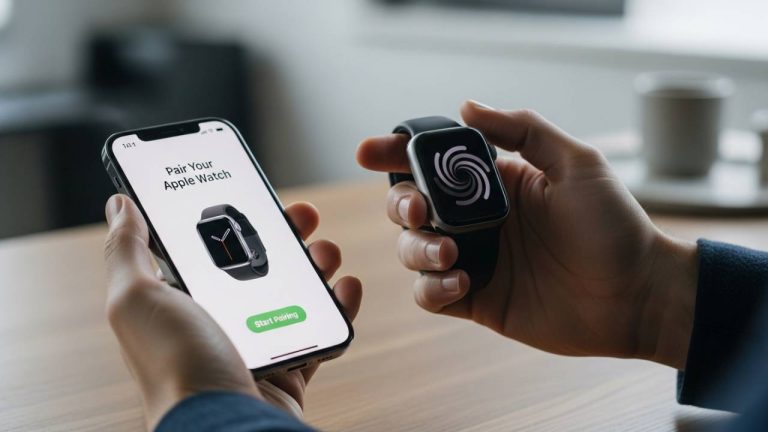
- Open Watch App: On the new iPhone, open the Watch app and tap Start Pairing.
- Restore: During the setup, the app will ask: “Restore from Backup?”
- Select the most recent backup available. This will bring back your watch faces and customized settings.
- If no backup is found (because the old phone died before syncing), you will have to Set Up as New.
8. How to Unpair Cellular Apple Watch Without Phone
For users with LTE/Cellular models (Apple Watch Series 3 through Ultra), the cellular plan adds a layer of complexity. The eSIM is digital, and unpairing doesn’t automatically cancel your contract with Verizon, T-Mobile, or AT&T.
When Erasing via Watch (Section 2):
You will see a prompt:
- “Erase All & Keep Plan”: Choose this if you are just fixing a bug or switching to a new iPhone on the same carrier.
- “Erase All & Remove Plan”: Choose this if you are selling the watch or canceling the line.
Carrier Warning:
Clicking “Remove Plan” on the watch removes the eSIM from the device, but it does not cancel the bill. You must call your carrier to stop the monthly service charge for that watch line.
9. Troubleshooting: Can’t Unpair Apple Watch Without Phone
Sometimes, technology fights back. Here are common issues and how to fix them.
Issue 1: “Verification Failed” or Apple ID Error
If you are trying to erase the watch directly (Section 2) and it won’t accept your password, the watch might not be connected to Wi-Fi.
- Fix: Try the iCloud Method (Section 3). It is more reliable for authentication issues.
Issue 2: Watch is Stuck on Apple Logo
If the watch is frozen, you can’t access Settings to erase it.
- Fix: Force restart the watch. Hold the Side Button and the Digital Crown simultaneously for 10 seconds. Once it reboots, try to reset it again.
Issue 3: I Removed it from iCloud, but it’s still Locked
- Fix: It can take a few minutes for Apple’s servers to sync. Restart the watch. If it still asks for your password, the removal command hasn’t reached the watch yet. Ensure the watch has a Wi-Fi connection, or repeat the “Remove from Account” step on a different browser.
FAQs – How to Unpair Apple Watch Without Phone
You can unpair it by resetting the device itself. On the watch, go to Settings > General > Reset > Erase All Content and Settings. Alternatively, log into iCloud.com, find the watch in “Find Devices,” and select Erase Watch followed by Remove from Account.
Since you cannot access the Watch app on a broken phone, you must erase the watch directly via its Settings menu (General > Reset). This disconnects it from the broken phone so it can be paired to a new one.
Log in to iCloud.com with your Apple ID. Go to the “Find My” section. Select your Apple Watch from the “All Devices” dropdown menu. Click Erase Apple Watch to wipe it, and then click Remove from Account to disable Activation Lock.
Yes, if done correctly. Using the Watch app on a phone removes it automatically. If you unpair without the phone (via iCloud or Watch Settings), you must ensure you enter your Apple ID password or select “Remove from Account” in iCloud to fully disable the lock.
You must erase the watch and remove the Activation Lock. The safest way is to unpair it via the Watch app on your phone. If you don’t have the phone, erase the watch via Settings and then check iCloud.com to ensure the device is no longer listed under your Apple ID.
No. The concept of “unpairing” involves wiping the device so it can be linked to a new encryption key on a new phone. However, your Health data is safe in iCloud, and you can restore your watch settings from a backup during the re-pairing process.
Final Thoughts
Losing access to your iPhone is stressful enough without worrying about your accessories. Fortunately, Apple designed the Watch to be resilient. Whether you use the Settings menu on your wrist or the iCloud dashboard from a computer, you have the power to sever the connection safely.
Remember: If you are selling the watch, the Remove from Account step in iCloud is non-negotiable. If you are just upgrading, a simple erase on the wrist will get you back up and running in no time.