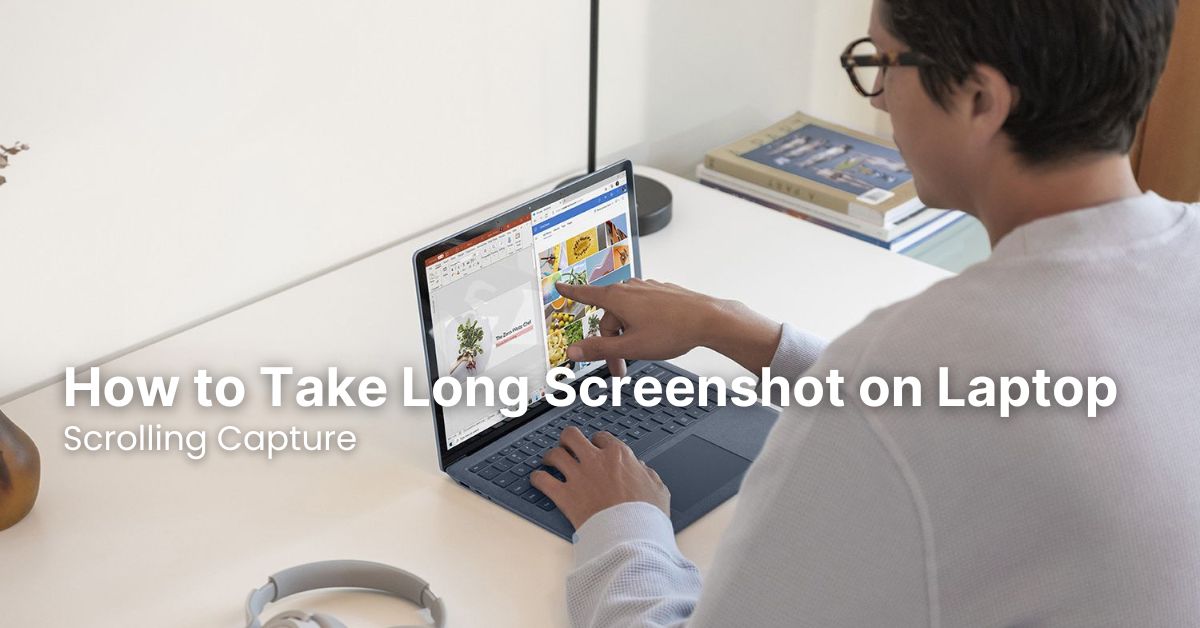
LAPTOP • DAILYTECH.ID - Taking a long screenshot on your laptop or a scrolling capture can be incredibly useful when you need to capture an entire webpage, a lengthy document, or a long chat conversation that extends beyond your screen’s visible area. While standard screenshot tools only grab what’s currently displayed, a scrolling capture allows you to stitch together multiple screen sections into one continuous image. This guide will walk you through various straightforward methods to achieve this, making your digital life a bit easier.
You’ll find that taking a long screenshot isn’t as complicated as it might seem, even though most laptops don’t have a built-in function for it. There are several reliable workarounds and third-party tools that can help you achieve a perfect scrolling capture. Whether you’re using Windows or macOS, or prefer a browser-specific solution, we’ve got you covered with simple, easy-to-follow steps.
This article will cover the most popular and effective ways to take a scrolling screenshot, ensuring you can capture exactly what you need without hassle. From browser extensions to dedicated software, you’ll discover the best approach for your specific needs.
Taking a Long Screenshot Using Browser Extensions
Browser extensions are often the easiest and most convenient way to take a long screenshot on your laptop, especially if what you want to capture is within your web browser. Most popular browsers like Chrome, Firefox, and Edge have a wide array of extensions designed for this very purpose.
Google Chrome Extensions for Scrolling Capture
Google Chrome offers numerous extensions that excel at scrolling captures. Here are a couple of highly recommended options:
- GoFullPage – Full Page Screen Capture: This is arguably one of the most popular and user-friendly options. Once installed, simply click its icon in your browser toolbar, and it will automatically scroll down the page and capture everything into a single image.
- Open Chrome and navigate to the Chrome Web Store.
- Search for “GoFullPage – Full Page Screen Capture.”
- Click “Add to Chrome” and then “Add extension.”
- Go to the webpage you want to capture.
- Click the GoFullPage icon (a camera) in your browser’s toolbar.
- The extension will automatically scroll and capture the entire page.
- Once done, it will open a new tab with your full-page screenshot. You can then download it as a PNG or PDF.
- Awesome Screenshot & Screen Recorder: This extension offers more features, including annotations, blurring sensitive information, and even screen recording. For a long screenshot:
- Install “Awesome Screenshot & Screen Recorder” from the Chrome Web Store.
- Click its icon.
- Choose “Capture full page.”
- It will scroll and capture the page, then open an editor where you can make edits before saving.
Mozilla Firefox’s Built-in Screenshot Tool
Firefox has a fantastic built-in screenshot tool that includes a “Save full page” option, making it incredibly simple to take a scrolling capture. You don’t need any additional extensions for this.
- Open Firefox and go to the webpage you wish to capture.
- Right-click anywhere on the page.
- Select “Take Screenshot.”
- In the screenshot menu that appears, choose “Save full page.”
- Firefox will capture the entire scrolling content and offer to download it.
Microsoft Edge’s Web Capture
Similar to Firefox, Microsoft Edge also has a built-in “Web capture” feature that allows you to take a long screenshot.
- Open Edge and navigate to the desired webpage.
- Click on the “Web capture” icon in the toolbar (it looks like a pen in a rectangle, or you can press Ctrl + Shift + S).
- From the options, select “Full page.”
- Edge will then capture the entire page and present it in an editing window where you can annotate or save it.
Dedicated Software for Long Screenshots on Laptop
While browser extensions are great for web content, what if you need to take a scrolling screenshot of something outside your browser, like a long Word document, a PDF, or a specific application window? This is where dedicated software comes in handy.
ShareX (Windows)
ShareX is a powerful, free, and open-source tool for Windows that goes far beyond just screenshots. It’s a fantastic utility for all sorts of capture and sharing tasks, including scrolling captures.
- Download and install ShareX from its official website.
- Once installed, open ShareX.
- From the main window or by right-clicking its icon in the system tray, go to “Capture” > “Scrolling capture.”
- A prompt will appear asking you to select the window you want to capture. Click on the desired window (e.g., your document, chat window, or even a browser if you prefer ShareX over an extension).
- ShareX will then automatically scroll through the window and stitch the captured parts together.
- Once complete, the screenshot will appear in the ShareX main window, and you can save it in various formats.
ShareX offers extensive customization options, including output formats, post-capture actions (like automatically uploading to cloud services), and various hotkeys. It’s an excellent tool for anyone who frequently takes screenshots. For more tips on general screenshot laptop methods, you can refer to this article: screenshot laptop.
Snagit (Windows & macOS)
Snagit by TechSmith is a premium, feature-rich screen capture and recording software available for both Windows and macOS. It’s a professional-grade tool widely used for its robust scrolling capture capabilities and extensive editing features.
- Purchase and install Snagit from the TechSmith website.
- Launch Snagit.
- Click the “Capture” button.
- Select the “Image” tab and ensure “Scrolling Window” is selected as the capture type.
- Click the red “Capture” button.
- Hover your cursor over the window you want to capture. Snagit will usually highlight scrollable areas.
- Click the scroll arrows that appear or simply click to initiate the scrolling capture.
- Snagit will automatically scroll and capture the entire content, then open it in the Snagit Editor for further editing, annotation, and saving.
Snagit is a powerful tool for those who need advanced editing features and frequent, high-quality captures. It’s a worthwhile investment for professionals and content creators.
macOS Specific Methods for Long Screenshots
While macOS has excellent built-in screenshot tools, it lacks a native scrolling capture feature. However, several third-party applications and browser extensions effectively fill this gap.
Using Safari’s Developer Tools (for web pages)
Safari has a less-known trick for taking full-page screenshots through its developer tools, which can be useful for web developers or those who prefer not to install extensions.
- Open Safari and go to the webpage you want to capture.
- Enable the Develop menu: Go to Safari > Settings (or Preferences) > Advanced, and check “Show Develop menu in menu bar.”
- From the Develop menu, select “Show Web Inspector” (or press Option + Command + I).
- In the Web Inspector, select the “Elements” tab.
- Find the
<html>tag at the very top of the document tree. - Right-click (or Control-click) on the
<html>tag. - Select “Capture Screenshot.”
- Safari will capture the entire page as a PNG file and save it to your Downloads folder.
This method is a bit more technical but works perfectly for web pages without needing extra software.
Third-Party Apps for macOS
For capturing content outside of browsers or for more robust features, macOS users can turn to apps like CleanShot X or the aforementioned Snagit.
- CleanShot X: This is an all-in-one screen capturing tool for macOS, offering scrolling capture, annotation, screen recording, and more. It’s a popular choice for Mac users due to its sleek interface and powerful features.
- Download and install CleanShot X.
- Open the app and select “Capture Scrolling Content” from its menu bar icon.
- Click on the window you want to capture.
- CleanShot X will scroll and capture, then open the image in its editor.
These tools provide excellent alternatives for taking long screenshots on a Mac laptop. For general information about your computer, check out this guide on laptop.
Tips for Taking Great Scrolling Screenshots
- Ensure the page has fully loaded: Before initiating a scrolling capture, make sure all elements on the page have finished loading to avoid incomplete screenshots.
- Close pop-ups and overlays: Pop-up windows or overlaying elements can sometimes interfere with scrolling capture tools, leading to incomplete or distorted screenshots. Close them before capturing.
- Use the right tool for the job: If you’re primarily capturing web pages, a browser extension is usually the most efficient. For documents or applications, dedicated software like ShareX or Snagit will be more effective.
- Check the output format: Most tools allow you to save screenshots as PNG or JPG. PNG is generally better for screenshots as it’s lossless and preserves image quality, though file sizes can be larger.
- Annotate and edit: Many scrolling capture tools come with built-in editors. Take advantage of these to highlight important sections, add text, or blur sensitive information before sharing.
Conclusion
Taking a long screenshot on your laptop or performing a scrolling capture doesn’t have to be a daunting task. With a variety of browser extensions and dedicated software available for both Windows and macOS, you have plenty of options to choose from. Whether you’re a casual user needing to capture a full webpage or a professional requiring advanced annotation and editing features, there’s a tool out there that fits your needs.
By following the simple steps outlined in this guide, you can confidently capture entire web pages, documents, and application windows, making your digital workflow smoother and more efficient. Experiment with a few methods to find the one that works best for you, and enjoy the convenience of comprehensive screenshots.