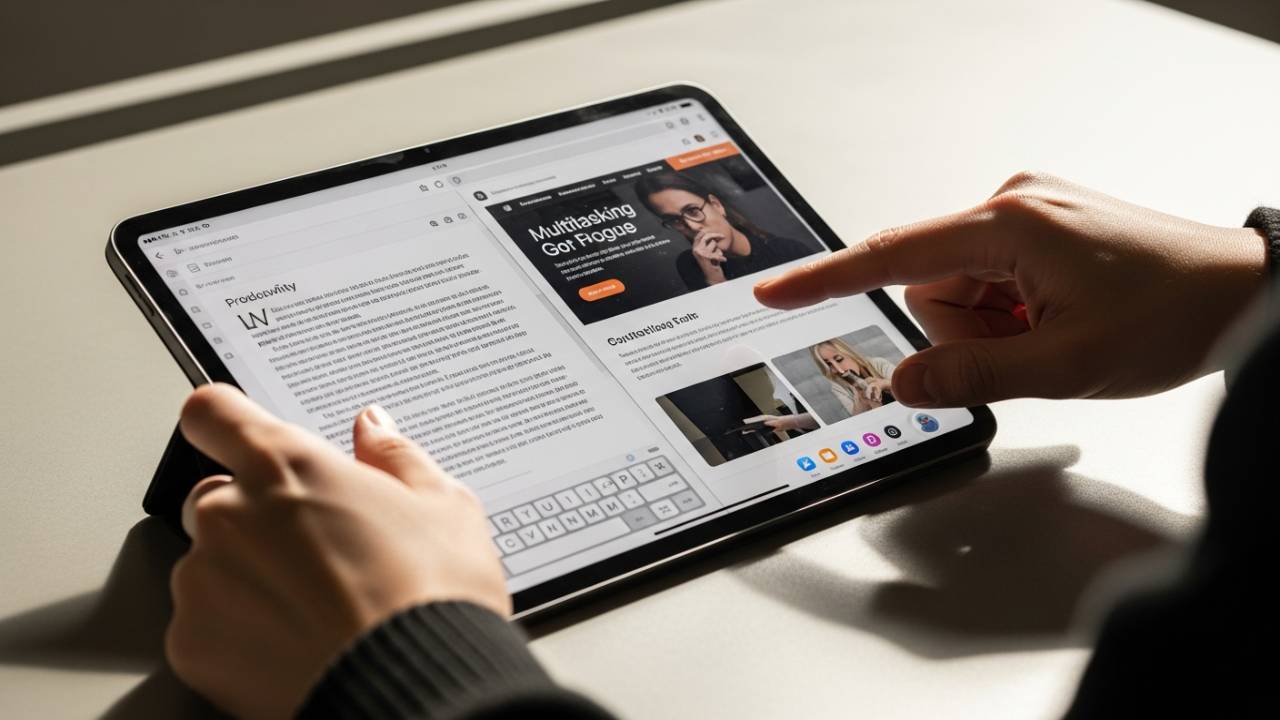
IPAD • DAILYTECH.ID - Split screen on iPad lets you use two apps at the same time, making multitasking easier for browsing, note-taking, or work. Whether you’re using a new iPadOS update or an older iPad model, Apple’s Split View feature is built into iPadOS. It transforms your tablet from a simple media consumption device into a powerhouse workstation that can handle professional workflows.
Quick Answer: To do split screen on iPad, open an app, tap the three-dot multitasking button at the top of the screen, choose Split View (the icon with two equal halves), then select a second app from your Home Screen or Dock to display both apps side by side.
What Is Split Screen on iPad? (Split View vs. Slide Over)
If you’re coming from a Mac or a PC, you’re used to windows floating everywhere. On an iPad, Apple handles things a bit more deliberately. There are two main ways to see two apps at once: Split View and Slide Over.
Split View vs. Slide Over Explained
- Split View: This is the primary way to multitask. It places two apps side-by-side in a persistent layout. You can interact with both simultaneously, and they stay locked together even if you go to the Home Screen and come back.
- Slide Over: Think of this as a “quick glance” mode. One app floats in a tall, skinny window on top of another app. You can swipe it away when you don’t need it and swipe it back from the edge of the screen when you do.
Which iPads Support Split Screen?
Not every iPad is created equal. While iPadOS 26 and recent updates have optimized the experience, hardware limitations exist.
- iPad Pro: All models support full multitasking.
- iPad Air: 2nd generation and later.
- iPad Mini: 4th generation and later.
- Standard iPad: 5th generation and later (including the iPad 9th gen and iPad 10th gen).
Limitations by Model and App
While the hardware might support it, the software sometimes has its own rules. Some apps, like Instagram or certain high-fidelity games, are designed for a single-screen experience and may not support Split View. Additionally, older models like the iPad 9th gen might feel a bit slower when running two heavy apps like Adobe Lightroom and Safari simultaneously compared to an M-series iPad Pro.
How to Do Split Screen on iPad (Step-by-Step)
Apple has refined the interface over the years, making it much more intuitive than the “hidden gestures” of the past.
Using the Multitasking Three-Dot Menu
- Open any app (e.g., Goodnotes or Safari).
- At the top of the screen, you’ll see three grey dots. Tap them.
- A menu will appear with three icons: Full Screen, Split View, and Slide Over. Tap Split View (the middle icon).
- The current app will slide out of the way, showing your Home Screen. Tap the second app you want to use.
- The two apps will now sit side-by-side.
Drag-and-Drop Method from the Dock
This is the “old school” pro way that still works beautifully:
- Open your first app.
- Swipe up slowly from the bottom edge to reveal the Dock.
- Touch and hold the icon of the second app you want to open.
- Drag it to the far left or right edge of the screen until the first app shrinks, then let go.
Adjusting App Sizes
You aren’t stuck with a 50/50 split. In the center of the screen, there is a vertical divider bar. You can grab this handle and slide it to create a 33/66 or 66/33 split, which is perfect if you want a large window for Notability and a smaller one for YouTube.
How to Do Split Screen on iPad Pro, Air, and Mini
The experience shifts slightly depending on your screen real estate.
iPad Pro (All Sizes)
On the 12.9-inch or 13-inch iPad Pro, Split View feels like having two full-sized iPads side-by-side. These models also support Stage Manager, a more advanced windowing system, but for most users, Split View remains the cleanest way to work.
iPad Air (M-series and Older)
The iPad Air is the “Goldilocks” of multitasking. Models with M1 or M2 chips handle app switching instantly. If you are using an older Air, you might notice a slight pause when triggering Split View, but the functionality remains the same.
iPad Mini Support and Limits
Because the iPad Mini is smaller, Split View can feel a bit cramped. Many apps will automatically switch to their “compact” or iPhone-style layout when used in split screen on a Mini. It’s best used for referencing a webpage while sending a text or keeping a calculator open next to a spreadsheet.
How to Do Split Screen on iPad With or Without Home Button
Navigating your iPad depends on the “age” of your hardware.
iPads Without a Home Button
Models like the iPad Pro and the iPad 10th gen use gestures. Swiping up from the bottom takes you home, and a “short swipe” brings up the Dock. The three-dot menu is your best friend here to avoid accidental swipes.
iPads With a Home Button
On the iPad 9th gen or older, you still have the Home Button. While you can use the three-dot menu, you can also use the Home Button to exit apps quickly, though the multitasking gestures are identical once you are inside an app.
How to Do Split Screen on iPad Using Safari and Other Apps
Safari Split Tabs vs. Split View
Safari has a unique trick. You can actually have two Safari windows open in Split View.
- Open Safari.
- Long-press a link and select Open in New Window.
- Now you can compare two websites side-by-side without needing a second app.
Chrome and Browser Behavior
Chrome works similarly to Safari, though it doesn’t always support the “Split Tab” feature as natively as Safari. However, it’s great for having a Google Meet call on one side and a Google Doc on the other.
App Compatibility Issues
Apps like Netflix or YouTube often prefer Picture-in-Picture (PiP) over Split View. If an app won’t “snap” into place, try using PiP to let the video float while you use another app in full screen.
How to Change, Resize, or Switch Apps in Split Screen
Making Split Screen Bigger or Smaller
Simply drag the dark grey handle in the center divider. If you drag it too far toward the edge, you will effectively close one of the apps.
Switching One App Without Closing Split View
If you have Safari and Notes open, but you want to replace Notes with FaceTime:
- Tap the three dots above the Notes window.
- Tap “Split View” again or swipe the app down from the top to “toss” it away.
- Select FaceTime from your Home Screen to take its place.
How to Exit or Turn Off Split Screen on iPad
Many users get “stuck” in split screen. Here is how to get back to a single screen:
- The Slide Method: Grab the center divider handle and slide it all the way to the left or right edge of the screen. The app you slide over will disappear.
- The Menu Method: Tap the three dots at the top of the app you want to keep. Select the Full Screen icon (the solid grey rectangle). The other app will close instantly.
How to Fix Split Screen Not Working on iPad
If you can’t get it to work, don’t panic. It’s usually a quick fix.
- Split Screen Missing After Update: Sometimes a new update like iPadOS 26 resets settings. Go to Settings > Multitasking & Gestures and make sure “Split View & Slide Over” is turned on.
- Apps Not Supporting Split View: If the three dots don’t appear, the app developer hasn’t enabled multitasking.
- Reset Multitasking Settings: If gestures are glitchy, toggle the multitasking settings off and back on again, or perform a hard restart of your iPad.
FAQs – How to Do Split Screen on iPad
The method is the same: use the three-dot menu at the top. If you are using a Magic Keyboard, you can also use Command + N in some apps to open new windows.
Most can, but very old models (like the original iPad Mini or iPad 4) cannot. You need a model from roughly 2015 or later.
Drag the middle divider bar all the way to the edge of the screen to close one app.
The most common reasons are that the app doesn’t support it, or the feature is disabled in your iPad’s Settings.
Tap the three dots at the top of the window you want to change, or drag a new app icon from the Dock directly on top of the app you want to replace.