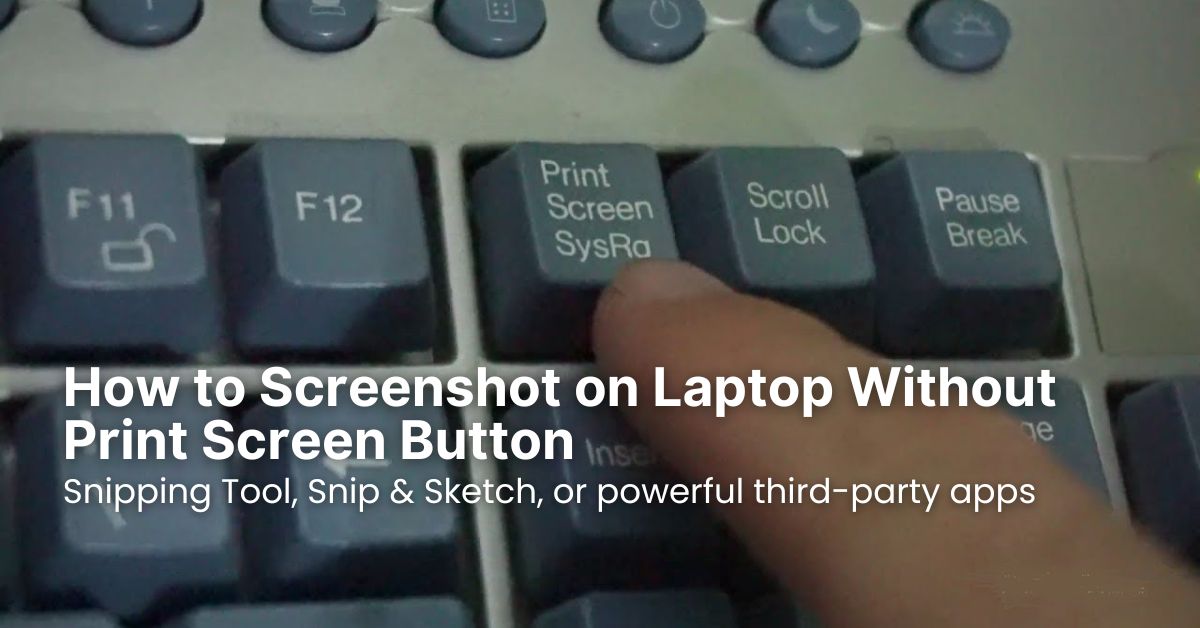
LAPTOP • DAILYTECH.ID - Sometimes you need to know how to screenshot on laptop without print screen because your keyboard might not have one, or perhaps it’s just not working. Don’t worry, there are plenty of easy ways to capture what’s on your screen, even without that dedicated key. This article will walk you through several straightforward methods to get the job done quickly and efficiently.
Taking screenshots is a fundamental skill for many tasks, from sharing error messages with tech support to saving important information or images. While the Print Screen key is a common go-to, it’s certainly not your only option. We’ll explore built-in Windows tools and handy third-party applications that offer more flexibility.
Whether you’re using a Windows 10, Windows 11, or even an older version, the techniques we’re about to discuss are generally applicable. You’ll learn various approaches, so you can pick the one that best suits your workflow and the specific screenshot needs you have.
Mastering Screenshots Without the Print Screen Key
So, you’re looking to screenshot on your laptop without the Print Screen key. Good news! Windows has several built-in tools that are incredibly effective, and you don’t need any special software to use them. These methods are often more versatile than just hitting Print Screen, allowing you to capture specific windows, sections, or even free-form shapes.
The Snipping Tool: Your Go-To for Precision Screenshots
The Snipping Tool is a classic Windows utility that’s been around for ages and is fantastic for taking precise screenshots. It’s built right into Windows and offers more control than a simple full-screen capture.
To open the Snipping Tool:
- In Windows 10/11, you can simply type “Snipping Tool” in the Start Menu search bar and press Enter.
- Alternatively, you can access it via the shortcut: Windows Key + Shift + S. This is perhaps the quickest way to bring up the Snipping Tool’s functionalities directly.
Once it’s open (or you use the shortcut), you’ll see a small bar at the top of your screen with a few options:
- Rectangular Snip: This is the most common. You click and drag to select a rectangular area of your screen.
- Free-form Snip: For those times you need to capture an irregular shape.
- Window Snip: Instantly captures a specific open window. Just click on the window you want to capture.
- Full-screen Snip: While this might seem counter-intuitive when avoiding Print Screen, it’s an option within the tool if you decide you do want the whole screen.
After you make your selection, the screenshot will appear in a new window (if you opened the Snipping Tool traditionally) or be copied directly to your clipboard (if you used Windows Key + Shift + S). From the Snipping Tool window, you can annotate, highlight, and save your screenshot to any location on your laptop.
Snip & Sketch: The Modern Snipping Experience
Snip & Sketch is the successor to the Snipping Tool in Windows 10 and 11, offering a more modern interface and additional annotation features. It effectively consolidates the capabilities of the Snipping Tool with more editing options.
You can access Snip & Sketch in the same way as the Snipping Tool, by searching for it in the Start Menu or, more conveniently, by pressing Windows Key + Shift + S. This shortcut directly activates the screen-snip overlay, allowing you to choose your capture type (rectangular, free-form, window, or full-screen).
Once you’ve captured your screenshot using the overlay, it will automatically be copied to your clipboard. A notification will also pop up in the bottom right corner of your screen. Clicking this notification will open the screenshot in the Snip & Sketch editor. Here, you can:
- Crop the image.
- Draw on it with a pen, pencil, or highlighter.
- Erase annotations.
- Share the image directly.
- Save the image in various formats (PNG, JPG, GIF).
Snip & Sketch is incredibly efficient for quick captures and light editing, making it an excellent alternative when you need to screenshot on your laptop without Print Screen.
Keyboard Shortcuts: Quick Ways to Screenshot
Beyond dedicated tools, Windows offers several built-in keyboard shortcuts that can help you screenshot on your laptop without the Print Screen key. These are generally faster for specific types of captures.
Windows Key + Volume Down (for Tablets/2-in-1s)
If you’re using a Microsoft Surface or a similar 2-in-1 laptop that functions like a tablet, you might have a different method available. Pressing the Windows Key (usually on the bezel of the screen) and the Volume Down button simultaneously often takes a screenshot, similar to how smartphones capture screens. This screenshot is usually saved directly to your “Screenshots” folder within your “Pictures” library.
Alt + Print Screen (if you have an “Fn” key)
While the goal here is to avoid the Print Screen key, some compact keyboards might have it combined with another function, requiring you to press the Fn (Function) key along with it. If your Print Screen key is actually labeled something like “PrtSc SysRq” and you usually need to press Fn + PrtSc to activate it, then Alt + Fn + PrtSc might capture only the active window. This is a variation to consider if your specific keyboard layout presents a challenge. However, for a true “no Print Screen” scenario, the Snipping Tool or Snip & Sketch is a better bet.
Using the On-Screen Keyboard
This might seem a bit unconventional, but if your physical keyboard’s Print Screen key is truly non-functional or absent, you can use the On-Screen Keyboard!
To open the On-Screen Keyboard:
- Go to Start, type “On-Screen Keyboard,” and press Enter.
- Once it appears, you’ll see a virtual keyboard on your screen.
- Locate the “PrtScn” button on this virtual keyboard and click it.
This will perform a full-screen screenshot, just like pressing the physical Print Screen key. The image will be copied to your clipboard, and you can then paste it into an image editor (like Paint) or a document. This is a handy workaround if you really need the traditional Print Screen functionality without the physical key.
Third-Party Applications for Enhanced Screenshots
While Windows’ built-in tools are perfectly capable, third-party applications can offer advanced features like cloud integration, extensive annotation tools, and GIF recording. If you frequently take screenshots or need more specialized options, consider these alternatives to screenshot on your laptop without Print Screen.
ShareX: Power-User Favorite
ShareX is a free, open-source program that’s incredibly powerful and feature-rich. It goes far beyond simple screenshots, offering screen recording, GIF creation, advanced annotation, and automatic uploading to various online services.
Key features of ShareX:
- Multiple capture modes: region, window, full screen, scrolling capture.
- Extensive annotation tools: text, arrows, shapes, obfuscation.
- Workflow automation: automatically save, copy to clipboard, or upload after capture.
- Support for many destinations: Imgur, Dropbox, Google Drive, and many more.
While it has a learning curve due to its vast array of options, for power users who frequently need to screenshot laptop with advanced capabilities, ShareX is unparalleled. You can customize hotkeys for all its functions, completely bypassing the need for a Print Screen key.
Lightshot: Quick and Easy
Lightshot is a lightweight and user-friendly screenshot tool that’s popular for its simplicity and quick sharing options. It’s perfect if you want something more robust than the built-in Windows tools but less overwhelming than ShareX.
How Lightshot works:
- Once installed, you can set a custom hotkey (e.g., Ctrl + Shift + 1) to activate it, effectively replacing your Print Screen key.
- Pressing the hotkey will dim your screen, and you can then click and drag to select an area for your screenshot.
- After selection, a small toolbar appears with options to:
- Save the image.
- Copy it to the clipboard.
- Print it.
- Share it directly to social media or upload it to their cloud service for a quick link.
- Perform basic annotations (text, lines, arrows).
Lightshot is an excellent choice for those who need a balance between ease of use and enhanced functionality when they screenshot on their laptop without Print Screen. It’s especially useful for quickly sharing images online.
Greenshot: Balanced Functionality
Greenshot is another fantastic free and open-source screenshot tool that strikes a great balance between features and ease of use. It’s highly configurable and offers a robust set of options for capturing and editing screenshots.
Greenshot’s main advantages:
- Various capture modes: region, window, full screen, Internet Explorer complete webpage.
- Powerful image editor: easily add annotations, highlights, obfuscate parts, or crop.
- Export options: save to file, copy to clipboard, print, attach to e-mail, or upload to photo sites (Flickr, Picasa, etc.).
- Customizable hotkeys: assign specific keys to different capture modes, making it easy to screenshot on your laptop without Print Screen.
Greenshot is a reliable tool for anyone looking for a comprehensive yet intuitive way to handle their screenshot needs, offering more control than native tools without being overly complex.
Saving and Managing Your Screenshots
Once you’ve mastered how to screenshot on laptop without Print Screen, the next step is knowing where they go and how to manage them.
Where Screenshots Are Saved
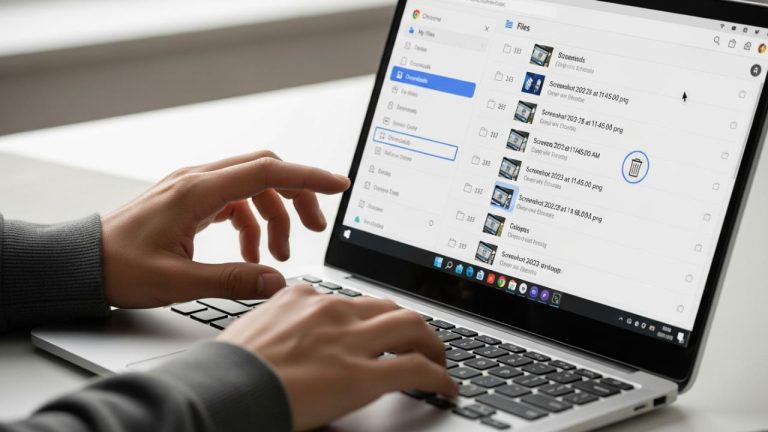
- Snipping Tool/Snip & Sketch: If you use these tools and click “Save,” you’ll be prompted to choose a location. By default, they often suggest the “Pictures” folder. If you just copy to clipboard, they aren’t saved as a file until you paste them into an application (like Paint, Word, or an email) and then save that document/image.
- Windows Key + Volume Down: Screenshots taken this way on tablets/2-in-1s are typically saved automatically to the “Screenshots” folder, which is located inside your “Pictures” library (
C:\Users\[YourUsername]\Pictures\Screenshots). - Third-Party Tools: Most third-party applications allow you to configure a default save location. Many will also copy the screenshot to your clipboard by default, giving you the option to paste it immediately.
Tips for Managing Your Screenshots
- Create a Dedicated Folder: If you take a lot of screenshots for specific projects or topics, create dedicated subfolders within your “Pictures” directory. This keeps things organized and easy to find later.
- Rename Files Sensibly: Instead of generic “Screenshot (1).png” names, rename your files descriptively (e.g., “Error_Message_Outlook_07-07-2025.png” or “Website_Layout_Idea.jpg”). This makes searching and retrieving much easier.
- Use Cloud Storage: For important screenshots you might need across devices, consider saving them directly to cloud storage services like OneDrive, Google Drive, or Dropbox. Many third-party screenshot tools integrate directly with these services.
- Consider Image Formats:
- PNG: Best for screenshots with text, sharp lines, or transparent backgrounds. It’s lossless, meaning no quality is lost, but file sizes can be larger.
- JPG/JPEG: Good for photos or images with lots of colors and gradients. It’s a lossy format, meaning some quality is sacrificed for smaller file sizes.
- GIF: Suitable for simple animations or images with a limited color palette.
By effectively managing your screenshots, you’ll save time and ensure that the visual information you’ve captured is always accessible. This concludes your guide on how to screenshot on laptop without print screen, providing you with numerous options to suit any situation.
Conclusion
You now have a comprehensive understanding of how to screenshot on laptop without Print Screen, regardless of whether your key is missing, broken, or you simply prefer other methods. From Windows’ built-in Snipping Tool and Snip & Sketch, which offer precise control, to various keyboard shortcuts for specific devices, and powerful third-party applications like ShareX, Lightshot, and Greenshot for advanced needs, you’re well-equipped.
The ability to capture your screen effectively is a valuable skill in the digital world. By choosing the method that best fits your workflow and needs, you can efficiently document, share, and manage visual information from your screen. Experiment with these different approaches to find your favorite way to get the job done. For more information on capturing your screen, you can always refer to general guides on screenshot laptop methods or explore various How to articles for specific techniques.