LAPTOP • DAILYTECH.ID - Learning how to screenshot on an Acer laptop is a fundamental skill for anyone using these devices, whether for work, study, or leisure. Capturing what’s on your screen can be incredibly useful for sharing information, troubleshooting issues, or saving visual memories. Fortunately, Acer laptops, like most Windows-based computers, offer several straightforward methods to take a screenshot. This guide will walk you through all the common techniques, ensuring you can easily screenshot your Acer laptop no matter which model you have.
The process is generally consistent across different Acer laptop lines, including Aspire, Predator, Swift, Spin, and Nitro. While some specialized gaming keyboards might have dedicated keys, the core Windows functionalities remain the same. So, whether you’re a seasoned tech enthusiast or a new Acer user, you’ll find a method that suits your needs.
We’ll cover everything from quick keyboard shortcuts to more advanced tools, making sure you have all the knowledge to effectively capture your screen. By the end of this article, you’ll be a pro at taking screenshots on your Acer laptop.
Quick and Easy: Using the Print Screen Key
The simplest way to screenshot on an Acer laptop involves the Print Screen key, often labeled “PrtSc,” “PrntScrn,” or “Print Scrn.” This key is usually located in the upper-right section of your keyboard, near the F12 key.
Capturing the Entire Screen
To take a screenshot of your entire screen and save it automatically, here’s what you do:
- Press the Windows key + Print Screen key simultaneously.
- Your screen will dim briefly, indicating a screenshot has been taken.
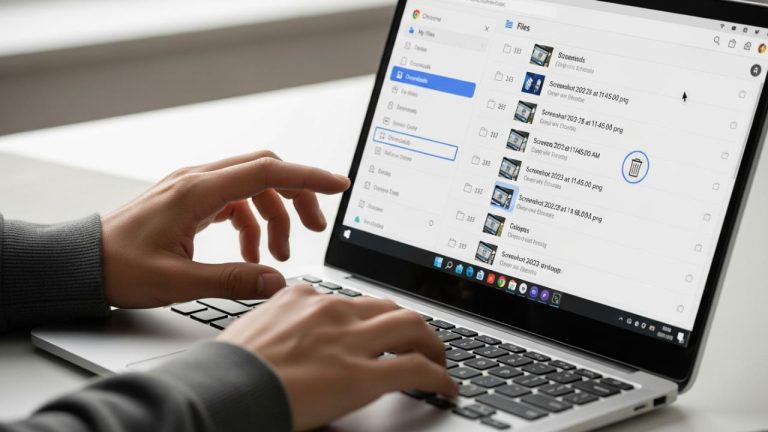
- The screenshot is automatically saved as a PNG file in your “Pictures” folder, inside a subfolder named “Screenshots.”
This method is incredibly convenient for quickly capturing everything visible on your display without needing to paste it anywhere manually.
Capturing and Pasting a Screenshot (Manual Save)
If you want to capture the screen but then paste it into an application like Paint, Word, or an email, use this method:
- Press the Print Screen key (PrtSc) by itself.
- This action copies the entire screen to your clipboard.
- Open an image editor (like Paint), a document (like Word), or an email client.
- Press Ctrl + V to paste the screenshot.
- From there, you can edit, save, or share the image as needed. This gives you more control over where the image goes immediately after capture.
Capturing an Active Window
Sometimes you only need a screenshot of the currently active window, not your entire desktop. This is also easily done with the Print Screen key:
- Make sure the window you want to capture is active (click on its title bar).
- Press Alt + Print Screen simultaneously.
- This copies only the active window to your clipboard.
- You can then paste it into any application using Ctrl + V, just like with the full-screen capture.
Precision Captures: The Snipping Tool
For more precise and flexible screenshot options, Windows offers the Snipping Tool. This utility allows you to capture specific areas of your screen, active windows, or even free-form shapes. It’s built right into Windows, so you don’t need to download anything extra.
How to Use the Snipping Tool
- Open the Snipping Tool: You can find it by typing “Snipping Tool” into the Windows search bar (usually next to the Start button) and clicking on the app.
- Select a Snipping Mode: Once open, click the “Mode” button. You’ll see several options:
- Free-form Snip: Draw any shape around the object you want to capture.
- Rectangular Snip: Drag the cursor to form a rectangle around an area. This is the most commonly used mode.
- Window Snip: Select a window you want to capture.
- Full-screen Snip: Captures the entire screen, similar to the Print Screen key.
- Take Your Snip:
- After selecting a mode, your screen will dim slightly.
- Click and drag your mouse to select the area you want to capture (for Free-form or Rectangular snip).
- For Window Snip, simply click the window you want to capture.
- For Full-screen Snip, it will capture immediately.
- Edit and Save: Once captured, the screenshot will appear in the Snipping Tool window. Here, you can:
- Use the pen or highlighter tools to annotate the image.
- Erase annotations.
- Click the disk icon to save the image (default format is PNG, but you can choose JPEG, GIF, or HTML).
- Click the copy icon to copy it to your clipboard.
The Snipping Tool offers a great balance of simplicity and functionality for various screenshot needs.
The Modern Approach: Snip & Sketch (Screenshot Tool)
Windows 10 and 11 introduced Snip & Sketch as a more modern and integrated screenshot tool, effectively replacing the older Snipping Tool for many users. It offers similar functionalities but with a cleaner interface and quicker access. For more general information on how to screenshot on any laptop, you can check out this guide: screenshot laptop.
Accessing Snip & Sketch
There are a few ways to open Snip & Sketch:
- Keyboard Shortcut (Fastest): Press Windows key + Shift + S. Your screen will dim, and a small toolbar will appear at the top of your screen, allowing you to select your snipping mode (rectangular, free-form, window, or full-screen).
- Through the Notification Center: Click on the Notification Center icon (the speech bubble or calendar icon) in your taskbar, then click “Screen snip.”
- Search Bar: Type “Snip & Sketch” into the Windows search bar and open the application.
Using Snip & Sketch
Once you’ve activated Snip & Sketch:
- Select Your Snip Type:
- Rectangular Snip: The default. Click and drag to draw a rectangle.
- Free-form Snip: Draw an irregular shape around the area you want to capture.
- Window Snip: Click on the window you want to capture.
- Fullscreen Snip: Captures your entire screen.
- Capture: Make your selection. The screenshot will automatically be copied to your clipboard, and a notification will pop up in the bottom-right corner of your screen.
- Edit (Optional): Click on the notification to open the screenshot in the Snip & Sketch editor. Here, you can:
- Crop the image.
- Write or draw on it with various pen and highlighter tools.
- Share it directly.
- Save it (PNG is the default, but you can choose JPG or GIF).
Snip & Sketch is an excellent tool for those who need quick, flexible, and annotatable screenshots directly on their Acer laptop. For more “How to” guides, check out How to.
Taking Screenshots in Gaming: Xbox Game Bar
If you’re an Acer Predator or Nitro user, or simply game on your Acer laptop, the Xbox Game Bar is a built-in overlay that offers convenient screenshot (and video recording) capabilities without leaving your game.
How to Use Xbox Game Bar for Screenshots
- Open Xbox Game Bar: Press Windows key + G to open the Game Bar overlay.
- Take a Screenshot: In the Game Bar, you’ll see a “Capture” widget.
- Click the camera icon to take a screenshot.
- Alternatively, you can use the keyboard shortcut: Windows key + Alt + Print Screen.
- Access Your Screenshots: Your screenshots are saved automatically in your “Videos” folder, inside a subfolder named “Captures.” You can also view them directly within the Game Bar by going to the “Gallery” section in the Capture widget.
The Xbox Game Bar is perfect for capturing those epic in-game moments on your Acer laptop, especially on powerful gaming models like the Acer Predator or Nitro series.
Advanced Options: Third-Party Screenshot Software
While Windows provides robust built-in options, many third-party applications offer even more advanced features for taking screenshots on your Acer laptop. These tools often provide more annotation options, cloud integration, scrolling screenshots, and automation.
Some popular third-party screenshot tools include:
- ShareX: A free and open-source tool with an incredible array of features, including various capture modes, extensive annotation tools, and automatic upload to many online services. It’s highly customizable but can be a bit overwhelming for beginners due to its vast options.
- Greenshot: Another free and open-source option known for its lightweight design and efficient workflow. It offers quick capture, basic annotation, and direct export to applications or cloud services.
- Lightshot: A simple and intuitive tool that allows for quick selection, basic editing, and sharing of screenshots. It’s popular for its ease of use and quick sharing features.
To use these, you typically download and install them, and they often integrate with your Print Screen key, giving you more control over the capture process. While the built-in Windows tools are sufficient for most users, these third-party options are great if you require more specialized functionality for your Acer laptop screenshot needs. For more information on different laptop types, visit laptop.
Troubleshooting Common Screenshot Issues
Sometimes, you might run into issues when trying to screenshot on your Acer laptop. Here are a few common problems and their solutions:
- Print Screen Key Not Working:
- Function Key (Fn): Some Acer laptops require you to press the Fn key in combination with the Print Screen key (e.g., Fn + PrtSc). This is especially common on smaller laptops or those with compact keyboards where the Print Screen key shares functionality with another key.
- Driver Issues: Ensure your keyboard drivers are up to date. You can check this in Device Manager.
- Software Interference: Occasionally, third-party software might interfere with the Print Screen key. Try closing any recently installed applications or running your laptop in Safe Mode to diagnose.
- Screenshots Not Saving:
- Check the “Screenshots” Folder: Ensure the “Screenshots” folder exists within your “Pictures” library. If it’s accidentally deleted or moved, Windows might not know where to save the files.
- Disk Space: Verify that you have enough free disk space for the screenshots to be saved.
- Permissions: Make sure your user account has the necessary permissions to write files to the “Pictures” folder.
- Screenshot Looks Black or Blank:
- This can sometimes happen with certain applications, especially those that deal with DRM-protected content (like streaming services) or hardware-accelerated graphics. Try using a different screenshot method (e.g., Snipping Tool instead of Print Screen) or disabling hardware acceleration in the problematic application if possible.
If you continue to experience issues, a simple restart of your Acer laptop can often resolve minor software glitches.
Maximizing Your Screenshot Workflow on Acer Laptops
To make your Acer laptop screenshot process even more efficient, consider these tips:
- Learn the Shortcuts: Memorize the key shortcuts for your most frequent screenshot needs (e.g., Windows key + Print Screen for full screen, Windows key + Shift + S for Snip & Sketch). This saves a lot of time compared to navigating menus.
- Organize Your Screenshots: Regularly review and organize your “Screenshots” folder. Rename files descriptively so you can easily find them later.
- Utilize Cloud Storage: If you frequently share screenshots, consider setting up a cloud storage service (like OneDrive, Google Drive, or Dropbox) to automatically sync your screenshots folder. This makes them accessible from any device.
- Annotate When Needed: Don’t just take a raw screenshot. Use the annotation features in Snipping Tool or Snip & Sketch to highlight important areas, add text, or draw arrows. This greatly enhances the clarity and usefulness of your captures.
- Consider Purpose-Built Software for Specific Tasks: If you often need to capture long web pages, use a browser extension that supports scrolling screenshots. If you make tutorials, a dedicated screen recording tool might be more appropriate.
By incorporating these practices, you can turn a basic screenshot into a powerful communication tool on your Acer laptop.
Conclusion
Taking a screenshot on an Acer laptop is a straightforward process, thanks to the versatile tools built into Windows and the convenience of the Print Screen key. Whether you need a quick capture of your entire screen, a precise snip of a specific area, or an in-game moment, your Acer laptop has you covered.
From the simplicity of Print Screen and the precision of the Snipping Tool to the modern capabilities of Snip & Sketch and the gaming-focused Xbox Game Bar, you have a range of options at your fingertips. By understanding these methods, you can efficiently capture and share visual information, making your daily tasks and creative endeavors much easier. Experiment with the different techniques to find the one that best fits your workflow, and you’ll be a screenshot master in no time.