LAPTOP • DAILYTECH.ID - Whether you’re preparing to sell your trusted companion, troubleshooting a system that’s become sluggish over the years, or you’ve simply found yourself staring at a login screen with a forgotten password, knowing how to reset MacBook Air to factory settings is a fundamental skill for every Apple user.
The MacBook Air has evolved significantly since Steve Jobs pulled the original out of a manila envelope. From the early Intel models to the groundbreaking M1, M2, and M3 Apple Silicon chips, the process of wiping the slate clean has changed. In this deep-dive guide, we will cover every method, every model, and every version of macOS to ensure your data is gone and your laptop is ready for its next chapter.
Quick Answer: How to Factory Reset Your Mac
To reset a MacBook Air to factory settings, you generally need to erase the internal drive using macOS Recovery and then reinstall macOS. On newer models (macOS Monterey or later), you can use the built-in Erase Assistant found in System Settings to wipe your data in seconds. This removes all personal files, signs you out of Apple services, and restores the Mac to its “out-of-the-box” state.
What Resetting MacBook Air to Factory Settings Does
Think of a factory reset as a total “brain wipe” for your computer. It’s more than just deleting folders; it’s a deep-level operation that impacts both hardware and software.
- Erases Personal Files: Every document, photo, and downloaded file is permanently deleted.
- Removes Accounts: Your user profile, local passwords, and saved settings are wiped.
- Logs Out of Services: It severs the link between the hardware and your Apple ID, iMessage, and iCloud.
- Reinstalls macOS: It replaces your current (potentially cluttered or corrupted) operating system with a fresh, clean version of macOS.
- Removes Activation Lock: If done correctly, it allows a new owner to log in without needing your credentials.
How to Reset MacBook Air to Factory Settings (The Recommended Method)
The method you use depends entirely on which processor is inside your MacBook Air. Apple changed the “handshake” for entering recovery mode when they transitioned from Intel chips to Apple Silicon.
For Apple Silicon (M1, M2, M3 Models)
If you have a MacBook Air released in 2020 or later, follow these steps:
- Shut Down: Click the Apple menu and select Shut Down.
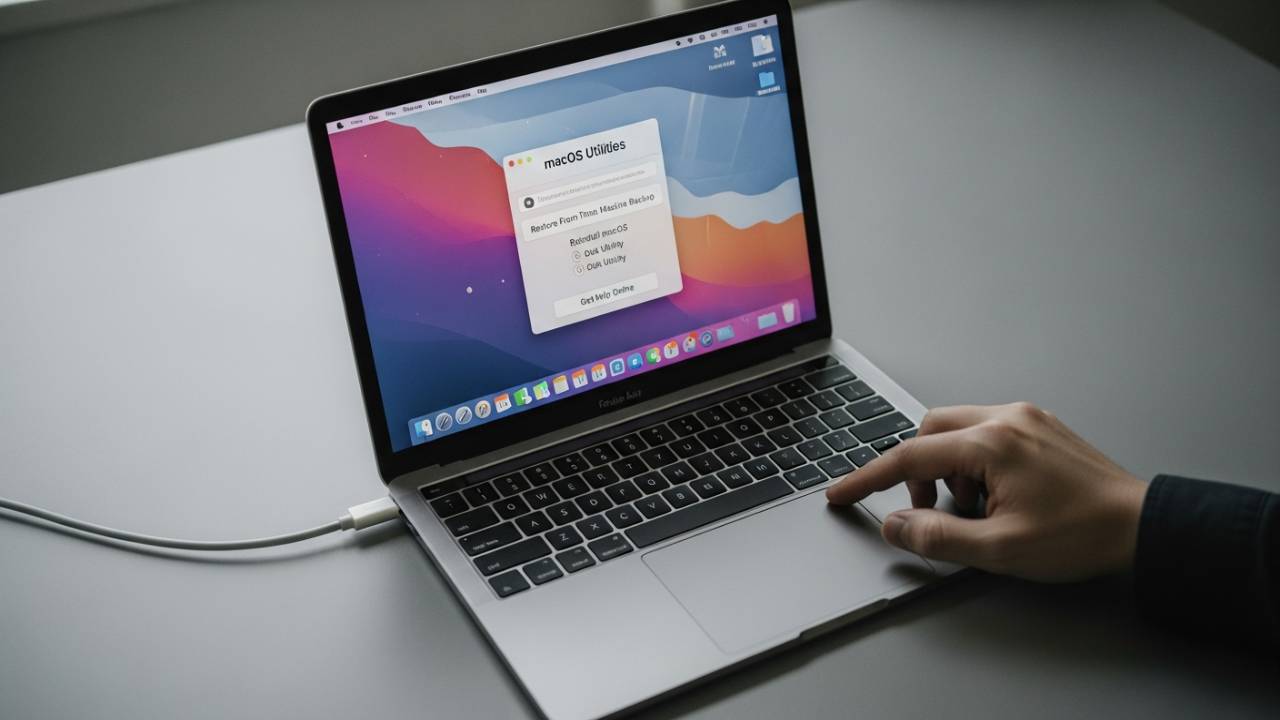
- Hold the Power Button: Press and hold the power button (Touch ID sensor) until you see “Loading startup options” appear on the screen.
- Select Options: Click Options, then click Continue.
- Enter Recovery: If prompted, select a user you know the password for and enter it.
- Disk Utility: From the Utilities window, select Disk Utility and click Continue.
- Erase the Drive: Select the drive named “Macintosh HD” on the sidebar. Click the Erase button in the toolbar. Choose APFS as the format.
- Confirm: Once erased, close Disk Utility and select Reinstall macOS from the main menu.
For Intel-Based Macs (2013–2020 Models)
If your MacBook Air has an Intel processor, the “magic keys” are different:
- Restart: Shut down your Mac.
- The Command Key Combo: Press the power button and immediately press and hold Command (⌘) + R.
- Logo: Release the keys when you see the Apple logo or a spinning globe.
- Wipe and Reinstall: Follow the same Disk Utility steps mentioned above: Erase “Macintosh HD,” quit Disk Utility, and select Reinstall macOS.
How to Reset MacBook Air to Factory Settings Using Erase Assistant
If you are running macOS Monterey, Ventura, Sonoma, or Sequoia, Apple has made life significantly easier. You no longer need to jump into “Recovery Mode” if you can still log into your computer.
Step-by-Step for macOS Ventura and Later:
- Open System Settings from the Apple menu.
- Go to General in the sidebar.
- Click Transfer or Reset on the right.
- Select Erase All Content and Settings.
- Follow the on-screen prompts. The Erase Assistant will sign you out of iCloud, remove Find My, and wipe your data while keeping the operating system intact.
Step-by-Step for macOS Monterey:
- Open System Preferences.
- Click System Preferences in the menu bar at the top of the screen.
- Select Erase All Content and Settings and follow the guide.
Note: This is the preferred method for anyone selling their Mac, as it handles the “signing out” process automatically.
How to Reset MacBook Air to Factory Settings Without Password
Locked out? Forgotten your login password? It’s a frustrating spot to be in, but you aren’t stuck. You can still factory reset the device, provided you eventually have access to the Apple ID associated with the machine (to bypass Activation Lock).
- Boot into Recovery: Use the methods described above (Hold Power for M-series, Command+R for Intel).
- Recovery Assistant: In the top menu bar, look for Recovery Assistant.
- Erase Mac: Select Erase Mac. This option is specifically for when you cannot unlock the disk because of a forgotten password.
- Confirm and Restart: The Mac will wipe itself. After it restarts, you will need to connect to Wi-Fi to activate the Mac using your Apple ID.
How to Reset MacBook Air to Factory Settings Before Selling
If your goal is to pass the MacBook Air to a new owner, you cannot simply wipe the drive. If you don’t sign out of certain services, the next person will be greeted by an “Activation Lock” screen that only you can unlock.
The Ultimate Pre-Sale Checklist:
- Backup Your Data: Use Time Machine or an external drive. Once you reset, there is no “undo” button.
- Sign Out of iCloud: Go to System Settings > [Your Name] > Sign Out.
- Sign Out of iMessage: Open the Messages app > Settings > iMessage > Sign Out.
- Unpair Bluetooth Devices: This prevents the Mac from accidentally connecting to your headphones or mouse in the other room while the new owner is using it.
- Turn Off Find My: This is the most important step to disable Activation Lock.
- The Reset: Use the Erase Assistant or macOS Recovery methods.
- The Final Screen: When the Mac restarts and shows the “Hello” screen in multiple languages, do not proceed. Shut the lid. This allows the new owner to go through the setup process as if the Mac were brand new.
Resetting Older MacBook Air Models (2013–2017)
Older MacBook Airs are still workhorses for many students and writers. These models often run on macOS High Sierra, Mojave, or Catalina.
- No Internet Recovery? If Command+R doesn’t work, try Option + Command + R. This triggers “Internet Recovery,” which downloads the macOS installer from Apple’s servers rather than using the local partition.
- The Drive Format: For older Macs (pre-2017), you might see Mac OS Extended (Journaled) as the drive format option. If you are installing macOS High Sierra or later, choose APFS.
Intel vs. Apple Silicon: Key Differences in Resetting
| Feature | Intel MacBook Air | Apple Silicon (M1/M2/M3) |
| Recovery Key Combo | Command (⌘) + R | Long Press Power Button |
| Security Chip | T2 Security Chip (in 2018+) | Integrated into Silicon |
| Erase Assistant | Only on Monterey+ | All models support it |
| Activation Lock | Enabled if Find My is on | Always enabled by default |
What If MacBook Air Won’t Reset to Factory Settings?
Sometimes the process hits a snag. Here are the three most common roadblocks and how to clear them:
1. The Spinning Globe of Death
If you are doing an Internet Recovery and it fails, it’s almost always a Wi-Fi issue.
- Fix: Switch to a 2.4GHz network instead of 5GHz, or use an Ethernet adapter if available.
2. Disk Utility Won’t Let You Erase
If the “Erase” button is greyed out, you might be trying to erase the “Volume” rather than the “Drive.”
- Fix: In Disk Utility, click View > Show All Devices. Select the very top-level drive (e.g., “Apple SSD…”) and try erasing that.
3. Activation Lock is Active
If the screen says the Mac is linked to an Apple ID you don’t recognize (common in second-hand purchases):
- Fix: Only the original owner can remove this. If you are the owner, you can remove the device from your account via iCloud.com/find.
How Long Does It Take to Reset MacBook Air to Factory Settings?
Setting expectations is important. Don’t start this process 10 minutes before you need to meet a buyer.
- The Wipe: Erasing the drive using Erase Assistant or Disk Utility takes about 2 to 5 minutes.
- The Reinstallation: This is the long part. Depending on your internet speed, downloading the 12GB+ macOS installer and installing it can take anywhere from 30 minutes to 2 hours.
- Total Time: Budget roughly 90 minutes to be safe.
FAQs – How to Reset MacBook Air to Factory Settings
You must enter macOS Recovery (Power button for M-series, Cmd+R for Intel) and select “Erase Mac” from the Recovery Assistant menu. You will need your Apple ID to reactivate it afterward.
Yes. Using the “Erase All Content and Settings” option in System Settings is the fastest and safest way to prepare a Mac for sale.
If you use the Erase Assistant, it logs you out automatically. If you use the Disk Utility method, you should manually sign out of iCloud first to ensure Activation Lock is disabled.
Shut down the Mac, hold the power button until you see “Startup Options,” go to Disk Utility, erase the disk, and then select “Reinstall macOS.”
If the progress bar hasn’t moved for over two hours, you may need to force a restart (hold the power button) and start the Recovery process again. Usually, a second attempt fixes most “hangs.”
Yes. While the “Erase” part happens locally, the “Reinstall macOS” part requires a stable internet connection to download the operating system from Apple.
Summary of Reset Methods by macOS Version
- macOS Sequoia / Sonoma / Ventura: Use System Settings > General > Transfer or Reset.
- macOS Monterey: Use System Preferences > Erase All Content and Settings.
- macOS Big Sur / Catalina / Mojave: Use macOS Recovery (Cmd+R or Power button) + Disk Utility.
Final Thoughts
Resetting your MacBook Air to factory settings is the ultimate way to maintain your privacy and ensure your hardware stays performant for years to come. Whether you’re upgrading to the M3 MacBook Air or just clearing out years of digital clutter, following the correct steps for your specific model is key.
Remember: Data is forever until you erase it. Taking the time to properly sign out of iCloud and wipe your drive protects you from identity theft and ensures the next owner has a seamless experience.