APPLE WATCH • DAILYTECH.ID - Whether you’re looking to upgrade to the latest Series 10 or Ultra 2, or you’ve simply found yourself locked out of your current device because of a forgotten passcode, knowing how to reset Apple Watch to factory settings is an essential skill for any Apple user.
An Apple Watch is more than just a timepiece; it’s a repository of health data, personal messages, and sensitive payment information. When things go wrong—or when it’s time to say goodbye to your device—a factory reset is the only way to ensure your data is safe and the watch is ready for its next chapter.
In this comprehensive guide, we will walk you through every possible scenario: resetting with your iPhone, resetting without a passcode, handling a frozen screen, and preparing your watch for a new owner.
Quick Answer: The Fastest Way to Reset
To reset an Apple Watch to factory settings, the most reliable method is to unpair it from the iPhone using the Watch app. This automatically backs up your data and removes the Activation Lock. If you don’t have your iPhone, you can erase the watch directly by placing it on its charger and holding the side button until the “Erase all content and settings” option appears.
What Resetting Apple Watch to Factory Settings Does
Before we dive into the “how,” it is vital to understand the “what.” When you perform a factory reset, you are essentially triggering a “nuke” option for your device’s software.
- Data Erasure: Every photo, message, workout record, and synced song is wiped from the internal storage.
- Settings Reset: Your custom watch faces, notification preferences, and system settings return to the way they were when the watch first left the box.
- Unpairing: The digital link between your iPhone and the watch is severed.
- Activation Lock: Depending on the method you use, the reset may or may not remove the Activation Lock. This is a security feature that prevents anyone else from using the watch without your Apple ID and password.
Why would you need a factory reset?
- Selling or Gifting: You don’t want the next owner accessing your Apple Pay or heart rate history.
- Troubleshooting: If your watch is lagging, apps are crashing, or the battery is draining unnaturally fast, a fresh start often fixes deep-seated software bugs.
- Forgotten Passcode: If you’ve entered the wrong passcode too many times and are locked out, a reset is your only way back in.
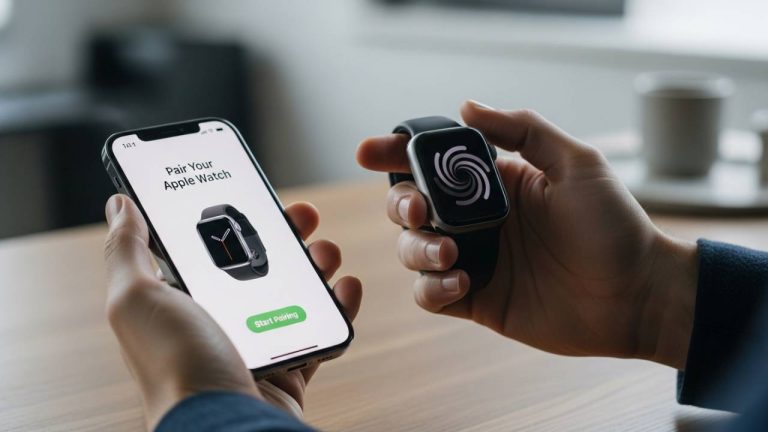
- Pairing Issues: Sometimes, a new iPhone refuses to recognize an old watch. A reset forces a new “handshake” between devices.
How to Reset Apple Watch to Factory Settings Using iPhone
This is the “Golden Standard” for resetting. If you have your iPhone handy and the devices are currently paired, always use this method. It is the only method that guarantees the Activation Lock is removed, which is mandatory if you are selling the device.
Step-by-Step Instructions:
- Keep them Close: Ensure your Apple Watch and iPhone are within Bluetooth range (about 30 feet).
- Open the Watch App: On your iPhone, find the My Watch app icon.
- Select Your Watch: At the top of the “My Watch” tab, tap on All Watches.
- Find the Info Icon: Tap the ⓘ (info icon) next to the watch you want to reset.
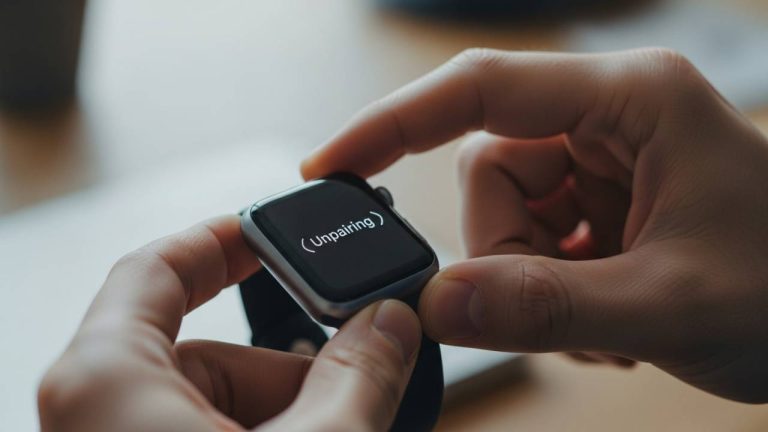
- Unpair: Tap Unpair Apple Watch.
- Note for Cellular Models: If you have a GPS + Cellular model, you’ll be asked if you want to keep or remove your cellular plan. If you’re keeping the watch and just troubleshooting, keep the plan. If you’re selling it, remove the plan.
- Confirm with Apple ID: To disable Activation Lock, you must enter your Apple ID password.
- Wait for the Backup: Your iPhone will create a fresh backup of your watch data before the wiping process begins. This is incredibly helpful if you plan on setting up a new Apple Watch later.
Once the process finishes, the watch will restart and display the “Bring iPhone near Apple Watch” setup screen.
How to Reset Apple Watch to Factory Settings Without iPhone
There are plenty of situations where you might not have your iPhone. Maybe the phone was lost, or perhaps you’re across the country and only have the watch. You can still perform a reset directly on the wrist.
Method 1: Through the Settings App (If you know the passcode)
- On your Apple Watch, open the Settings app.
- Go to General > Reset.
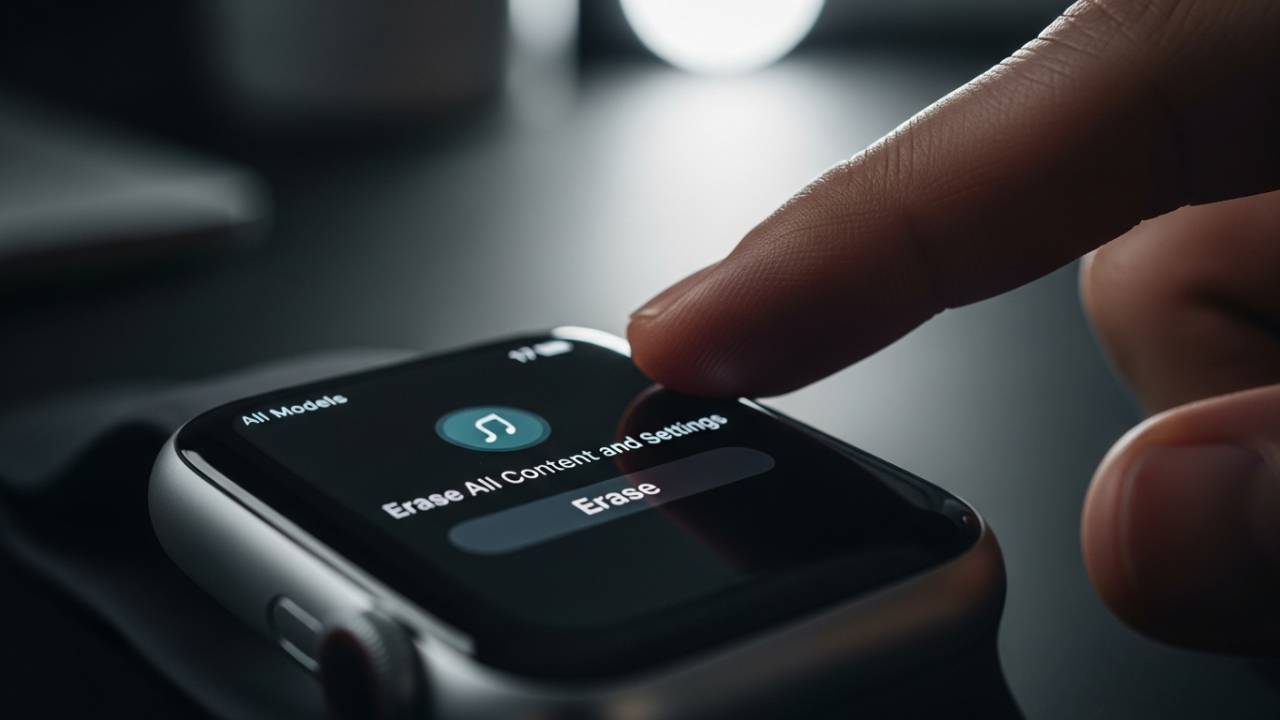
- Tap Erase All Content and Settings.
- Enter your passcode if prompted.
- Scroll down and tap Erase All (or Erase All & Keep Plan for cellular models).
Method 2: The Charger Method (If the watch is locked)
This is a “secret” hardware-based reset used when you can’t access the settings menu.
- Connect to Power: Place your Apple Watch on its charger. This is a safety requirement to ensure the watch doesn’t die mid-reset, which could “brick” the device.
- Side Button: Press and hold the Side Button (the flat oval button below the Digital Crown) until the Power Off slider appears.
- Hard Press the Crown: Do not slide the power off bar. Instead, press and hold the Digital Crown for about 5 seconds.
- The Prompt: A message will appear asking if you want to “Erase all content and settings.”
- Reset: Tap Reset, then tap Reset again to confirm.
Important Note: Resetting without an iPhone does not remove Activation Lock. When the watch reboots, it will still ask for the original Apple ID and password before it can be used by anyone else.
How to Reset Apple Watch to Factory Settings Without Passcode
It happens to the best of us—you set a passcode months ago, stopped wearing the watch for a while, and now you can’t remember the four-digit string.
If you are locked out, you cannot use the iPhone app method easily because the watch needs to be unlocked to communicate certain commands. Instead, you must use the Charger Method described in the previous section.
Steps to bypass a forgotten passcode:
- Put the watch on the charger.
- Hold the side button until the power menu pops up.
- Firmly press (or long-press) the Digital Crown.
- Select “Reset.”
This will wipe the passcode and all data, allowing you to start from scratch. However, be prepared to enter your Apple ID during the new setup process. This is Apple’s way of ensuring that stolen watches cannot be easily wiped and reused by thieves.
How to Reset Apple Watch to Factory Settings With Buttons (Hard Reset)
Sometimes, the software is so glitched that the touch screen won’t respond. In the tech world, we differentiate between a “Factory Reset” (wiping data) and a “Hard Reset” (force restarting).
How to Force Restart (Hard Reset)
If your watch is frozen, do this first before trying to wipe it:
- Press and hold both the Side Button and the Digital Crown simultaneously.
- Keep holding for at least 10 seconds.
- Release when you see the Apple Logo.
How to Force Factory Reset with Buttons
If you need to wipe the device but the screen is unresponsive, follow the Charger Method mentioned earlier. The physical buttons (Side Button and Digital Crown) are designed to trigger the reset menu even when the software UI is acting up.
How to Reset Apple Watch to Factory Settings Before Selling
If you are selling your watch on eBay, Craigslist, or trading it in at the Apple Store, you must follow specific steps. If you simply erase the data from the watch settings, the “Activation Lock” stays on. This means the buyer will receive a watch they literally cannot use.
The Seller’s Checklist:
- Unpair via iPhone: As emphasized, this is the only way to automatically remove the Activation Lock.
- Verify on iCloud: To be 100% sure, log into iCloud.com/find, select your Apple Watch from “All Devices,” and ensure it is removed from your account.
- Clean the Hardware: Use a lint-free cloth. If you have a sport band, wash it with mild soap.
- Gather Accessories: A factory reset watch is worth more if it includes the original charger and box.
Resetting Specific Models: From Series 3 to Ultra 2
While the software (watchOS) makes the reset process almost identical across all devices, there are a few model-specific nuances to keep in mind.
How to reset Apple Watch Series 3, 4, 5, and 6
These older models have slower processors. When you trigger a factory reset, the “whirling” icon might stay on the screen for quite a while. Do not interrupt it. Series 3 models, in particular, often struggle with storage space during updates/resets, so ensure it remains on the charger the entire time.
How to reset Apple Watch Series 7, 8, and 9
These models feature fast-charging capabilities and more robust processors. The reset process is usually very snappy, often completing in under 5 minutes.
How to reset Apple Watch SE and SE 2
The SE models follow the exact same logic as the flagship series. Since the SE is often a “starter” watch for children (using Family Setup), you might need to reset it from the “Parent” iPhone.
How to reset Apple Watch Ultra and Ultra 2
The Ultra series features the Action Button. Note that the Action Button is not used in the reset process. You still rely on the Digital Crown and the Side Button. Given the Ultra’s massive battery, it is still recommended to use a charger to prevent any power interruptions during the firmware wipe.
How Long It Takes to Reset Apple Watch to Factory Settings
Patience is key. A factory reset isn’t just deleting files; it’s re-indexing the entire operating system.
- Standard Reset: 5 to 10 minutes.
- Reset with Backup (iPhone method): 10 to 15 minutes, depending on how much data needs to be uploaded to iCloud.
- Older Models (Series 3): Can take up to 20 minutes.
Pro-Tip: If your watch has been on the Apple Logo for more than 30 minutes, it might be stuck. Only then should you attempt a force restart.
Apple Watch Reset to Factory Settings but Won’t Pair?
You’ve done the reset, the watch has rebooted, but now your iPhone won’t see it. This is a common “post-reset” headache. Here is the troubleshooting hierarchy:
- Toggle Bluetooth: Turn Bluetooth off and on again on your iPhone.
- Restart Both: Turn your iPhone off and on. Do the same for the watch.
- Check iOS Version: You cannot pair a new watchOS version with an old iOS version. Make sure your iPhone is updated to the latest software.
- The “Hidden” Device: Go to your iPhone’s Bluetooth settings. If you see “Apple Watch” in the list of “My Devices,” tap the “i” and select Forget This Device before trying to pair again.
- Wi-Fi Check: Ensure your iPhone is connected to a stable Wi-Fi network.
FAQs – How to Reset Apple Watch to Factory Settings
Place the watch on its charger, hold the side button until the power slider appears, then long-press the Digital Crown to bring up the “Erase all content” menu.
Yes. Using the button-and-charger method allows you to bypass the passcode entry screen and wipe the device entirely.
Only if you do it through the Watch App on your iPhone or if you manually remove the device from your iCloud account. Resetting via the watch buttons alone does not remove the lock.
Yes, and you should! Just make sure to use the iPhone “Unpair” method so the buyer doesn’t get a “locked” device.
Perform a hard reset by holding the Digital Crown and Side Button for 10 seconds until the Apple logo appears. This will usually kickstart the process or return you to the previous state.
If you unpair using your iPhone, a backup is created automatically. Your Health data is actually stored in iCloud and the Health app on your iPhone, so as long as your phone is backed up, your heart rate and workout history are safe.
Summary Table: Reset Methods at a Glance
| Scenario | Best Method | Removes Activation Lock? |
| Selling the watch | iPhone Watch App (Unpair) | Yes |
| Forgot Passcode | Charger + Side Button + Crown | No |
| Frozen Screen | Side Button + Crown (Hold 10s) | N/A (Restart only) |
| No iPhone available | Watch Settings > General > Reset | No |
| Buying a used watch | Ask seller to unpair from their phone | N/A |
Final Thoughts
Resetting your Apple Watch to factory settings might feel intimidating, especially when “Erase All Data” appears in bright red letters. However, whether you are troubleshooting a glitchy Series 4 or passing on a rugged Ultra to a friend, the process is designed to be user-friendly.
The biggest takeaway? Always use your iPhone to unpair if possible. It saves you from the headache of Activation Lock and ensures your data is backed up. If you are stuck without a phone or passcode, the physical button method is your reliable failsafe.
Now that your watch is as clean as the day it was manufactured, you’re ready to set it up as new, sell it for top dollar, or troubleshoot those pesky bugs with confidence.