APPLE WATCH • DAILYTECH.ID - So, you’ve just unboxed a shiny new iPhone. The screen is crisp, the camera is incredible, and the migration process was—hopefully—smooth sailing. But then you glance at your wrist. Your Apple Watch is still acting like it’s married to your old device.
It’s a common moment of panic: “Do I lose my Activity rings? What about my custom watch faces? How do I get these two talking without a headache?”
Whether you are rocking the latest Apple Watch Ultra 2, a Series 9, or holding onto a trusty Series 4, the relationship between your watch and your phone is strictly monogamous. An Apple Watch can only pair with one iPhone at a time. To switch partners, you need to follow a specific dance.
In this comprehensive guide, we will walk you through exactly how to pair an apple watch to a new phone, covering every scenario—from the standard transfer method to troubleshooting steps when things go wrong.
Quick Answer:
To pair an Apple Watch to a new phone, open the Watch app on your new iPhone and select Start Pairing. If you have your old iPhone, unpair the watch from it first to automatically create a backup. If you don’t have the old phone, you must erase the watch via its Settings, then pair it as a new device or restore from an iCloud backup.
1. Things to Check Before Pairing
Before you start tapping buttons, you need to set the stage. Failing to prep these basics is the #1 reason users search for “why won’t my Apple Watch pair.” Ensure you have the following ready to go:
- Apple ID: Your new iPhone needs to be signed in to iCloud. Ensure it’s the same Apple ID you used on your watch previously if you want to restore backups.
- Bluetooth & Wi-Fi: Both Bluetooth and Wi-Fi must be enabled on your new iPhone. These are the bridges your devices use to communicate.
- Battery Life: This process can drain power. Ensure your Apple Watch is at least 50% charged. Ideally, keep both the watch and the phone on their chargers during the process.
- Software Updates: An outdated iPhone might not talk to a newer Watch, and vice versa. Go to Settings > General > Software Update on your new phone to ensure you are on the latest iOS.
- Physical Proximity: Keep the watch and the new phone right next to each other. Don’t try to do this from across the room.
2. How to Pair an Apple Watch to a New Phone (Standard Method)
If you are setting up your new iPhone and your Apple Watch is currently showing the setup screen (or you have just erased it), this is the “Standard Method.”
Note: This method assumes your Apple Watch is already reset or brand new.
- Launch the Watch App: Open the Apple Watch app on your new iPhone.
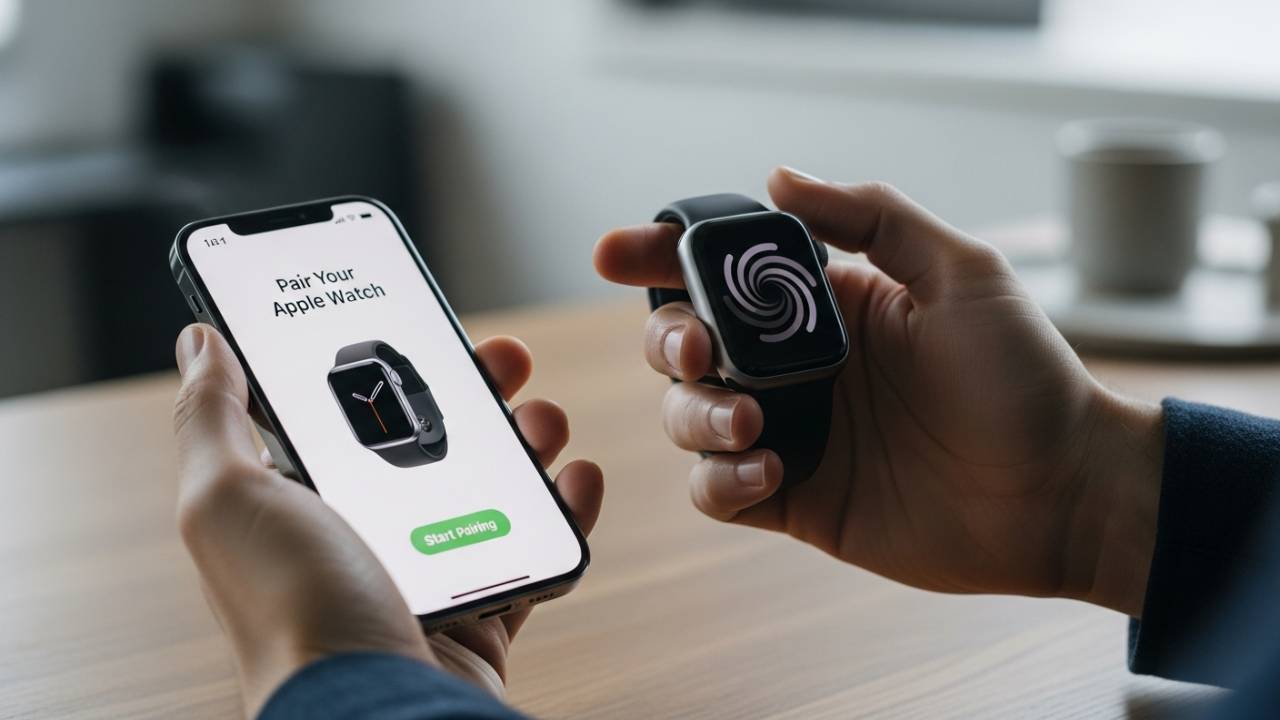
- Start the Process: Tap Start Pairing (or “Pair New Watch” if you have others connected).
- The Particle Cloud: Your Apple Watch should display a swirling animation (a cloud of particles). Hold your iPhone over the watch so the animation fits inside the viewfinder on the phone screen.
- Success Message: You should feel a haptic tap and see a message saying “Your Apple Watch is Paired.”
- Restore or New: You will be asked to Restore from Backup or Set Up as New Apple Watch.
- Pro Tip: Always choose Restore if you want your old faces and settings back.
- Follow On-Screen Prompts: You’ll be asked to sign in with your Apple ID, set up a passcode, and configure settings like Siri and Apple Pay.
3. How to Unpair and Pair Apple Watch to a New Phone
This is the Gold Standard method. If you still have your old iPhone and haven’t wiped it yet, do this first.
Why? Because unpairing an Apple Watch from an iPhone triggers an immediate, automatic backup of your watch data to that iPhone. When you back up that iPhone to iCloud or a computer, your watch data goes with it.
Step 1: Unpair from the Old Phone
- Keep the Apple Watch and old iPhone close together.
- Open the Watch app on the old iPhone.
- Tap the My Watch tab and select All Watches in the top left corner.
- Tap the info (i) button next to the watch you want to move.
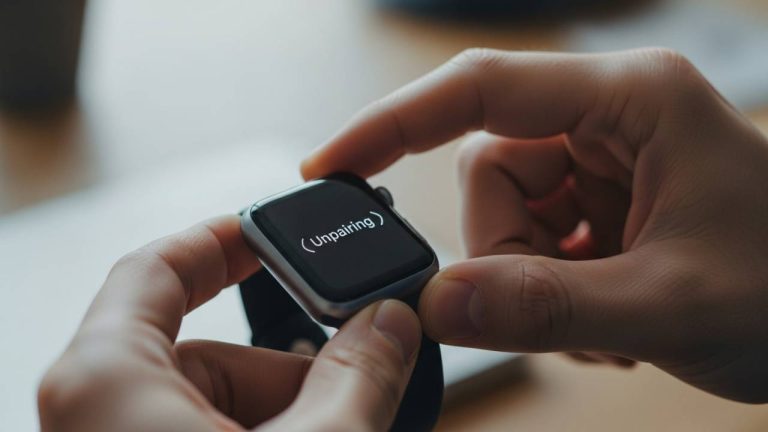
- Select Unpair Apple Watch.
- For GPS + Cellular models: You will be asked if you want to keep or remove your cellular plan. Choose Keep since you are moving to a new phone.
- Enter your Apple ID password to disable Activation Lock.
- The watch will now back up its data to the old phone and then factory reset itself.
Step 2: Transfer Data to New iPhone
Ensure you back up your old iPhone (which now contains your fresh Watch backup) to iCloud or a Mac, and then restore that backup to your new iPhone.
Step 3: Pair to New Phone
- Once your new iPhone is set up with your data, open the Watch app.
- Your iPhone might automatically detect the watch and ask to use it.
- Follow the Standard Method steps above.
- When asked, select Restore from Backup and choose the most recent backup file.
4. How to Pair Apple Watch to a New Phone Without the Old Phone
Scenario: You traded in your old iPhone, lost it, or wiped it before unpairing your watch. Now your watch is still working, but it’s looking for a phone that no longer exists.
You cannot simply “connect” it to the new phone. You must erase the watch to break the bond with the ghost phone.
How to Erase Apple Watch Directly:
- On your Apple Watch, press the Digital Crown to see your apps.
- Tap on Settings (the gear icon).
- Tap General > Reset.
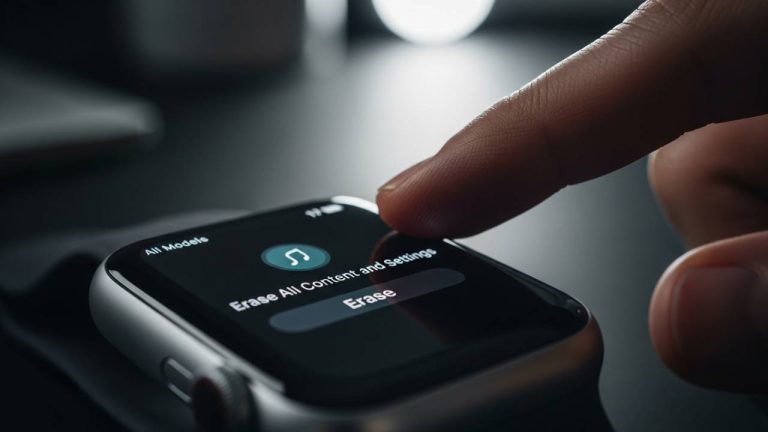
- Tap Erase All Content and Settings.
- Type in your password if prompted.
- Scroll down and confirm by tapping Erase All.
Warning: Since you didn’t unpair via the phone, a fresh backup was not created at the moment of reset. You will have to restore from an older backup (from whenever your old iPhone last synced) or set it up as new.
Once the watch restarts, it will be in “pairing mode” (showing the language selection or the particle cloud). Follow the Standard Method to pair it to your new phone.
Note regarding Activation Lock: If you did not turn off “Find My” on the old phone, the watch may ask for your Apple ID and password during setup to verify ownership. This is a theft-deterrent feature.
5. How to Pair Apple Watch to a New Phone Without Resetting
This is the most searched query, but the answer requires honesty. Generally, you cannot pair an Apple Watch to a different iPhone without resetting the watch.
The security architecture of watchOS connects the watch deeply to the iPhone’s identity. However, there is one specific exception:
The “Automatic Setup” Exception
If you are setting up your new iPhone using the “Quick Start” feature (where you hold the old phone near the new phone to transfer data wirelessly), iOS 15+ and watchOS 8+ typically ask: “Do you want to use this Apple Watch with your new iPhone?”
- During the iPhone migration process, look for the prompt regarding your Watch.
- Tap Continue.
- The system will migrate the pairing token from the old phone to the new one.
- Result: You effectively learn how to pair apple watch to new phone without resetting. The watch stays as is, and the phone swaps underneath it.
If you missed this step during setup: You are unfortunately out of luck. You must reset the watch (as described in Section 4) to pair it to the new device.
6. How to Pair Apple Watch to a New Phone Manually
Sometimes technology fails. You point your camera at the swirling particle cloud, and nothing happens. The camera might be blurry, the lighting might be bad, or the software might be glitching.
Don’t worry; you can do this the old-school way.
- Open the Watch app on your new iPhone and tap Pair New Watch.
- Tap Pair Apple Watch Manually at the bottom of the screen.
- On your Apple Watch, tap the “i” icon in the bottom right corner of the screen to view the device name.
- Your iPhone will list devices detected. Tap the name that matches your Apple Watch (e.g., “Apple Watch 54321”).
- The Code: A six-digit code will appear on your Apple Watch face.
- Enter the Code: Type this six-digit code into the prompt on your iPhone.
- Once verified, the pairing process proceeds as normal.
7. Pairing Apple Watch After Reset or Erase
If you have successfully reset your watch (either via the old phone or directly on the wrist), you are now staring at a clean slate. Here is how to navigate the post-reset setup to ensure you don’t lose your history.
The Setup Loop
- Language and Region: Select your language and region on the Watch.
- Pairing: Use the camera method or manual method.
- Activation Lock: Enter your Apple ID password if prompted.
- The Critical Choice: The iPhone will ask: Make this your new Apple Watch?
- Option A: Restore from Backup. Tap this to see a list of backups stored in your iCloud. Look for the dates. Select the most recent one. This restores your watch faces, alarm settings, and home screen layout.
- Option B: Set Up as New. Only choose this if your previous setup was buggy or you want a fresh start.
- Syncing: The sync process can take anywhere from 5 minutes to an hour depending on how much data you are restoring. Keep the devices close.
Note on Health Data: Your Health data (steps, heart rate, workouts) is not stored in the Watch backup. It is stored in iCloud (if Health sync is on) or in your encrypted iPhone backup. As long as your new iPhone has your Health data, your Watch will read it and pick up where you left off.
8. Pairing Apple Watch With a New Phone Number (Cellular Models)
If you have an Apple Watch GPS + Cellular (LTE) model, pairing involves an extra step: the carrier plan.
When you upgrade to a new iPhone, you might also be changing SIM cards or converting to an eSIM.
- During Setup: As you run through the pairing steps in the Watch app, you will see a screen titled Cellular Setup.
- Transfer Existing Plan: If you are on the same carrier, usually there is an option to “Transfer” the plan from the old watch setup to this new pairing.
- Carrier Login: You may be redirected to a web view of your carrier (AT&T, Verizon, T-Mobile, etc.) to log in and authorize the smartwatch line.
- Skip for Now: If it fails or you are confused, you can tap Skip This Step. You can always set up cellular later by going to Watch App > Cellular > Set Up Cellular.
Pro Tip: If your data plan isn’t working after pairing, you may need to call your carrier to reset the eSIM associated with the watch’s IMEI number.
9. Pairing Older or Used Apple Watch to a New Phone
Are you handing down a Series 3 or Series 4 to a child or family member? Or did you buy a used one? The process is slightly different because you must ensure the previous owner is completely gone.
The Activation Lock Hurdle
The biggest issue with used watches is Activation Lock. If the previous owner reset the watch but didn’t sign out of iCloud, the watch is essentially a brick. It will demand their email and password.
- If you are the previous owner: Go to iCloud.com/find, select the device, and click Remove from Account.
- If you bought it used: You must contact the seller. There is no bypass for this security feature.
Compatibility Check
Ensure your new iPhone supports the older watch.
- Apple Watch Series 3: Requires an iPhone 6s or later.
- watchOS Versions: If the older watch hasn’t been updated in years, it might struggle to pair with an iPhone running iOS 18. You may need to update the watch, which can be tricky if it won’t pair first.
- Solution: Sometimes you need to find an older iPhone running an older iOS just to pair the watch, update the watchOS, unpair it, and then pair it to the new iPhone.
10. Troubleshooting: Apple Watch Won’t Pair to New Phone
You followed the steps, but it’s not working. Here is a checklist to fix the “Apple Watch won’t pair to new phone” blues.
1. The “Update Required” Loop
Sometimes the Watch App says the watch needs an update to pair, but the update fails.
- Fix: Restart both devices. Ensure the phone is on decent Wi-Fi. If it persists, try to erase the watch settings again.
2. Pairing Failed / Start Over
If the pairing creates a connection but then fails halfway through.
- Fix: Reset the network settings on your iPhone (Settings > General > Transfer or Reset iPhone > Reset > Reset Network Settings). Note: This forgets your Wi-Fi passwords.
3. Watch Stuck on Apple Logo
- Fix: Perform a Hard Reset. Hold down the Side Button and the Digital Crown simultaneously for at least 10 seconds until you see the Apple logo disappear and reappear.
4. “Unable to Connect to Apple Watch”
- Fix: Toggle Bluetooth off and on in the iPhone Control Center. Better yet, toggle Airplane mode on the iPhone for 10 seconds, then turn it off.
FAQs – How to Pair an Apple Watch to a New Phone
You generally cannot, unless you use the “Quick Start” automatic setup when you first turn on your new iPhone. If that moment has passed, you must reset the watch to pair it with a new host device.
You must erase the Apple Watch manually. Go to Settings > General > Reset > Erase All Content and Settings on the watch itself. Once erased, you can pair it to the new phone.
Open the Watch app on your new iPhone and tap Start Pairing. Align the camera with the watch face. Once connected, sign in with your Apple ID and choose Restore from Backup to get your data back.
Common culprits include:
– Bluetooth or Wi-Fi is off.
– The watch is not fully erased/reset.
– Activation Lock is preventing setup (linked to a different Apple ID).
– Software incompatibility (iPhone iOS is too old for the Watch, or vice versa).
No. An Apple Watch can only be paired to one iPhone at a time. However, you can pair multiple Apple Watches to a single iPhone (a feature called Family Setup or just multi-watch pairing).
The initial handshake takes about a minute. However, the syncing and restoring process can take anywhere from 15 minutes to over an hour, depending on how much data needs to be transferred and if a software update is required during setup.
Final Thoughts
Upgrading your tech should be exciting, not stressful. While Apple’s security protocols make swapping phones a bit rigorous, following the correct order of operations ensures your health streaks stay alive and your custom faces return exactly where they belong.
Remember: Unpair from the old to back up. Erase if the old is gone. Always restore from backup.
Now that your wrist is reconnected to your digital life, you’re ready to close those rings on your new device!