APPS • DAILYTECH.ID - You can delete a page in Google Docs by removing extra text, deleting page breaks, or fixing spacing and headers. Most blank or extra pages are caused by hidden page breaks, empty paragraphs, or formatting issues, and they can be removed on desktop or mobile with a few quick steps.
That extra page, hanging around like an uninvited guest at the feast, is a common headache for anyone who spends time on the digital highway. Whether you’re crafting a resume, finishing up a school paper, or just cleaning up a work template, learning how to delete a page in Google Docs is essential.
Most times, that stubborn page isn’t holding any actual content. It’s just holding the ghost of formatting—a hidden page break, a couple of extra paragraph returns, or a strange margin setting. Don’t worry, friend. We’ve walked this digital road before, and we know exactly how to clear these blockages from your document.
How to Delete a Page in Google Docs
When you need to know how to delete a page in Google Docs, the quick answer is almost always about fixing the hidden elements you can’t see. Unlike word processors that have a dedicated “Delete Page” button, Docs forces you to remove the content and the formatting marks that tell the software a new page is necessary.
Before trying advanced fixes, always try the simplest method first:
- Select the area: Position your cursor at the very end of the page before the one you want to delete.
- Highlight down: Drag your cursor down across the entire extra page, often going slightly onto the next functional page or until the very end of the blank page’s space.
- Hit Backspace (or Delete): Removing everything in that space usually clears the way.
If that doesn’t work, you’ve got a formatting issue, which means you need to go hunting for invisible trouble.
How to Delete a Blank Page in Google Docs
The blank page is the most common nuisance. It pops up usually right at the end of a document or sneakily in the middle. We often leave little digital crumbs behind—empty paragraphs, extra spaces—and the blank page gathers them up.
Common causes of blank pages
- Excessive paragraph returns: Hitting the Enter key too many times pushes the cursor onto the next page.
- Default line spacing: Sometimes the default spacing (like 1.15 or 1.5) combined with a large font size forces the last few lines onto a new sheet.
- Hidden page breaks: The document creator manually inserted a break that you can’t see.
Empty paragraphs and spacing
This fix is straightforward. If you see white space or a totally empty page:
- Place the cursor: Put your cursor right at the bottom of the good page, or at the top of the blank page.
- Backtrack: Repeatedly hit the Backspace key (or Delete on Mac) until the cursor snaps back up onto the previous page. If the blank page disappears, you’ve just deleted the empty paragraph markers that were causing the spillover.
Last-page and second-page issues
If the last empty page is giving you grief, check your spacing:
- Highlight the last functional paragraph on the good page.
- Go to Format > Line and paragraph spacing > Custom spacing…
- Check the “Spacing” section. If there are high numbers in “After,” reduce this to 0 and apply. Often, large spacing after a paragraph is what pushes the next line (even an invisible one) onto the final sheet.
How to Delete a Page Break in Google Docs
Page breaks are a major cause of unwanted pages. People insert them to force a new chapter or section, but if you delete the preceding content, the page break sticks around and creates an empty gap.
Removing manual page breaks
- Locate the break: Page breaks are invisible, but they create a hard cutoff.
- Careful Selection: Click the cursor just above the point where the new page starts.
- Drag Slightly Down: Drag your cursor down to select the invisible space just before the new page begins.
- Hit Delete: This should remove the invisible break marker, causing the content below it to flow back up.
Deleting hidden page breaks
If selecting and deleting doesn’t work, you need to trick the software:
- Select the text before the page break and the first line of text after the page break.
- Go to Format > Line and paragraph spacing.
- Ensure that “Prevent page breaks on selection” is unchecked for this section.
- Go back and try deleting the space between the two chunks of text again. Sometimes temporarily changing the formatting of the text around the break helps reveal the hidden marker.
Continuous page problems
If your document seems to be breaking pages oddly, you might have continuous formatting issues related to margin or section breaks. Always try adjusting the text size or margin slightly to see if the page snaps back together.
How to Delete an Extra or Stubborn Page in Google Docs
Stubborn pages that refuse to vanish are often rooted in specific document settings, like large margins or section break commands that are designed to preserve a unique layout.
Why some pages won’t delete
A page becomes stubborn when it is created by a structural setting, not just a line of text. These settings include:
- Massive bottom margins.
- Section breaks designed for landscape orientation.
- Headers or footers set to use excessive vertical space.
Line spacing and margins
If the page is nearly blank but won’t go away, try this:
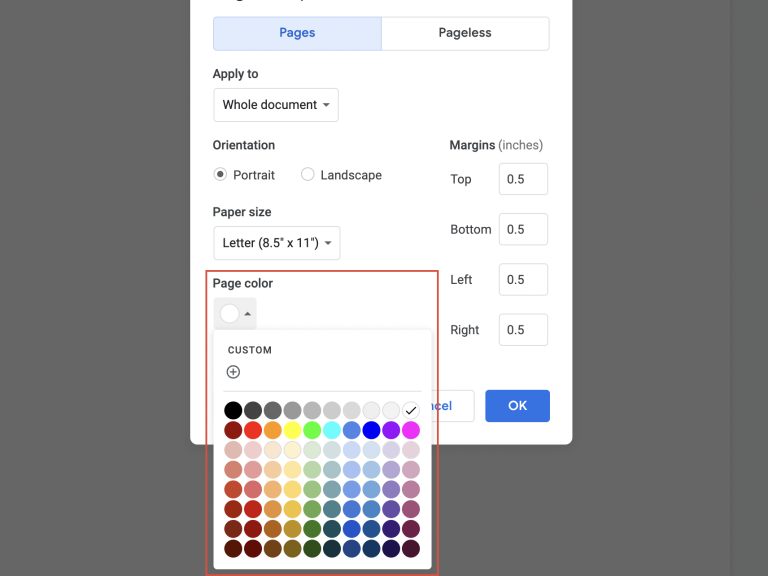
- Go to File > Page setup.
- Temporarily reduce the Bottom margin to something small, like 0.2 inches.
- If the page snaps up, you know your original margin settings (or a rogue page break hiding near the margin boundary) were the culprit. Reset your margins carefully, ensuring the unwanted page stays gone.
Section break fixes
If you are dealing with a complex document that uses sections (for different headers or column layouts), the extra page is likely caused by a Section Break (Next Page).
- You must find and delete the Section Break marker. Just like page breaks, you have to select the invisible space where the Section Break lives.
- Select the last paragraph on the good page and the first paragraph on the bad page.
- Hit Backspace/Delete. If it was a Section Break, the text from the following section will merge, and you will need to re-apply any unique formatting (like column settings) to the text that follows.
How to Delete a Page With Content in Google Docs
Sometimes you need to delete a page that actually has stuff on it—maybe a redundant chapter or an old cover letter. The key here is precision so you don’t mess up the layout of the remaining document.
Selecting and removing full-page content
- Click and Drag: Place your cursor at the very top left of the page you wish to eliminate.
- Full Selection: Hold the mouse button down and drag all the way to the bottom right of the page.
- Ensure Formatting Selection: Make sure you drag slightly past the end of the text and onto the blank space, ensuring you catch any hidden paragraph markers or breaks.
- Delete: Press Backspace or Delete.
Deleting formatted pages safely
If the page contains complex items like tables, images, or special formatting (like indents or columns), be careful:
- Delete the content first: Remove all the text and images.
- Then delete the residual space: Once the page is blank, treat it like a blank page and target the remaining paragraph returns or breaks to make it vanish completely.
Avoiding layout damage
When deleting content, if the text from the next page suddenly jumps up in a strange font or alignment, it means you deleted the formatting instruction for that text. Immediately hit Undo (Ctrl+Z or Cmd+Z) and try the selection again, being careful not to select the very first character of the following page.
How to Delete a Page in Google Docs on Mac or Chromebook
Whether you’re working on a Mac or a Chromebook, the principles remain the same, but the shortcuts for deletion can sometimes confuse people switching between systems.
Keyboard shortcuts
- Mac: The main deletion key is usually labeled Delete. To delete forward (like the Backspace key on Windows), you use Fn + Delete. When removing blank pages, often repeated presses of the regular Delete key (which acts as a backspace) is all you need.
- Chromebook: The primary deletion key is Backspace. To delete characters to the right (forward delete), use Alt + Backspace.
Trackpad and selection tips
When using a Mac trackpad or Chromebook touchpad, achieving precise selection to capture hidden page breaks can be tricky. Use the following technique for precision:
- Click once to start selection.
- Hold the Shift key.
- Use the down arrow key to extend the selection line by line, ensuring you stop precisely at the point where the next desired text begins. This is often more reliable than dragging with a trackpad.
How to Delete a Page in Google Docs on Mobile (Android & iPhone)
Let’s be honest, trying to fix complex formatting like hidden page breaks on a small screen is like trying to mend a fishing net with boxing gloves. The mobile app is best for content editing, not deep layout troubleshooting.
Google Docs app limitations
The Google Docs mobile app is simplified. It hides many of the granular formatting options and does not offer a visible way to target hidden page or section breaks directly.
Mobile-friendly workarounds
- Delete Content: If the page has content, you can easily select and delete the text using the mobile controls.
- Target Paragraphs: If it’s a blank page, hold down the deletion key (the standard mobile backspace button) and wait for the cursor to jump back up. This removes excess paragraph returns.
When desktop is required
If the blank page is caused by a stubborn Section Break, complex margin setting, or specific Header/Footer formatting, you will almost certainly need to switch to a desktop or laptop computer to effectively target and remove the hidden elements.
How to Delete a Page in Google Docs Resume or Template
Resumes and templates are highly sensitive to spacing. Because they are often designed to fit exactly one or two pages, even a tiny increase in line height can cause a two-page resume to balloon into three.
Resume-specific spacing issues
- Hidden indents: Check the ruler at the top of the document. If you see tiny blue triangles or rectangles, those are indents. They might be forcing text over, creating excess space. Remove them by dragging the markers back to the zero mark.
- Excessive paragraph space: Even if the line spacing is single (1.0), look at Format > Line and paragraph spacing. Check the “Spacing Before” and “Spacing After” settings. Resumes should almost always have these set to 0.
Headers and footers causing extra pages
If your header or footer has too much text, or if you added blank lines within them, the main body of the text will be squished, causing content to flow unnecessarily onto the next page. Ensure your header/footer is concise and doesn’t contain extra blank lines.
How to Delete the First or Cover Page in Google Docs
Deleting the cover page often involves dealing with special formatting designed for title pages.
Removing cover pages
If the cover page content is simply text, select all the text and hit Delete.
If the cover page was created using a hard Page Break, ensure you select and delete the break itself, allowing the content of the second page to move up to become the new first page.
Header-related page creation
If your cover page is blank, check your header settings:
- Go to the header area on the second page.
- Click Options > Header format.
- Ensure that “Different first page” is unchecked, unless you specifically need a unique header/footer on your cover page. Sometimes this setting leaves a required block of space on the first page, even if the content is gone.
Page number conflicts
If you are deleting the first page and your page numbering is thrown off, go to Insert > Page numbers and choose the option that starts numbering on the second page (usually the second thumbnail option).
How to Delete a Landscape or Section Page in Google Docs
When you need one page oriented sideways (landscape) in the middle of a portrait document, Google Docs uses a Section Break. This is the trickiest type of page to remove.
Mixed orientation documents
If you try to delete the content on the landscape page, you will notice the page often remains blank, forcing the following portrait content onto a new page. This happens because the Section Break defines the page orientation.
Section break removal
To fix this, you must delete the Section Break markers that surround the landscape page:
- Identify the Start Break: Select the space right before the landscape page begins. Delete it. (This will merge the landscape page content into the previous portrait layout, but don’t worry).
- Identify the End Break: Select the space right before the next (portrait) page begins. Delete it.
Once the Section Breaks are removed, you can safely select and delete the merged content, and the document will revert to a consistent portrait orientation.
Common Reasons You Can’t Delete a Page in Google Docs
If you’ve tried everything above and the page is still hanging around, it’s time to check the often-overlooked environmental reasons for document stubbornness.
Hidden formatting
The vast majority of stubborn page issues are invisible formatting marks. Try the “Nuclear Option” for hidden formatting:
- Select the last working paragraph and the stubborn blank space.
- Go to Format > Clear formatting (or the Tx icon in the toolbar).
- This removes all bolding, line breaks, size adjustments, and sometimes, the offending page break itself. (Note: You’ll have to reapply your preferred formatting.)
Locked sections
While Google Docs doesn’t use true “locked sections” like other software, if you are editing a document that was shared with you, check your permissions. If you only have Commenter or Viewer rights, you cannot permanently delete pages or change the document structure.
Page view vs print layout confusion
Ensure you are working in a view that accurately reflects the physical page layout:
- Go to View > Print layout.
- If this is unchecked, Docs displays the document as a continuous web page, which can hide where actual page breaks occur. Check “Print layout” to see the true margins and breaks.
FAQs – How to Delete a Page in Google Docs
The simplest way on mobile is to place your cursor at the top of the blank page and repeatedly press the Backspace/Delete key until the content below it flows upward, or until the cursor merges with the bottom of the previous page. For complex, section-based formatting issues, switch to a desktop editor.
You delete a page break by selecting the invisible space where the break is located and pressing the Delete key. The easiest method is to click your cursor just above the break and use the Shift + Down Arrow keys to select the break marker precisely before deleting it.
An extra page in a resume is almost always caused by excessive line spacing, high paragraph spacing (Spacing After set to more than 0), or large bottom margins. Check your Custom spacing settings and reduce the “After” space to 0 to minimize the vertical room required by your text.
If the page is stubborn, it is likely caused by a Section Break. Locate the space where the page begins and delete the invisible break marker. If that fails, temporarily reduce your document’s bottom margin (in Page Setup) to force the contents back onto the previous page.
To delete a page with content safely, highlight all the text on that specific page, ensuring you select any blank space directly below it, and press Delete. If the following page’s formatting changes, immediately use Undo (Ctrl+Z or Cmd+Z) and try the selection again, taking care not to include any text or formatting markers from the pages you want to keep.