LAPTOP • DAILYTECH.ID - Is your reliable iMac or Mac mini suddenly dragging its feet, taking forever to load applications, or constantly warning you about full storage? That’s incredibly frustrating, but the good news is that the solution is often simpler than you think. You need to learn how to clear cache on Mac desktop. Cache files are temporary data stored by your operating system and applications to speed things up, yet they accumulate silently over time, becoming massive junk files that ultimately sabotage your Mac’s performance.
Boost Performance by Deleting User Cache on Mac Computer
The largest and safest section of cache to remove is the user cache. This is the data generated by the specific applications you run, like Photoshop, Safari, Spotify, and many others. It’s the primary culprit when you notice a sluggish system, and tackling this area is the first step in learning how to delete cache on Mac computer. This cleanup can easily reclaim several gigabytes of valuable space.
Step 1: Locating the Main User Cache Folder
The user cache is housed within your personal Library folder, which macOS keeps hidden by default to prevent accidental deletion of important files.
- Open a Finder window.
- In the menu bar at the top of your screen, click Go.
- Hold down the Option key on your keyboard. A hidden option, Library, will immediately appear in the dropdown list.
- Click Library while continuing to hold the Option key.
Step 2: Manually Removing Junk Files Mac-wide
Once the Library folder is open, you will see many important directories. Find and open the folder named Caches. This is where your applications dump their temporary data.
- Open the Caches folder.
- Inside, you’ll see many folders with names corresponding to specific apps (e.g., com.adobe.Photoshop, com.apple.iTunes).
- Important Rule: You must only delete the contents of these app-specific folders, not the folders themselves. Deleting the parent folders can cause the associated app to crash or behave unexpectedly.
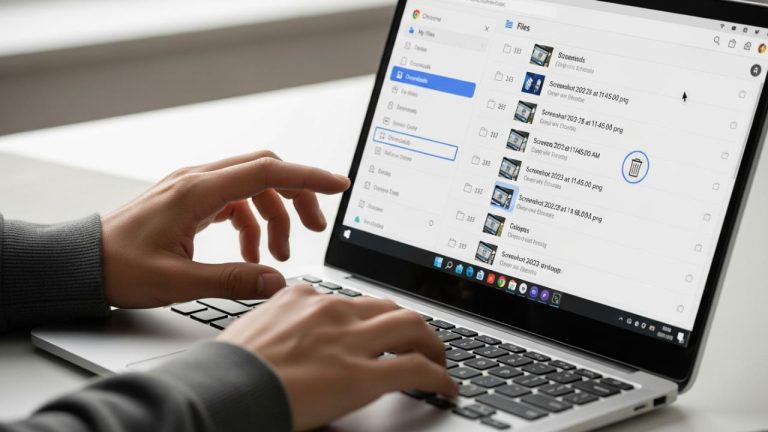
- Select all the files and folders inside one of the cache folders you want to clean, and drag them to the Trash.
Step 3: Empty the Trash and Reboot
After moving all the selected cache junk to the Trash, you must empty the Trash to permanently free up disk space Mac desktop-wide. This finalizes the deletion. Then, make sure to restart your desktop Mac. A simple reboot forces the system and your apps to create fresh, optimized cache files, often providing an instant speed up mac desktop effect.
Deeper Cleanup: How to Clear System Cache Mac OS
System cache, also known as macOS operational files, is created by the core operating system to manage crucial background processes. While essential for overall Mac performance optimization, these files can also become bloated or corrupted, leading to the spinning beach ball and general slowdown. Cleaning this specific type of cache requires more caution than the user cache.
You need to access the main system-level Library folder, which is located at the root of your hard drive, not within your user folder.
Accessing the Global /Library/Caches Directory
Since the main Library folder contains critical components for macOS, proceed with care. Avoid deleting any files or folders outside the Caches directory you are targeting.
- Open a new Finder window.
- Click Go in the top menu bar, then select Go to Folder…
- Type the path
/Library/Cachesand hit Enter.
Using Caution for System Cache Deletion
Inside this folder, you’ll find files related to core operating system processes. While you can manually delete the contents of the sub-folders here, it is generally recommended only for experienced users. If you accidentally remove a file necessary for a core macOS function, it could cause serious operating system instability. For maximum safety and reliability, most experts suggest using dedicated third-party tools when performing a clear system cache mac os operation.
For more information on cleaning other Mac devices, take a look at our guides on How to Clear Cache on MacBook Air and How to Clear Cache on MacBook Pro.
Deleting Browser Cache and Application Logs
Web browsers are notorious for creating mountains of cache data, which significantly contributes to the junk files on your Mac. Every website, every photo, every video you load is temporarily stored. Regularly deleting this data is the easiest way to ensure a noticeable speed up mac desktop. Application logs are another common source of junk. These log files document every process and crash but are rarely needed by the end user and can accumulate quickly.
1. Clearing Cache in Safari
Safari makes it quite easy to perform a cache purge, but the option is slightly hidden.
- Go to Safari in the menu bar and click Settings (or Preferences on older macOS versions).
- Go to the Advanced tab.
- Check the box at the bottom that says Show Develop menu in menu bar.
- Now, click on the Develop menu item and select Empty Caches.
This single action performs a quick and deep cache clean for Safari.
2. Clearing Cache in Google Chrome
Chrome is another major cache builder, often storing the most temporary files.
- Click the three-dot menu icon in the top-right corner.
- Select More Tools, then Clear Browsing Data…
- Choose a Time range (All time is best for a thorough mac cleanup guide).
- Ensure Cached images and files is checked, and then click Clear data.
3. Deleting Temporary Files Mac Logs
For log files, navigate back to your user Library folder (~/Library/). Inside, locate the Logs folder. Unlike the Caches folder, you can safely delete the entire contents of the Logs folder, as these files are purely records and the system will simply create new ones as needed. This simple step can help you delete temporary files mac-wide and reclaim considerable space.
The Best Tools for Mac Performance Optimization
Manual cleanup is effective, but it requires time, caution, and a deep understanding of macOS file structure. For the most comprehensive, safest, and fastest mac performance optimization, nothing beats dedicated third-party cleanup software. These utilities are programmed to safely identify and remove application leftovers, old mobile backups, broken downloads, large unused files, and other junk that human users often miss, providing an excellent clean up mac hard drive solution.
Here are a few trusted applications that can help you maintain peak desktop performance:
1. CleanMyMac X
CleanMyMac X is the gold standard in Mac maintenance utilities. It provides a simple, beautiful interface and is known for its safety protocols. Its key feature is the Smart Scan, which cleans junk files, removes malware, and optimizes your system in one click. It is an indispensable part of any complete mac cleanup guide.
2. Drive Genius
Drive Genius focuses heavily on hard drive health and diagnostics, but also includes powerful tools for cleaning. It excels at finding duplicate files, analyzing disk space, and securely wiping files. This tool is best for users who prioritize drive integrity alongside free up disk space mac desktop efforts.
3. MacCleaner Pro
MacCleaner Pro is a suite of specialized cleaning tools bundled together. It offers separate, dedicated apps for finding duplicates, clearing RAM, uninstalling applications completely, and deleting large, unused files. It gives you deep, granular control over every aspect of the cleanup process.
| Tool Name | Best For | Key Feature | Pricing (Example) |
| CleanMyMac X | Complete System Maintenance & Safety | Smart Scan (Junk, Malware, Optimization) | Subscription / One-time license |
| Drive Genius | Hard Drive Health & Duplicates | Drive Diagnostics and Duplicate Finder | One-time license |
| MacCleaner Pro | Granular Control & Deep Uninstalling | App Uninstaller & File Manager | One-time license |
Utilizing a reliable tool simplifies the process of how to clear cache on Mac desktop, making it effortless to keep your system fast and responsive without worrying about deleting critical files.
Beyond Cache: Advanced Mac Performance Optimization
If your Mac desktop is still slow after you’ve diligently learned how to delete cache on mac computer, there are other powerful strategies you can employ to achieve maximum speed. These steps involve managing system resources and updating software to their most optimized versions.
1. Audit Login and Startup Items
Applications that are set to launch automatically when you boot up your Mac can be huge resource hogs, greatly increasing boot time and slowing down your initial workflow.
- Go to System Settings (or System Preferences).
- Click General, then select Login Items.
- Toggle off any applications you don’t absolutely need to launch automatically upon login.
Reducing these startup tasks is a simple but incredibly effective way to immediately see a speed up mac desktop effect.
2. Manage and Uninstall Unused Software
Unused applications not only take up space but can also leave behind background processes, preference files, and associated caches. Truly uninstalling them is vital for a thorough clean up mac hard drive. Simply dragging an app to the Trash is often not enough. Use the uninstaller features found in tools like MacCleaner Pro or CleanMyMac X to ensure every trace of the application is completely removed from your system.
3. Keep macOS and Apps Updated
Apple and third-party developers consistently release updates that contain performance fixes, security patches, and optimizations. Running an outdated version of macOS or old apps is a primary cause of performance degradation and instability. Always ensure you are on the latest compatible version to benefit from the best mac performance optimization available.
Frequently Asked Questions (FAQs)
User cache is data stored by your personal applications (like Safari or Photoshop). System cache is data stored by the macOS operating system itself to run core services. Both contribute to performance issues and require clearing for a full mac cleanup guide.
For most users, performing a major clean up mac hard drive operation every 1 to 3 months is sufficient. Browser caches, however, should be cleared weekly if you are a heavy internet user to maintain speed.
While there is no single keyboard shortcut to clear all cache, holding the Option key while clicking the Go menu in Finder reveals the hidden Library folder, which is the necessary first step for manually deleting user cache.
No. Cache and log files are temporary system and app data. You will not lose personal documents, photos, or saved files by deleting data from the Caches or Logs folders. It is a safe way to delete temporary files mac.
If your Mac is still slow, the issue may be due to excessive startup items, insufficient RAM, an outdated OS, or a fragmented hard drive. Clearing cache is only one part of overall mac performance optimization.
Tools like CleanMyMac X, Drive Genius, and MacCleaner Pro are highly effective for safely scanning, identifying, and removing hidden junk, logs, and language files, making it easy to free up disk space mac desktop-wide.
Yes, restarting your Mac helps by clearing certain types of temporary files, resetting system processes, and freeing up RAM, making it an excellent quick first step to speed up mac desktop performance before a deeper cleanup.
Final Thoughts on Mac Maintenance
It’s time to stop accepting the slowdown. Learning how to clear cache on Mac desktop is a fundamental skill that every Mac owner should master. By proactively managing your cache, logs, and application debris, you aren’t just deleting files; you are investing in the speed, responsiveness, and longevity of your powerful desktop machine. Whether you use the manual methods detailed above or choose the efficiency of a quality third-party tool, making cache cleanup a routine habit is the key to maintaining that smooth, premium macOS experience you paid for.
- CleanMyMac X – Recommended for the safest, fastest, and most comprehensive system tune-up.
- Audit Login Items – Reduces resource strain and significantly speeds up boot time.
- Empty Trash & Reboot – Essential final steps to finalize all manual cache and log deletions.
- Delete Log Files – Safely removes non-critical, space-consuming records from the user Library.
- Update macOS – Ensures you have all the latest security and performance enhancements from Apple.
Implement these routine mac cleanup guide steps today, and feel the satisfaction of seeing your Mac desktop consistently perform at its absolute best.