LAPTOP • DAILYTECH.ID - If you’ve noticed your HP Chromebook, Acer, or Lenovo device is starting to lag, or if certain websites just won’t load correctly, you aren’t alone. Chromebooks are designed to be lean, fast machines, but like any computer, they accumulate “digital lint” over time. This clutter is known as cache.
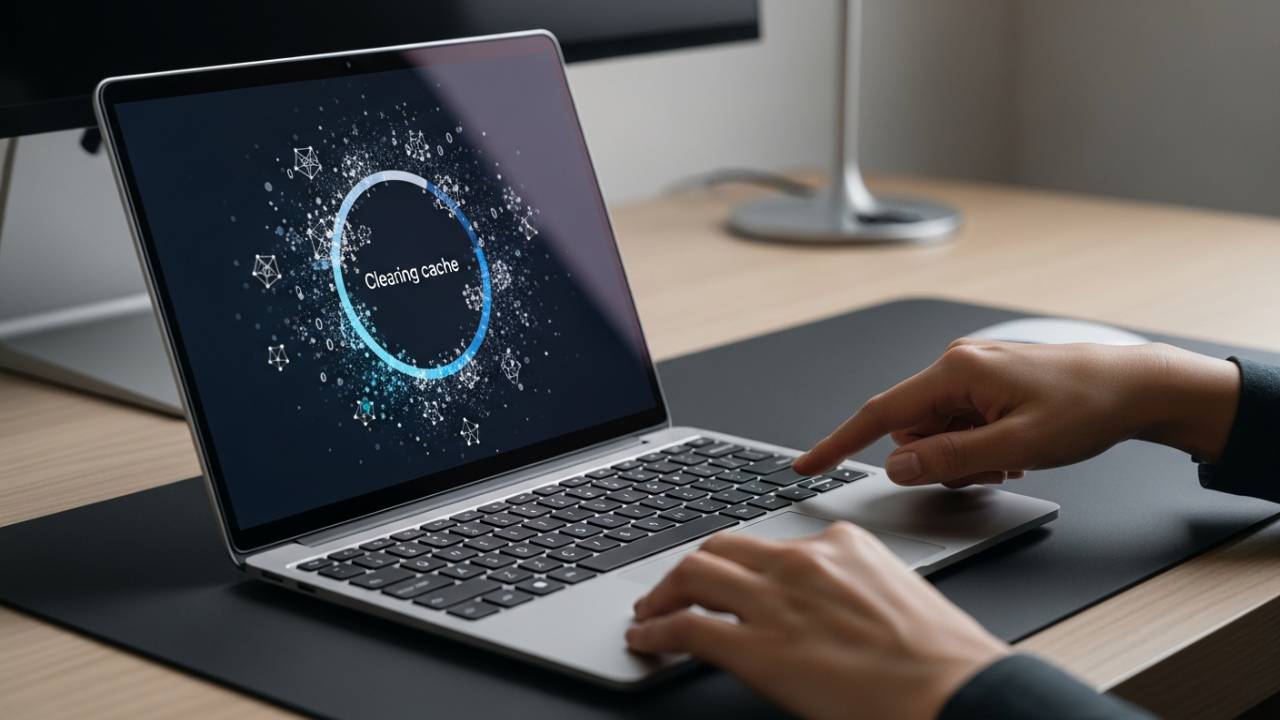
Clearing cache on a Chromebook is one of the fastest ways to fix slow loading, app crashes, and browser glitches. Over time, cached files from the Chrome browser, Android apps, and the ChromeOS system can build up and consume valuable resources.
Quick Answer: To clear cache on a Chromebook, you can delete Chrome browsing data via Settings > Privacy and security, clear individual Android app caches in the Apps menu, or perform a Hard Refresh using the Refresh + Power keys. Each method targets a different layer of the system.
What Cache Is on a Chromebook and Why It Matters
To understand how to clear cache on Chromebook, you first need to understand what you’re actually deleting. Cache isn’t “trash”—it’s actually intended to be helpful.
Browser Cache vs. App Cache vs. System Cache
- Browser Cache: These are local copies of images, scripts, and HTML files from websites you’ve visited. Instead of downloading a heavy logo every time you visit a site, Chrome pulls it from your local storage.
- App Cache: If you use Android apps (via the Google Play Store) on your Chromebook, these apps store temporary data to speed up their internal processes.
- System Cache: This involves deeper ChromeOS processes and DNS records that help the operating system communicate with hardware and the internet.
When Clearing Cache Helps
You should consider a cleanup if you experience:
- “Stale” Content: A website shows old information even after you refresh.
- Formatting Issues: Pages look “broken” or buttons don’t work.
- Storage Warnings: Your Chromebook is low on disk space.
- App Crashes: An Android app closes unexpectedly upon launch.
What Clearing Cache Does NOT Delete
A common fear is losing important data. Clearing cache will not delete your downloaded files, Google Docs, or saved photos. However, depending on the settings you choose, clearing “Cookies and Site Data” may log you out of websites.
How to Clear Cache on Chromebook (Chrome Browser)
Since ChromeOS is built around the browser, the browser cache is usually the primary culprit for performance dips.
1. Clear Cache and Cookies via Settings
This is the most thorough method for cleaning your browsing history and temporary files.
- Open Chrome.
- Click the three dots (⋮) in the top-right corner.
- Select More Tools > Clear Browsing Data.
- Choose a Time Range (e.g., “Last 24 hours” or “All time”).
- Check the boxes for “Cookies and other site data” and “Cached images and files.”
- Click Clear data.
2. Clear Cache Using Keyboard Shortcut
For those who want speed, use the clear cache Chromebook shortcut:
- Press Ctrl + Shift + Backspace simultaneously.
- The “Clear Browsing Data” menu will pop up immediately, bypassing the settings menu.
3. Clear Cache for a Specific Website Only
If only one site (like Netflix or your school portal) is acting up, you don’t need to wipe your entire history.
- Navigate to the website.
- Click the Lock icon (or “View site information”) to the left of the URL.
- Select Site settings.
- Click Clear data under the Usage section.
How to Clear Cache on Chromebook Apps (Android & Play Store)
Many modern Chromebooks run Android apps. These apps store their own cache independent of the Chrome browser.
Clear Cache for Individual Apps
If an app like Spotify, Zoom, or a game is buggy, follow these steps:
- Click the Time in the bottom right and select the Settings (gear icon).
- Go to Apps > Manage your apps.
- Click on the specific app that is causing trouble.
- Select More settings and permissions.
- Click Storage.
- Click Clear Cache.
Clear Play Store Cache
If you are having trouble downloading new apps, you may need to clear the Google Play Store’s cache specifically:
- Follow the steps above, but select Google Play Store from the app list.
- Clear the cache and restart the Play Store.
Difference Between Clearing Cache vs. App Data
- Clear Cache: Removes temporary files. You stay logged in, and your settings remain.
- Clear Data: This is a “Reset.” It deletes everything—your login, your preferences, and your offline saved files. Use this only as a last resort.
How to Clear System Cache on Chromebook OS
Sometimes the issue isn’t a specific app, but the way the hardware is communicating with the software.
The Hard Refresh Method
A “Hard Refresh” restarts your Chromebook’s hardware (like the keyboard and touchpad) and clears some system-level memory cache.
- Press and hold the Refresh key (the circular arrow above the 3 or 4 key).
- While holding Refresh, tap the Power button.
- Once the Chromebook boots back up, release the Refresh key.
Restart vs. Powerwash
- Restart: A simple turn-off-and-on. It clears RAM and temporary system tasks.
- Powerwash: This is a factory reset. It wipes everything on the device. Only do this if clearing cache and hard refreshing fails to fix your issues.
DNS Cache Clearing Explained
If websites are failing to resolve (you see a “DNS_PROBE_FINISHED_NXDOMAIN” error), you may need to flush your DNS cache:
- Open Chrome and type
chrome://net-internals/#dnsin the address bar. - Click the Clear host cache button.
How to Clear Cache on School or Managed Chromebooks
If you are using a device issued by your school or employer, your permissions might be restricted.
- What you can clear: Usually, you are still allowed to clear the Chrome browser cache and cookies.
- Admin Restrictions: Some admins disable the “Clear Browsing Data” menu. If it is greyed out, it means your school policy requires the history to be kept for monitoring.
- Safe Methods: A Hard Refresh (Refresh + Power) is almost always safe and will not violate school policy, as it is a hardware-level restart.
Brand-Specific Cache Clearing Notes
While ChromeOS is the same across devices, hardware layouts can vary slightly between brands.
- HP Chromebook: Known for long battery life, but heavy tab usage can drain RAM. Use Ctrl + Shift + Refresh for a quick hardware reset.
- Acer Chromebook: Some Acer models have a dedicated “Lock” key. Ensure you are hitting the actual Power button for a Hard Refresh.
- Lenovo Chromebook: On 2-in-1 Lenovo Duet tablets, you may need to hold the Volume Up and Power buttons simultaneously to trigger a system refresh.
- ASUS & Dell Chromebooks: These typically follow the standard Google layout. If the keyboard becomes unresponsive, a Hard Refresh is the primary fix for “ghost” cache issues affecting input.
Common Cache Problems and Fixes
Cache Won’t Clear
If you click “Clear Data” and the spinning wheel never stops, your profile might be synced incorrectly. Try logging out of your Google account and logging back in.
Chrome Cache Option Greyed Out
This is almost always due to Managed Settings. If you see a “Building” icon next to settings, your IT administrator has locked those features. You will need to contact your IT department to perform a cleanup.
Apps Still Slow After Clearing Cache
If clearing the cache doesn’t work, the issue might be low RAM. Close unnecessary tabs or uninstall apps you no longer use.
How Often Should You Clear Cache on a Chromebook?
You don’t need to clear your cache every day. In fact, doing so can make your browsing slower because your computer has to re-download every image and script from scratch.
- Monthly Maintenance: A quick clear once a month is healthy for most users.
- Signs you need it: Seeing “Out of Memory” errors or experiencing lag when typing.
- When NOT to clear cache: Avoid clearing it right before a trip or a period where you will have poor internet, as you’ll want those cached files to help pages load faster on slow connections.
FAQs – How to Clear Cache on Chromebook
When you go to Clear Browsing Data, make sure the “Passwords and other sign-in data” box is unchecked. Only check “Cached images and files.”
Go to Settings > Apps > Manage your apps > [Select App] > More settings > Storage > Clear Cache.
Use the Ctrl + Shift + Backspace shortcut. If it’s blocked, your only option is to restart the device or perform a Hard Refresh (Refresh + Power).
Yes and no. It speeds up the system by freeing up disk space and removing “corrupted” files, but it might make individual websites load slightly slower the very first time you visit them after the clear.
Clearing cache removes temporary files. A Powerwash is a factory reset that deletes every file, account, and setting on the Chromebook.
Final Thoughts
Maintaining your Chromebook doesn’t require a degree in computer science. By understanding how to target the Chrome browser, Android apps, and the system hardware individually, you can keep your device running as fast as the day you unboxed it.