IPHONE • DAILYTECH.ID - Understanding how to check iPhone battery health is crucial for any iPhone owner. Your iPhone’s battery is its lifeline, and like all batteries, it degrades over time. Knowing its condition can help you manage expectations, optimize performance, and even decide when it’s time for a replacement. A healthy battery ensures your device runs smoothly and lasts longer throughout the day.
Monitoring your battery’s health isn’t just for tech enthusiasts; it’s a practical step for everyone. Apple has made it straightforward to access this information directly from your device settings. Let’s walk through the simple steps to assess your iPhone’s battery condition and what those numbers actually mean for you.
Why Checking iPhone Battery Health Matters
Your iPhone’s battery is a consumable component, meaning its capacity and performance decrease as it chemically ages. This isn’t a defect; it’s just how rechargeable lithium-ion batteries work. As the battery ages, it holds less charge, which means your iPhone might not last as long on a single charge. It can also affect peak performance, as an older battery might not be able to deliver enough power when your phone needs it most, potentially leading to slowdowns or unexpected shutdowns. Regularly checking how to check iPhone battery health helps you stay informed and proactive.
The Impact of Battery Degradation
When your battery health declines, you might notice:
- Shorter battery life: Your iPhone runs out of juice faster than it used to.
- Slower performance: Apps might launch slower, or the phone might feel less responsive. This is often due to “performance management” features that iOS implements to prevent unexpected shutdowns from an aged battery.
- Unexpected shutdowns: Your iPhone might turn off even when the battery indicator shows a significant charge remaining.
Understanding these impacts highlights why checking battery health is a valuable habit for any iPhone user.
How to Check iPhone Battery Health: A Simple Guide
Apple provides a built-in feature that gives you insights into your battery’s maximum capacity and peak performance capability. It’s incredibly easy to find.
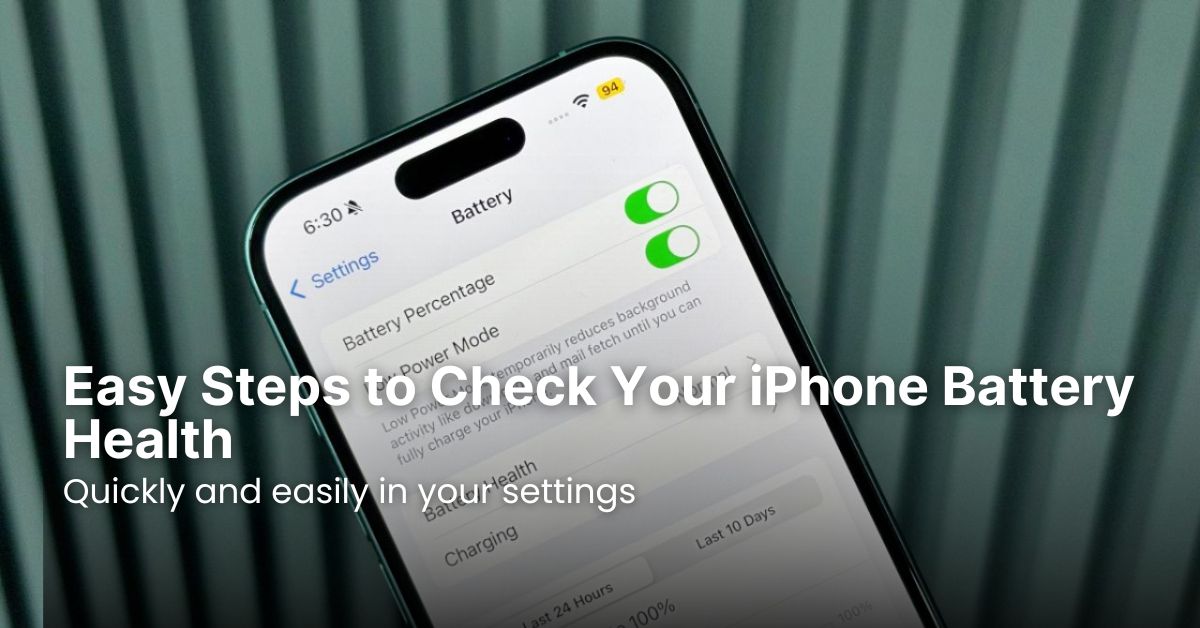
Here’s the step-by-step process for how to check iPhone battery health:
- Open the Settings App: Tap on the grey “Settings” icon on your iPhone’s home screen. It usually looks like a gear.
- Scroll Down to “Battery”: In the Settings menu, scroll down until you see the “Battery” option and tap on it.
- Tap on “Battery Health & Charging”: Within the Battery section, you’ll find “Battery Health & Charging.” Tap on this to proceed.
- View “Maximum Capacity”: Here, you’ll see a percentage listed next to “Maximum Capacity.” This number is the most important indicator of your battery’s health.
- Maximum Capacity: This percentage indicates your battery’s current capacity relative to when it was new. A new iPhone will show 100%. Over time, this number will gradually decrease. For example, if it shows 90%, your battery can hold 90% of the charge it could when it was brand new.
Understanding “Peak Performance Capability”
Below “Maximum Capacity,” you’ll also see information regarding “Peak Performance Capability.”
- Normal Peak Performance: If your battery is healthy, you’ll typically see a message stating, “Your battery is currently supporting normal peak performance.” This means your battery is able to deliver the necessary power for your iPhone to operate at its full potential.
- Performance Management Applied: If your battery’s health has significantly degraded, Apple’s iOS might implement performance management to prevent unexpected shutdowns. In this case, you might see a message indicating that performance management has been applied. This means your iPhone might run slightly slower to avoid sudden power demands that the aged battery can’t handle. You usually have the option to disable this, but it’s generally not recommended as it increases the risk of unexpected shutdowns.
- Service Message: In rare cases, if your battery’s health is severely degraded, you might see a message recommending service. This usually appears when the maximum capacity is very low, or there’s an issue with the battery itself.
What Do the Battery Health Numbers Mean?
Understanding the “Maximum Capacity” percentage is key to assessing your battery’s lifespan.
| Maximum Capacity Percentage | Implication | Action/Recommendation |
| 95-100% | Excellent. Your battery is relatively new or has been very well maintained. | No action needed. Continue good charging habits. |
| 90-94% | Very Good. Minor degradation, generally won’t notice performance impact. | Continue monitoring. Your daily battery life might be slightly shorter than when new. |
| 85-89% | Good. Noticeable degradation for some users. Performance might still be strong, but battery life is reduced. | Consider changing some settings to optimize battery life (e.g., Low Power Mode). |
| 80-84% | Fair. Significant degradation. You might experience shorter battery life and potential performance management. | This is often the point where Apple recommends battery service. Consider a replacement for optimal performance. |
| Below 80% | Poor. Your battery is significantly degraded. Expect short battery life and likely performance management. | Strongly recommended to get a battery replacement for a much better user experience and device longevity. |
Apple states that a normal battery is designed to retain 80% of its original capacity at 500 complete charge cycles when operating under normal conditions. So, if your iPhone is showing below 80% after a few years, it’s pretty normal.
Tips to Maintain Your iPhone Battery Health
Knowing how to check iPhone battery health is great, but preventing its rapid decline is even better. Here are some simple tips to help prolong your iPhone’s battery lifespan:
- Avoid Extreme Temperatures: Your iPhone’s battery hates extreme heat and cold. Avoid leaving your phone in direct sunlight, in a hot car, or using it excessively in very cold conditions. If you’ve ever wondered why your iPhone gets hot, external heat is a major factor. You can learn more about this in our article on why your iPhone is hot.
- Optimize Charging Habits:
- Don’t always charge to 100%: While not strictly necessary, some experts suggest charging to around 80% and avoiding letting it drop to 0% often can slightly extend battery life.
- Avoid frequent deep discharges: Try not to let your iPhone consistently die before recharging.
- Use Optimized Battery Charging: This feature (found in Settings > Battery > Battery Health & Charging) learns your daily charging routine and holds the charge at 80% until just before you need to use your iPhone. This reduces battery aging.
- Keep Software Updated: Apple regularly releases iOS updates that include performance improvements and bug fixes, some of which can improve battery efficiency. Always make sure your iPhone is running the latest stable version of iOS. For general iPhone tips, check out our iPhone archive.
- Manage Background Activity: Many apps continue to run processes even when you’re not actively using them. Go to Settings > General > Background App Refresh and turn off background refresh for apps you don’t need real-time updates from.
- Adjust Brightness and Use Wi-Fi: Screen brightness is a major battery drain. Use Auto-Brightness or manually lower it when possible. Using Wi-Fi consumes less power than cellular data, so use Wi-Fi whenever available.
- Enable Low Power Mode: When your battery is getting low or if you want to conserve power, enable Low Power Mode (Settings > Battery). This temporarily reduces background activity, visual effects, and other power-hungry features.
When to Consider a Battery Replacement
If your “Maximum Capacity” drops below 80%, or if you consistently experience significant performance issues and short battery life despite optimizing settings, it’s generally a good time to consider a battery replacement. Apple and authorized service providers offer battery replacement services. Getting a new battery can significantly improve your iPhone’s performance and extend its usable life, often making it feel like a new phone again.
While the cost of a battery replacement might seem like an expense, it’s often far more economical than buying a brand new iPhone, especially if your current device still meets your needs in every other aspect. A fresh battery can breathe new life into an aging iPhone, giving you several more years of reliable use.
Ultimately, understanding how to check iPhone battery health empowers you to be more informed about your device. It allows you to make better decisions about usage, charging, and when to consider professional service. By following these simple steps and tips, you can ensure your iPhone stays in top shape for as long as possible.