IPHONE • DAILYTECH.ID - Is your brand-new iPhone 16 suddenly acting up? A frozen screen, a stubborn app, or the dreaded black screen of nothingness can be incredibly frustrating. Before you panic, there’s a simple, powerful trick that a surprising number of users don’t know about: the hard reset. This isn’t about erasing your data; it’s about giving your phone a forceful reboot to get it back on track.
Think of it as the ultimate refresh button. When a simple on-and-off cycle won’t cut it, learning how to perform a hard reset iphone 16 style is the most important troubleshooting skill you can have. It’s the go-to solution for clearing out glitches and getting your device running smoothly again in seconds.
We’re here to walk you through exactly what a hard reset is, when you should use it, and the super-simple button combination to make it happen. You’ll be amazed at how often this quick fix can save you a trip to the Apple Store. Let’s dive in and master the hard reset iphone 16 so you’re always prepared.
Read More: iPhone 16 Won’t Turn On? A Step-by-Step Troubleshooting Guide
Reset Breakdown: Hard vs. Soft vs. Factory
Before we get to the steps, it’s crucial to understand the different types of resets. They are not the same, and choosing the wrong one could have unintended consequences (like losing all your photos!). Here’s a quick comparison to clear things up.
| Feature | Hard Reset (Force Restart) | Soft Reset (Standard Restart) | Factory Reset (Erase All) |
| What It Is | A forced reboot of the operating system. It’s like pulling the plug on a computer. | The standard method of turning your iPhone off and on again using the on-screen slider. | A complete wipe of your device, returning it to its original, out-of-the-box state. |
| When to Use It | When the screen is frozen, unresponsive, stuck on the Apple logo, or experiencing major software glitches. | For minor issues like sluggishness, a single app misbehaving, or network connection problems. | Before selling or giving away your iPhone, or to fix persistent, deep-seated software issues as a last resort. |
| Data Loss | None. Your data, settings, and apps are completely safe. | None. All your information remains exactly as it was. | Complete Data Loss. Everything is erased, including photos, contacts, apps, and settings. |
| Time Required | Less than a minute. | 1-2 minutes. | 15-30 minutes or more, depending on the amount of data. |
What Exactly is a Hard Reset, Anyway?
Let’s clear up the biggest misconception right away: a hard reset does not erase your data. The term sounds dramatic, but it’s completely safe for your photos, messages, apps, and settings. A hard reset, also known as a force restart, is simply a deeper, more forceful way of turning your iPhone off and on again.
When your iPhone 16 freezes or becomes unresponsive, it’s usually because a piece of software or a background process has hit a snag. It’s stuck in a loop, consuming memory and preventing the operating system from responding to your commands. A regular “soft reset” (holding the side button and using the on-screen slider) might not work because the software that controls that function is part of the freeze.
A hard reset bypasses that frozen software layer. It cuts the power to the processor at a hardware level, forcing everything to shut down and restart from scratch. This clears the phone’s temporary memory (RAM), shuts down all running apps and processes, and reloads the operating system fresh. It’s the perfect way to resolve software glitches without touching your personal files.
When Should You Perform a Hard Reset on Your iPhone 16?
Knowing when to use this powerful tool is key. You don’t need to do it every day, but it’s the number one solution for a specific set of problems. If you’re experiencing any of the following, a hard reset should be your first move.
- The Screen is Completely Unresponsive: You can’t swipe, tap, or get any reaction from the touch screen.
- You Have a Black Screen: The phone seems to be on (you might hear notifications), but the display is black and won’t turn on.
- Stuck on the Apple Logo: During startup, your iPhone gets stuck on the white or black Apple logo and won’t proceed to the lock screen.
- Apps Are Constantly Crashing or Freezing: An app becomes unresponsive, and you can’t even close it using the app switcher.
- General Sluggishness and Bugs: Your iPhone is acting extremely slow, glitchy, or laggy, and a normal restart didn’t help.
- Buttons Aren’t Responding: The volume or side buttons aren’t working as expected within the operating system.
Essentially, if your iPhone 16 is stuck in a state where you can’t interact with it normally, a force restart is your best friend. It’s a quick and effective way to snap it out of its frozen state.
Read More: Is Your iPhone 16 Battery Draining Fast? Here’s How to Fix It
The Step-by-Step Guide to Hard Reset Your iPhone 16
Alright, it’s time for the main event! Apple has used the same hard reset method since the iPhone 8, and it remains the standard for the iPhone 16. It might feel a little strange at first because it requires a quick sequence of button presses, but you’ll get the hang of it in no time.
Forget everything you knew about holding two buttons down at the same time. The new method is a three-step dance.
The Quick Button Combo You Need to Know
Follow these three steps in quick succession. Don’t hold the volume buttons down—just press and release them quickly, one after the other.
- Press and quickly release the Volume Up button. (It’s on the left side of your iPhone).
- Press and quickly release the Volume Down button. (Located right below the Volume Up button).
- Press and hold the Side button. (This is the larger button on the right side of your iPhone).
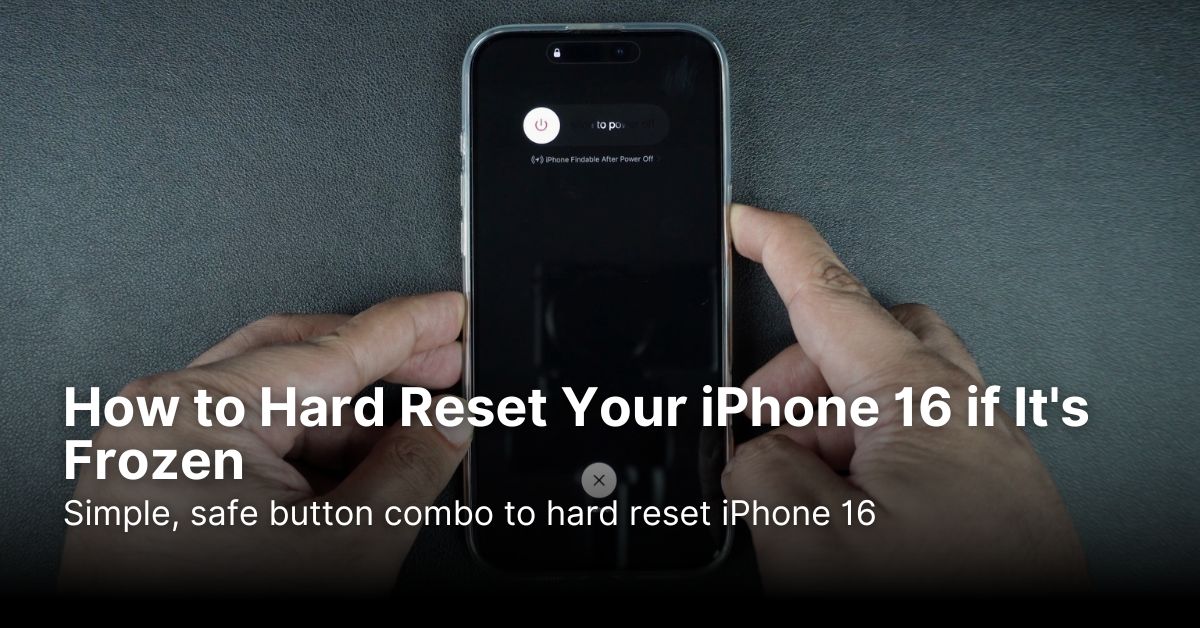
Now, this is the most important part: keep holding the Side button. You will see the “slide to power off” screen appear. Ignore it completely! Don’t touch the slider. Just keep your finger pressed firmly on the Side button. The screen will go black, and a few seconds later, the Apple logo will appear. As soon as you see that Apple logo, you can release the Side button.
That’s it! You’ve successfully performed a hard reset on your iPhone 16.
What to Expect After the Hard Reset
Once you release the Side button, your work is done. Your iPhone 16 will now go through its normal startup sequence. This might take a minute or two, so be patient. You’ll see the Apple logo, and then it will boot up to your lock screen.
You will need to enter your passcode to unlock your device for the first time after a restart—Face ID won’t work until the passcode has been entered. Once you’re in, you should find that everything is exactly where you left it. Your photos, messages, apps, and settings are all 100% intact. The only difference is that the glitch that caused the freeze should now be gone, and your phone should feel responsive and smooth again.
What If the Hard Reset Doesn’t Work?
In most cases, a force restart is all you need. But what if you’ve tried the button combination multiple times and your iPhone 16 is still frozen or won’t turn on? Don’t worry, there are a few more things you can try before calling for help.
First, Check Your Battery
This might sound obvious, but a completely dead battery can sometimes look like a serious software problem. If the battery is critically low, the device won’t have enough power to even display the low-battery icon, leading to a persistent black screen.
Before you assume the worst, plug your iPhone 16 into a wall charger using a reliable cable. Leave it charging for at least 30-60 minutes. Sometimes, a deeply discharged battery needs a good amount of time to build up enough charge to power on. After it’s been charging for a while, try the hard reset procedure again while it’s still connected to the charger.
Entering Recovery Mode
If a hard reset fails and you’re still stuck on the Apple logo or a black screen, the next step is Recovery Mode. This is a more powerful troubleshooting state that allows your iPhone to communicate with a computer even when the operating system won’t load properly.
To do this, you’ll need a Mac or a PC with the latest version of iTunes. You’ll connect your iPhone to the computer and perform a similar button sequence to put it into Recovery Mode. Once connected, your computer will give you the option to either Update or Restore your iPhone. Always choose Update first. This will attempt to reinstall iOS without erasing your data. Only choose Restore as an absolute last resort, as this is a full factory reset that will erase everything.
When to Contact Apple Support
You’ve tried a hard reset, you’ve charged the battery, and maybe you even attempted Recovery Mode, but your iPhone 16 is still a beautiful, expensive paperweight. At this point, the problem is likely related to hardware, not software. It could be a faulty display, a disconnected battery, or an issue with the logic board.
This is the time to stop troubleshooting on your own and seek professional help. Your best bet is to schedule an appointment at an Apple Store’s Genius Bar or contact an Apple Authorized Service Provider. They have the diagnostic tools and expertise to identify and fix hardware problems. Continuing to try and fix it yourself could potentially cause more damage, so it’s wise to let the experts take over.
Read More: iPhone 16 Overheating? 5 Easy Fixes to Keep It Cool
Frequently Asked Questions (FAQs)
1. Does a hard reset on my iPhone 16 delete my photos or contacts?
No, absolutely not. A hard reset is just a forced restart. It does not affect your personal data, photos, apps, or settings in any way.
2. What is the difference between a hard reset and a factory reset?
A hard reset simply reboots your phone to clear temporary glitches without deleting anything. A factory reset is a drastic measure that erases all your personal data and returns the phone to its original software state, as if it were new.
3. How often should I hard reset my iPhone 16?
You should only perform a hard reset when your device is unresponsive or experiencing a significant software issue that a normal restart can’t fix. It’s not meant for regular maintenance.
4. My iPhone 16 is stuck on the Apple logo. Will a hard reset fix it?
Yes, this is one of the most common problems that a hard reset is designed to solve. It forces the boot-up process to start over, which usually resolves the issue.
5. Can I hard reset my iPhone 16 if the buttons are broken?
Unfortunately, no. A true hard reset requires the physical button combination because it’s a hardware-level command. If your buttons are broken, you will need to get them repaired by Apple or an authorized service provider.
Conclusion
A frozen iPhone 16 can be alarming, but now you have the knowledge and confidence to handle it like a pro. Remember that this simple yet powerful procedure is your first line of defense against software glitches.
- A Hard Reset is Safe: It’s a force restart that will not erase any of your precious data, photos, or settings.
- The Magic Combo: Quickly press and release Volume Up, then Volume Down, then press and hold the Side button until the Apple logo appears.
- It Solves Many Problems: Use it for an unresponsive screen, a frozen app, or when you’re stuck on the Apple logo.
- Know When to Escalate: If a hard reset and a good charge don’t work, consider Recovery Mode or contact Apple Support for potential hardware issues.
Next time your iPhone 16 acts up, take a deep breath, follow these steps, and get back to enjoying your device in minutes. You’ve got this!